Viewing and paying invoices
You can view invoices, apply account credit and download a PDF without leaving CreeperPanel.
- Open the account menu and choose Invoices, or open Profile → Invoices.
- Check You owe and Your credit, then find the bill under Latest Invoices.
- Select View beside it.
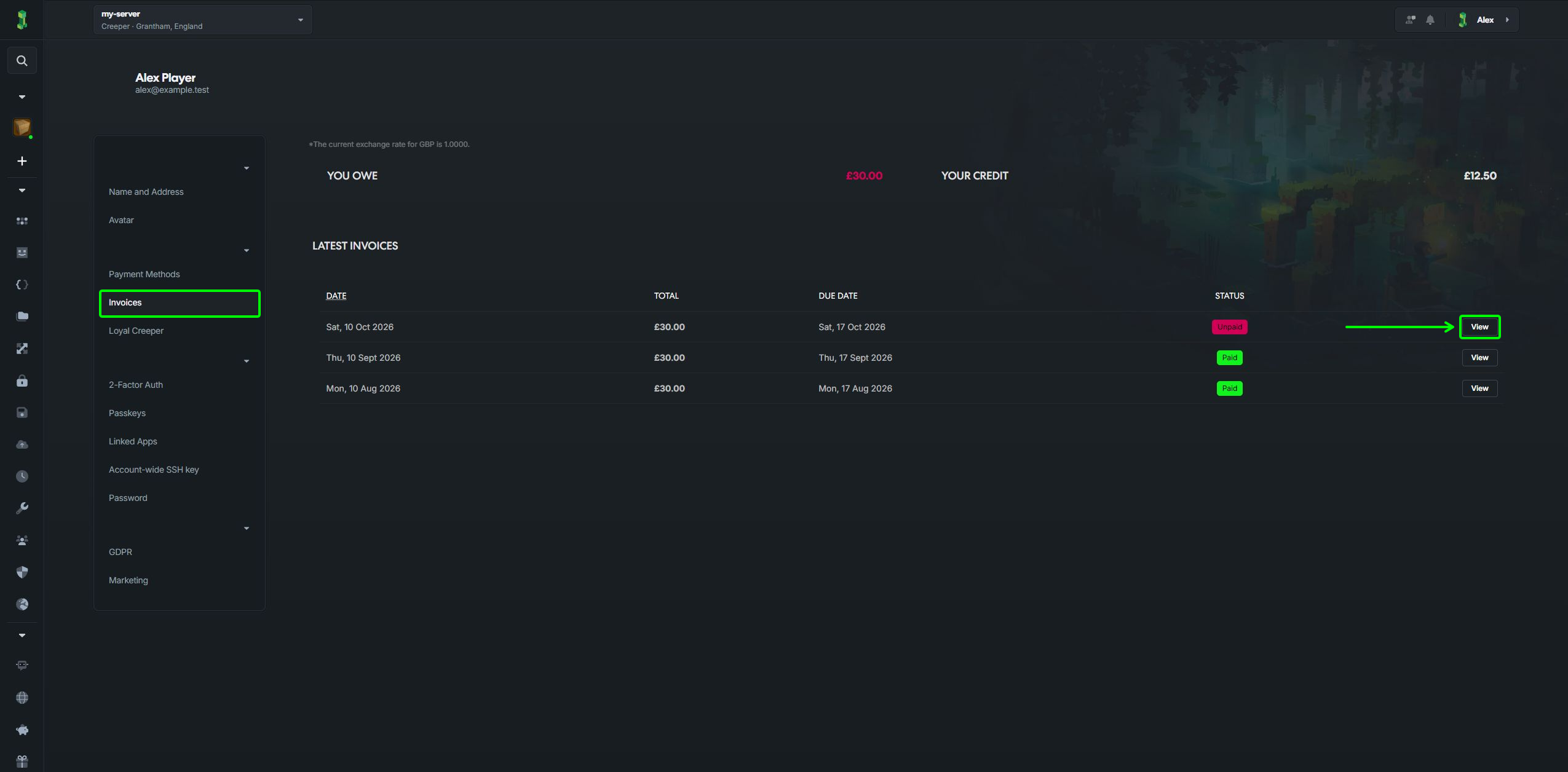
The invoice shows its status, service period, items, tax, totals and recorded transactions. Check these details before paying. Use Download PDF to keep a copy.
Apply account credit
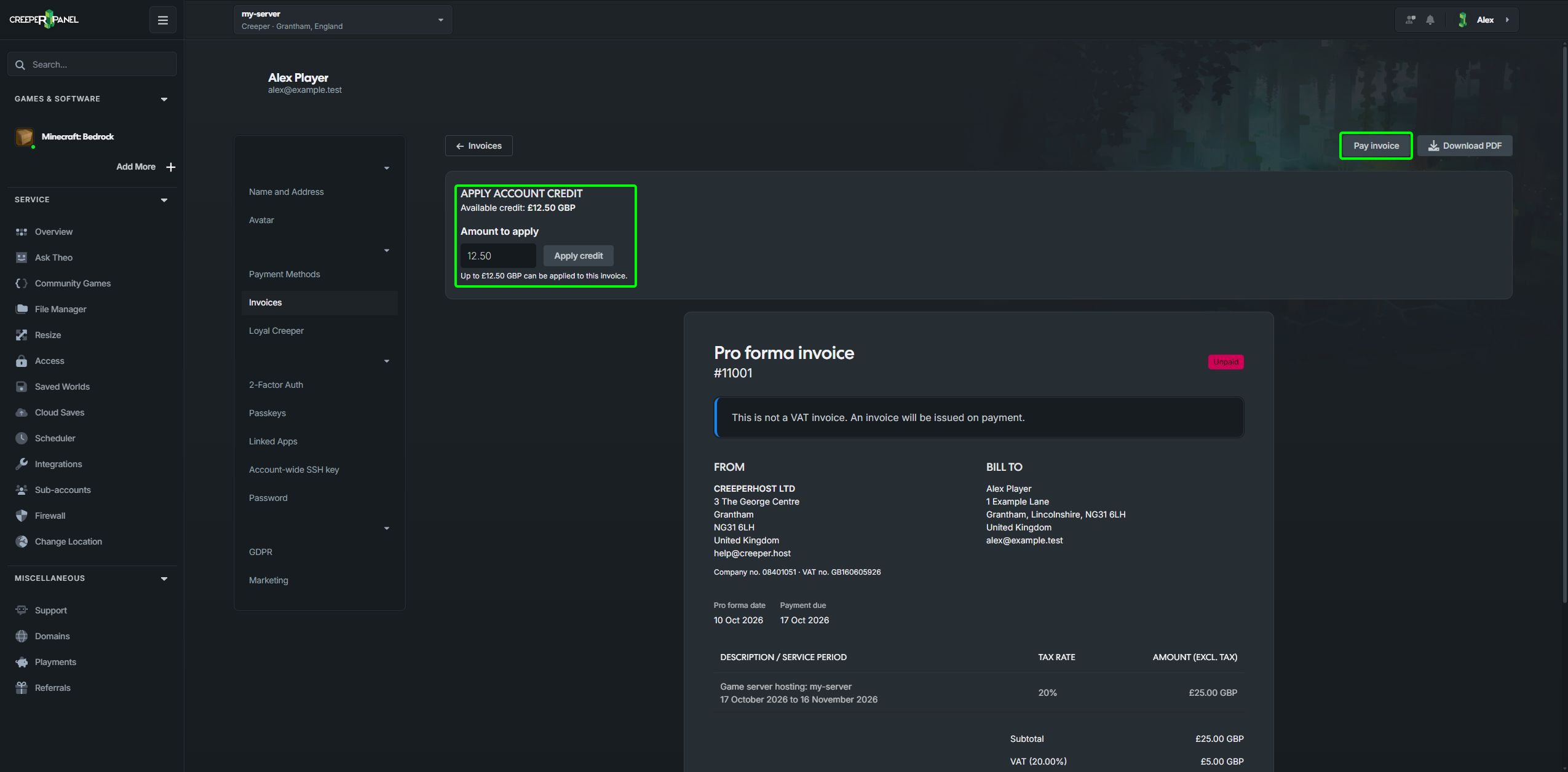
On an unpaid invoice, find Apply account credit. The page shows your available credit and the maximum that can be applied to that invoice.
- Enter the amount under Amount to apply.
- Select Apply credit.
- Wait for the balances to update, then check the amount still due.
If payment options are open, select Close payment before applying credit. If the page asks you to Refresh balances, do that before trying another payment.
Pay the remaining balance
- Select Pay invoice.
- Choose an available Payment type.
- Complete the payment steps displayed below it.
- Return to the invoice and check its status and transactions.
Available payment types depend on the invoice. If the payment form cannot load inside the panel, use Pay in a new tab when offered. Avoid submitting another payment just because the page is slow to update; check the invoice or contact support first.
To share a bill with your community, see Playments. To change your saved default card, see Managing your account details.