Signing in with a passkey
A passkey lets you sign in to CreeperPanel using your device's unlock method, such as Windows Hello, Touch ID, a password manager or a security key. You do not need to type your account password for a passkey sign-in.
Add a passkey
- Open CreeperPanel in a browser and sign in.
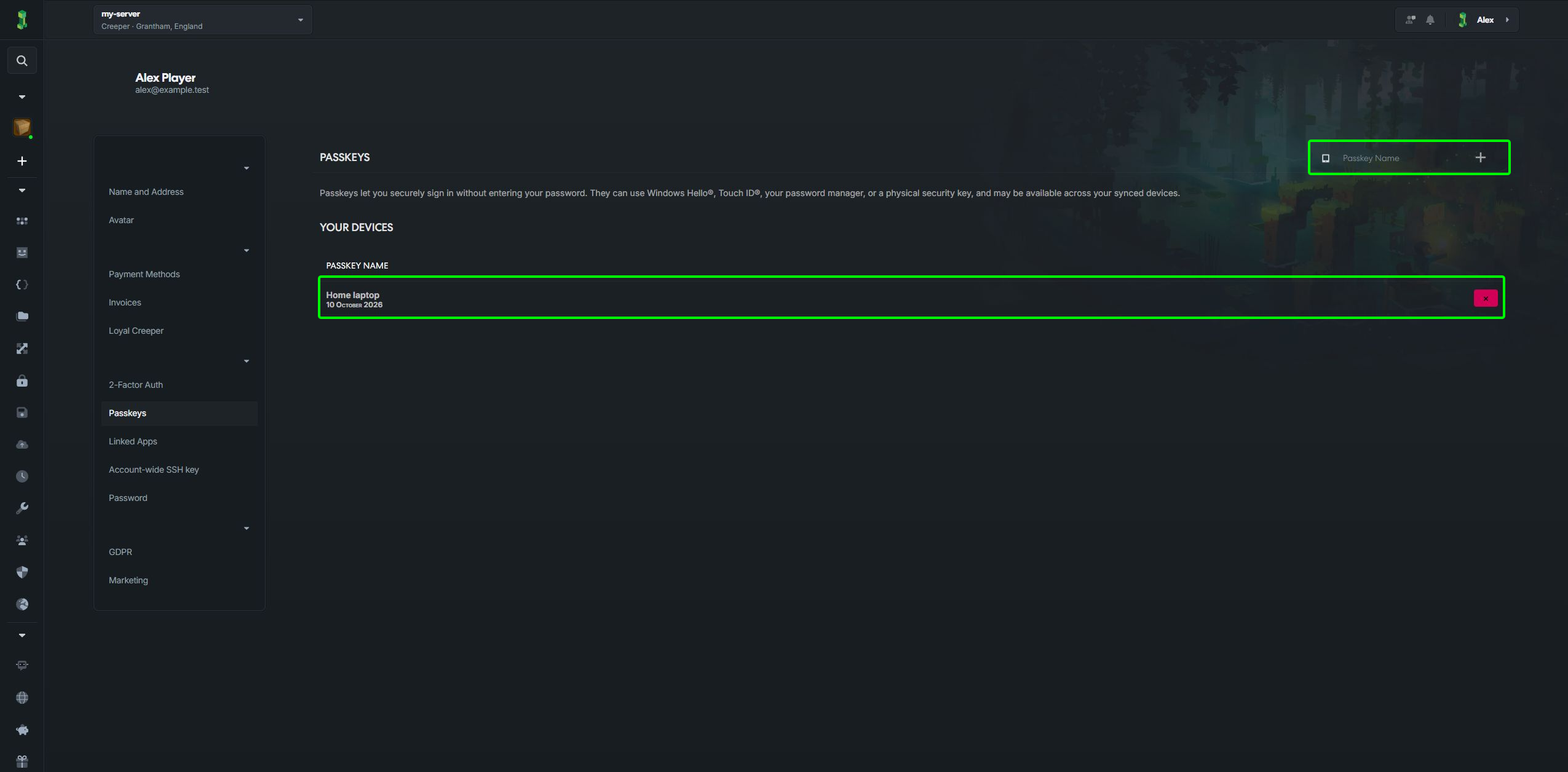
- Open the account menu, choose Profile, then Passkeys.
- Enter a name you will recognise, such as
Home laptop, in Passkey name. - Select the + button and follow your browser or device's prompts to save the passkey.
- Check that it appears under Your devices.
Passkey setup requires a compatible browser and device. If you see the unsupported-browser message in a desktop or mobile app, open CreeperPanel in your browser to set it up.
Use or remove a passkey
On the sign-in page, choose the passkey sign-in option and unlock the saved passkey when prompted. Compatible browsers may also offer it when you select the sign-in field.
To remove a passkey from your account, return to Profile → Passkeys and use the remove button beside its name. Remove credentials you no longer use. If an older entry says Needs replacement, add a new passkey before removing it.
Keep another way to access your account available when changing your sign-in methods. Two-factor authentication is managed separately, and Linked Apps lists authorised apps rather than passkeys.