Transfer your service to another location
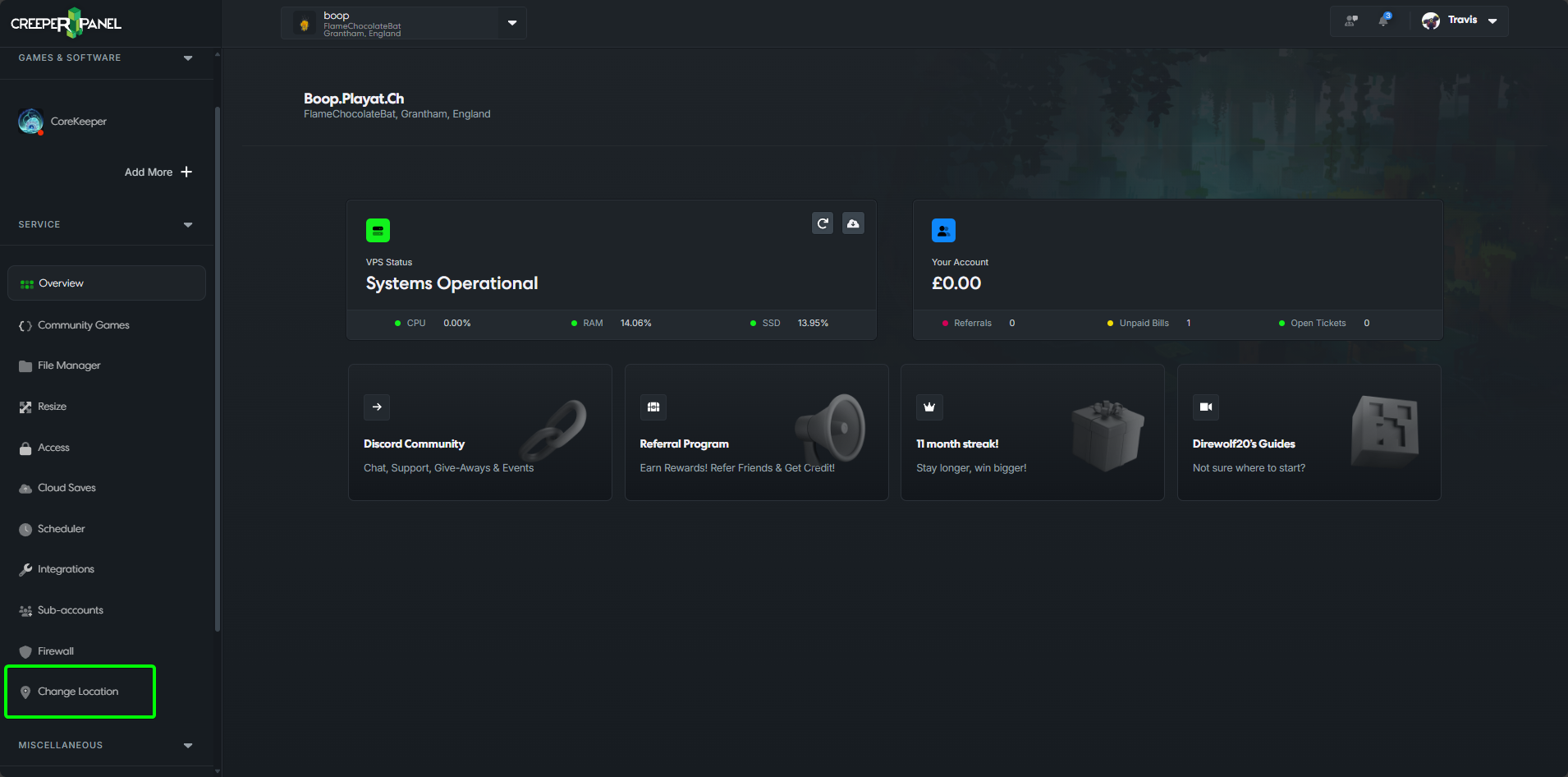
To begin transferring your service to another location, log into the CreeperPanel. In the left sidebar, scroll down until you see a link called Change Location.
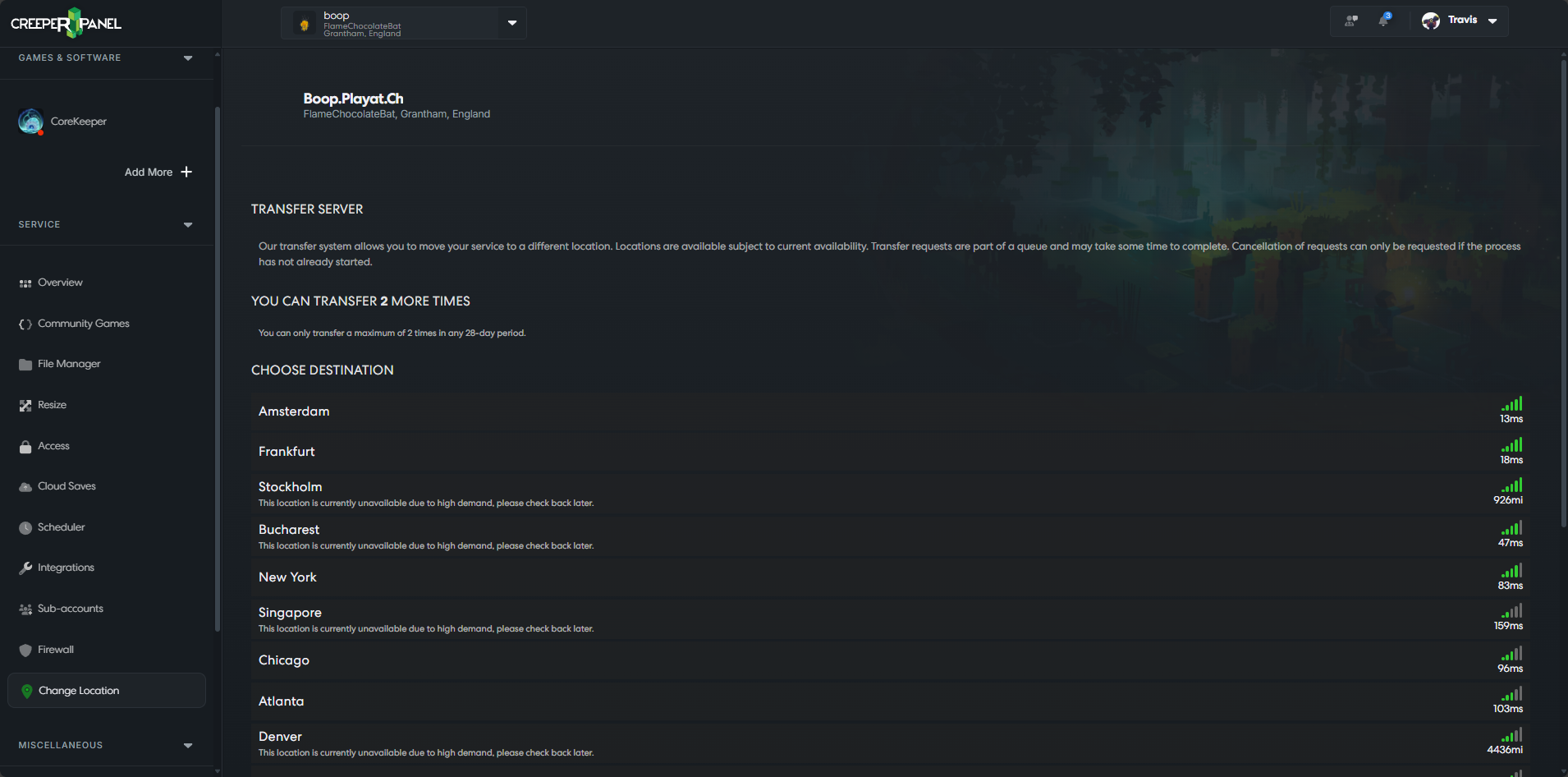
Once the page loads, you will see a list of locations and the ping to those locations.
You may notice that some have (Not Available) next to them. This often means that the location is currently full. If you select that location you may need to wait for a longer period of time before your service will be transferred
Click on the location you would like to transfer your service to; you should now see a confirmation popup asking if you want to move your service to the selected location. Select Request to proceed.

Upon clicking the Request button, your server will be added to the transfer queue.
Depending on the queue size, your service could be in the queue for several hours.
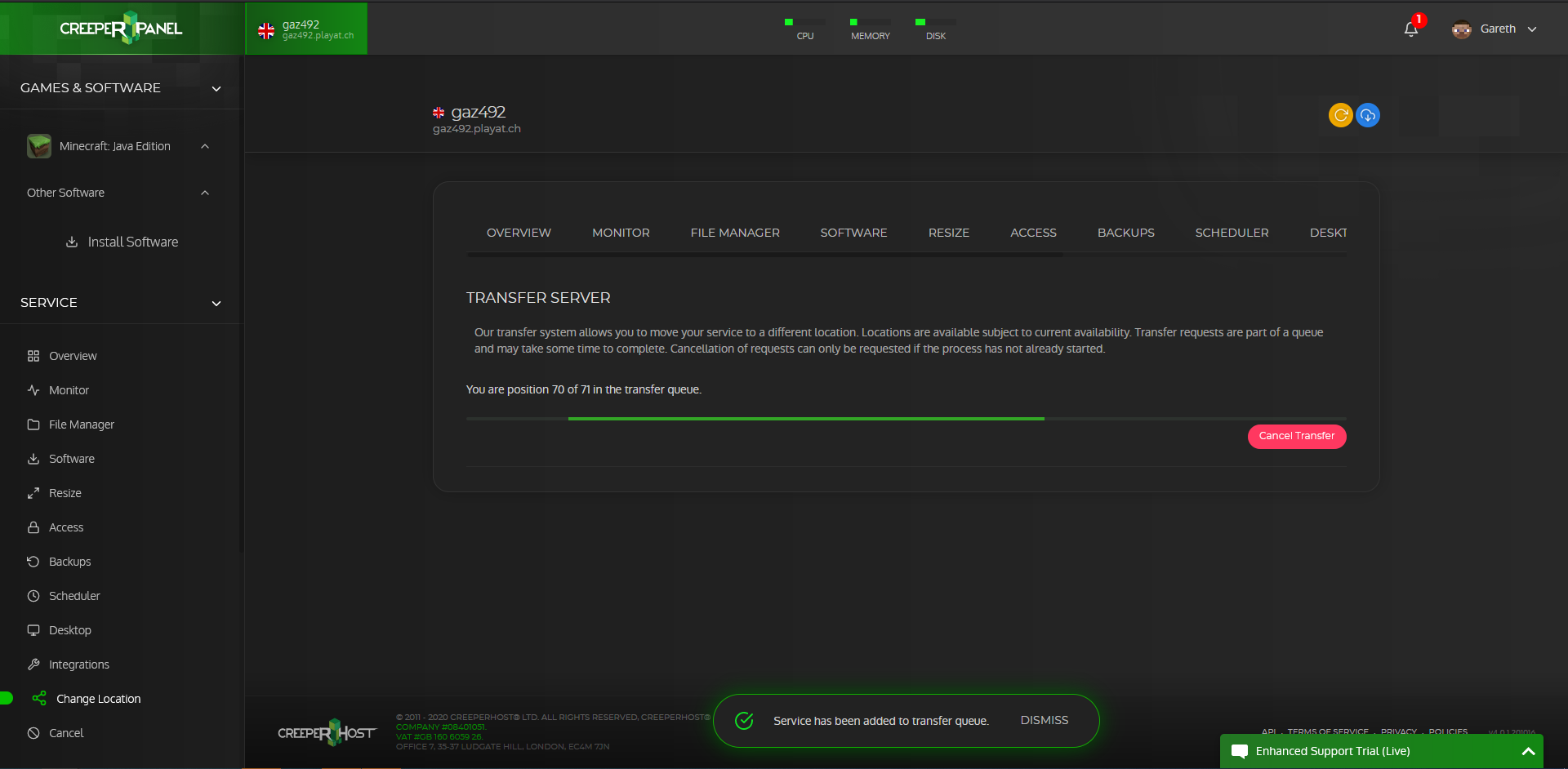
If you want to cancel your transfer request, now is the time to do it. Once the service transfer to the new location starts, you will not be able to cancel the transfer.
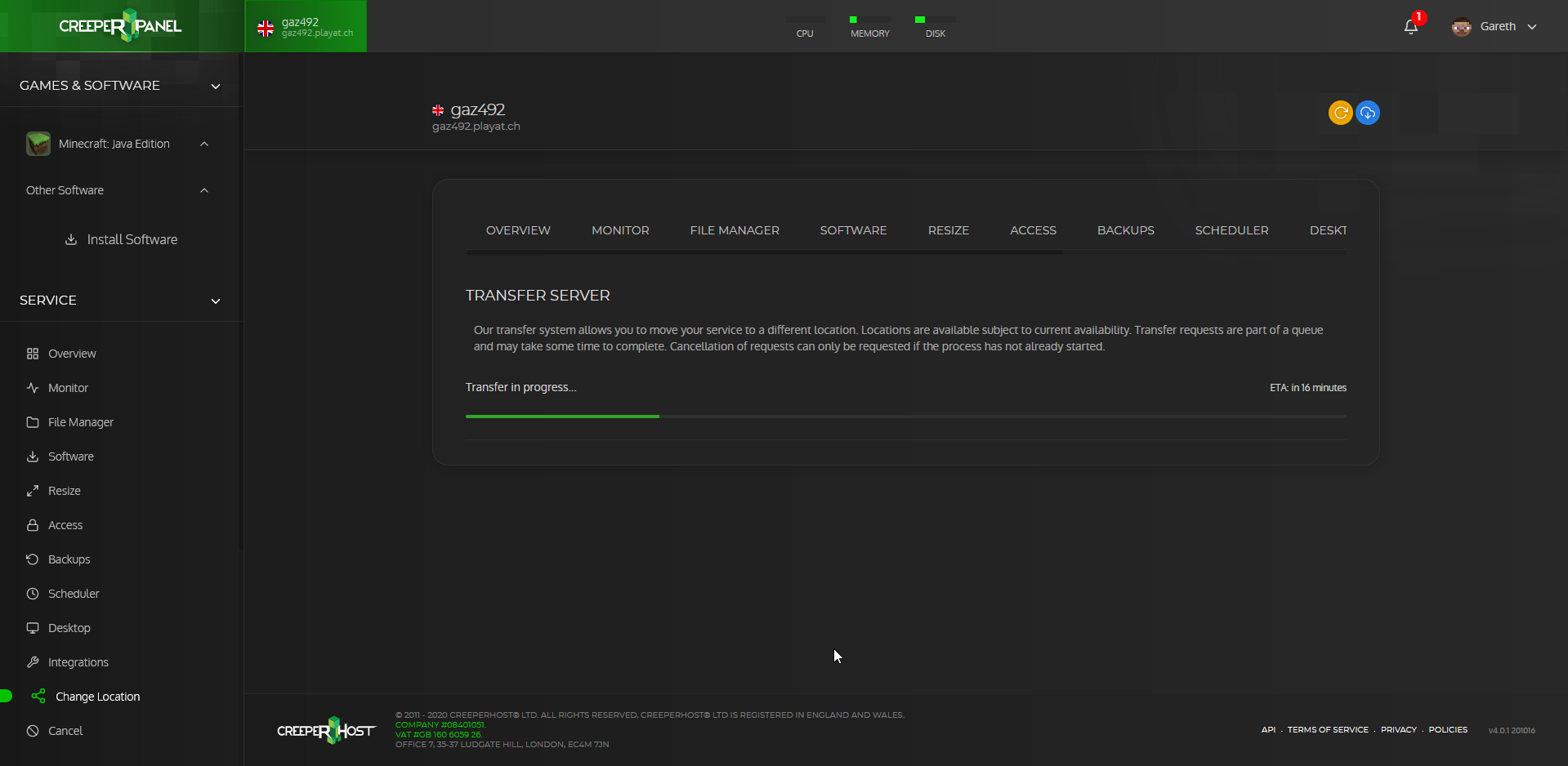
When your server is being transferred, you will be given an ETA of when the transfer will be finished.
Once the transfer has finished, you will be notified, and the Transfer page will display the location dropdown again.