Find what is using your server's disk space
Worlds grow, backups pile up and modpacks make themselves at home. CreeperPanel's Disk usage view helps you find where the space has gone, one folder at a time.
Open Disk usage
- Sign in to CreeperPanel and select your server.
- Open Overview under Service.
- Select the CPU / SSD / RAM strip at the bottom of the VPS Status card to open Monitor.
- Choose the Disk usage tab and let the scan finish.
The folder list and chart show the space used by your server files. Games and Minecraft instances have recognisable names, with their folder paths shown underneath where needed.
Follow the largest folders
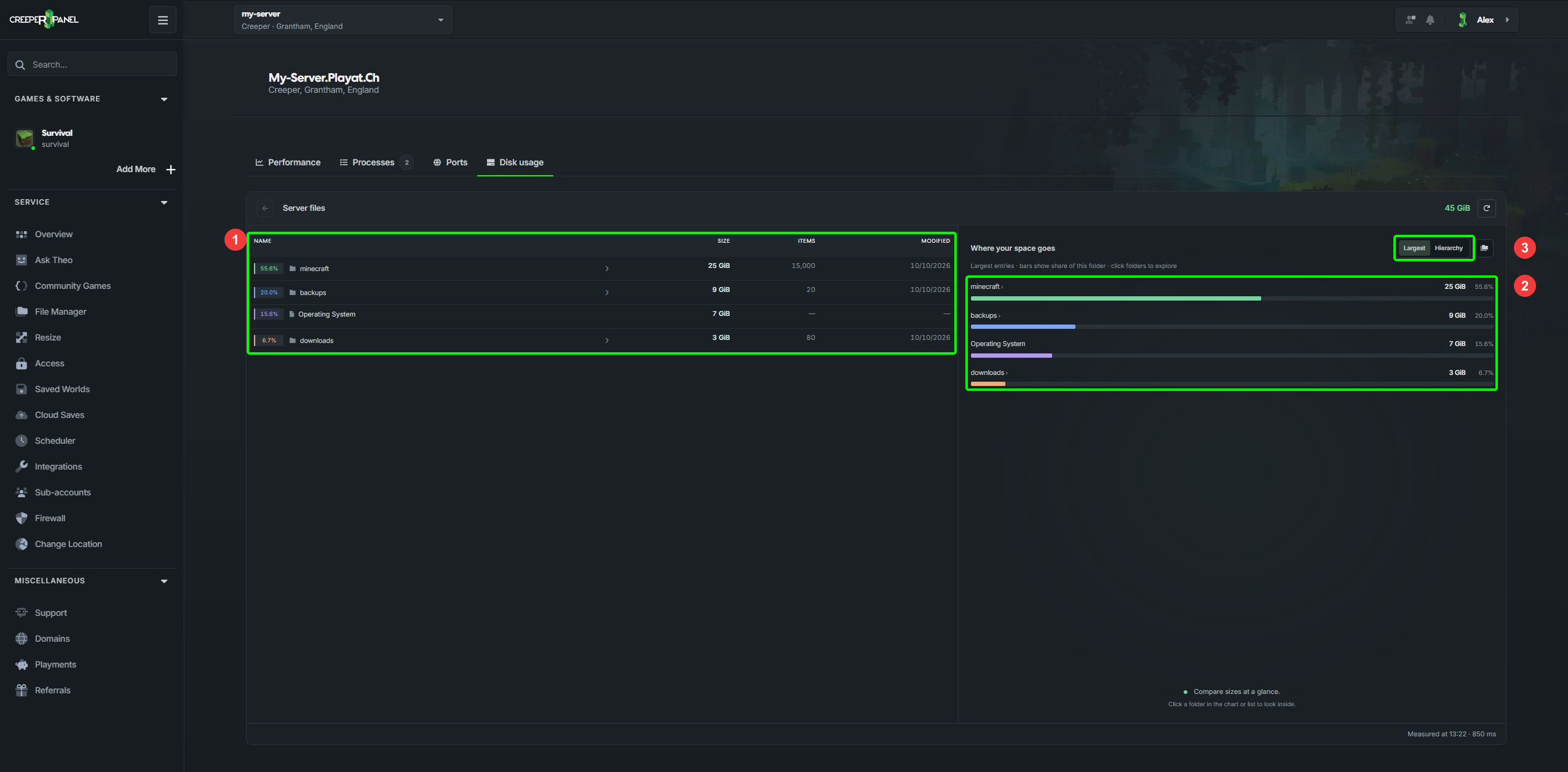
1: Folder list. 2: Largest folders. 3: Chart view.
Start with Largest to compare the biggest files and folders. Select a folder in either the list or the chart to look inside, then keep going until you find what is taking up the space.
For example, open Minecraft: Java instances, choose your instance, then look inside world or mods. The exact folders depend on what is installed on your server.
- Largest shows the biggest entries as bars. Smaller entries are grouped beneath the chart, but you can still find them individually in the list.
- Hierarchy shows nested folders as rings. Each ring goes one folder deeper. Hover over a section to see its details, or select a folder to explore it.
- The path at the top lets you jump back to an earlier folder. The back arrow moves up one level.
Inside a folder, percentages are relative to that folder. A world using 70% of one instance's folder is not necessarily using 70% of your whole server.
Open the folder in File Manager
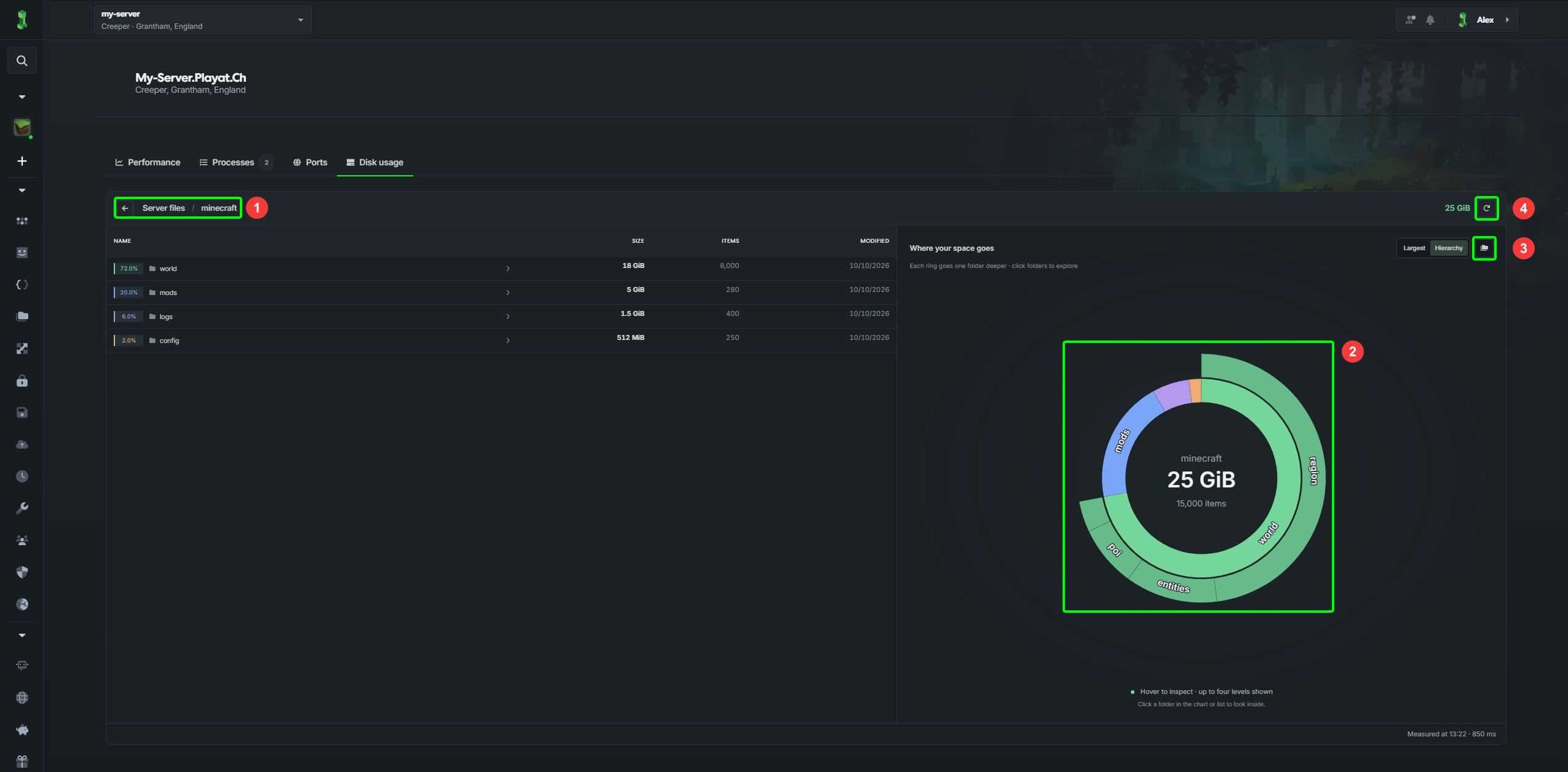
1: Back and folder path. 2: Folder hierarchy. 3: Open in File Manager. 4: Rescan disk usage.
On a desktop browser, once you have found the folder you want, select the folder icon labelled Open in File Manager, beside the chart controls. File Manager opens at that location in a new window. If nothing opens, check whether your browser has blocked the pop-up.
Before removing anything, check what it belongs to and keep a backup of anything you want to save. A large world may simply contain a lot of exploring. Older downloads or local backup archives may be easier places to reclaim space, once you have checked that you no longer need them.
SaveGuard stores its backups separately from your server, so its restore history is not taking up this disk space.
After moving or removing files, return to Disk usage and select Rescan disk usage, the circular arrow beside the folder total. The figures are a snapshot from the last scan; the measurement time appears at the bottom.
Show folder sizes in File Manager
You can also see folder totals while browsing files. Open File Manager's settings and enable Show directories on right, then Show recursive directory sizes. Recursive sizes include the contents of each folder, rather than just the folder itself. The recursive-size option is unavailable while directories are hidden from the right-hand list.
If the figures look incomplete
A + after a folder's size means that it was not fully measured. Read any warning above or below the list, then try another scan. Large folders or restricted access can prevent a complete result.
Hidden files and folders can count towards the total without appearing in the chart or list. To check them, open File Manager and enable Show hidden files and directories in its settings.
Operating System accounts for space outside the normal server-file folders. It is an explanation of disk usage, not a folder to delete.
If you use a sub-account, you need permission to view server information and use File Manager. If CreeperPanel says disk breakdown needs a system update, update your server or contact our support team.