SaveGuard
An update went wrong? Someone's experiment got a little out of hand? SaveGuard helps you get back to the world you've been building together.
On Premium and Pro, SaveGuard backs up your supported game saves hourly, with up to 7 days of history. Those backups live on a separate machine, so a hardware failure on your game server doesn't take the stored backups with it.
Find the right moment
SaveGuard looks after supported game saves automatically while your instance is running. Select your game instance in CreeperPanel, then:
- Open SaveGuard under Settings in the instance sidebar.
- Choose a day with available checkpoints.
- Drag along the timeline to find the moment you want to return to. Earlier checkpoint and Later checkpoint move between the available backups. Check the full date and time under Selected restore point; the timezone is shown beneath the timeline.
- When you are ready to restore, ask players to disconnect and stop the instance. Select Review restore to prepare a safety backup and check what restoring this checkpoint would change.
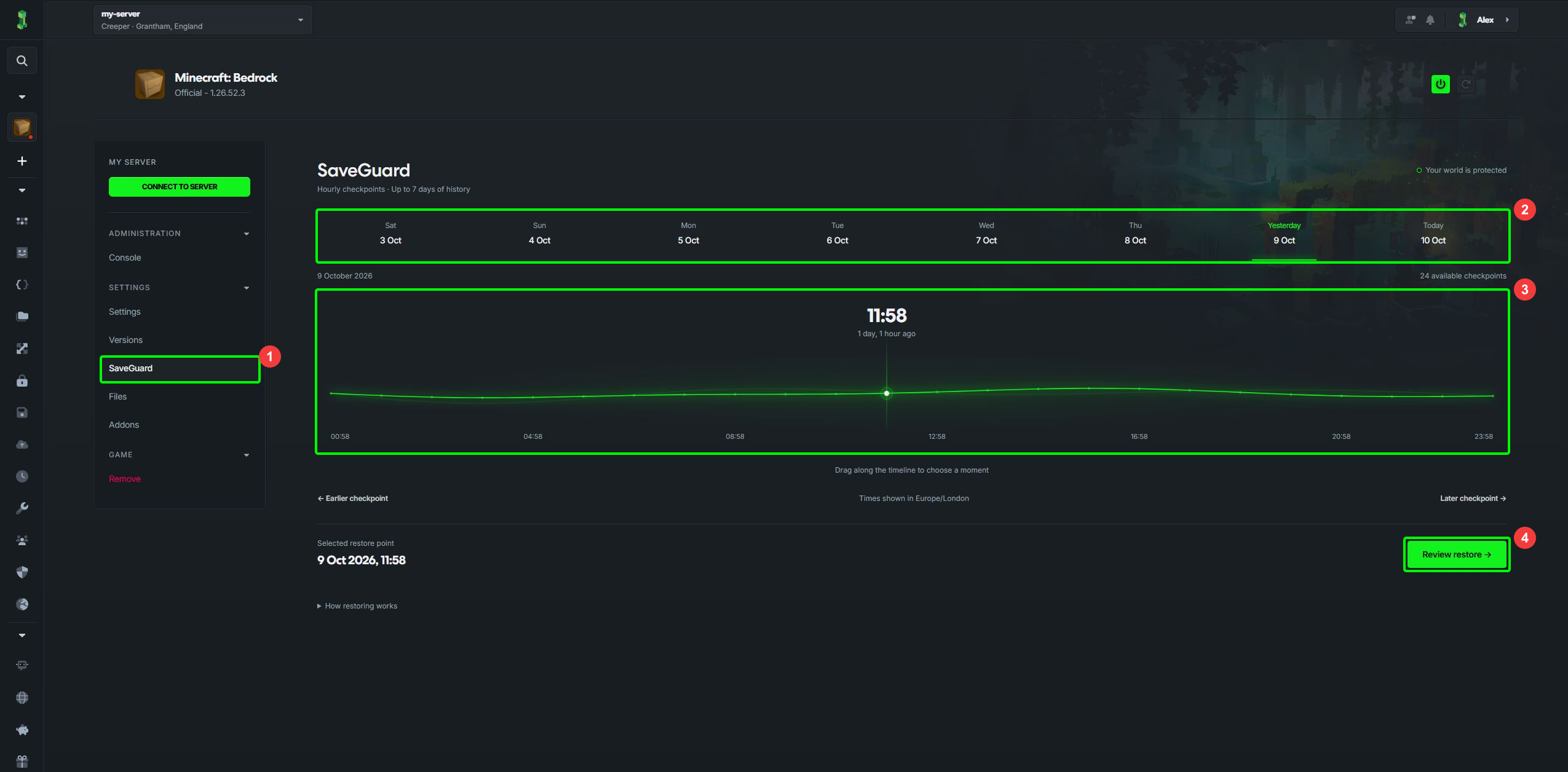
You can use either compact or expanded navigation. The screenshot above uses compact navigation, with game icons down the left edge.
Review and restore
Review restore first creates a fresh backup of the current game saves. Give it time to finish. This becomes a Rollback backup on the timeline, so you have a way back to the saves from before the restore.
When the backup is ready, the review shows how many files will be added, changed or removed. Select Show changes to inspect the file list. If nothing has changed since the selected checkpoint, CreeperPanel lets you know there is nothing to restore.
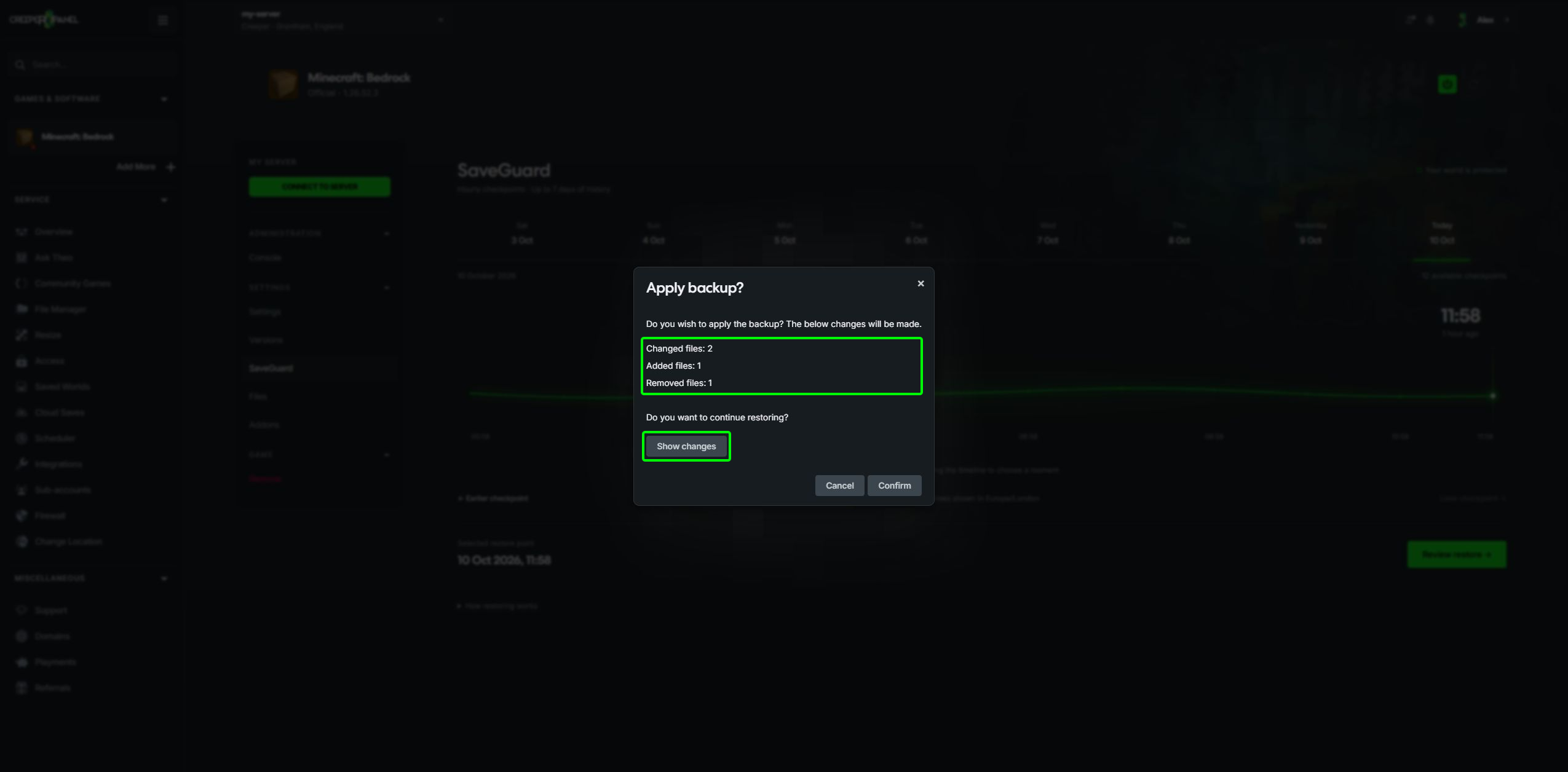
Keep the instance stopped so the game is not still changing its saves. Check the selected checkpoint and the file changes, then select Confirm in Apply backup? when you are ready. This replaces the affected game saves with the selected backup. Start the instance again once the restore finishes.
Changed your mind? Select Cancel. Reviewing a backup does not apply the restore; the safety backup remains available on the timeline.
Use a rollback backup
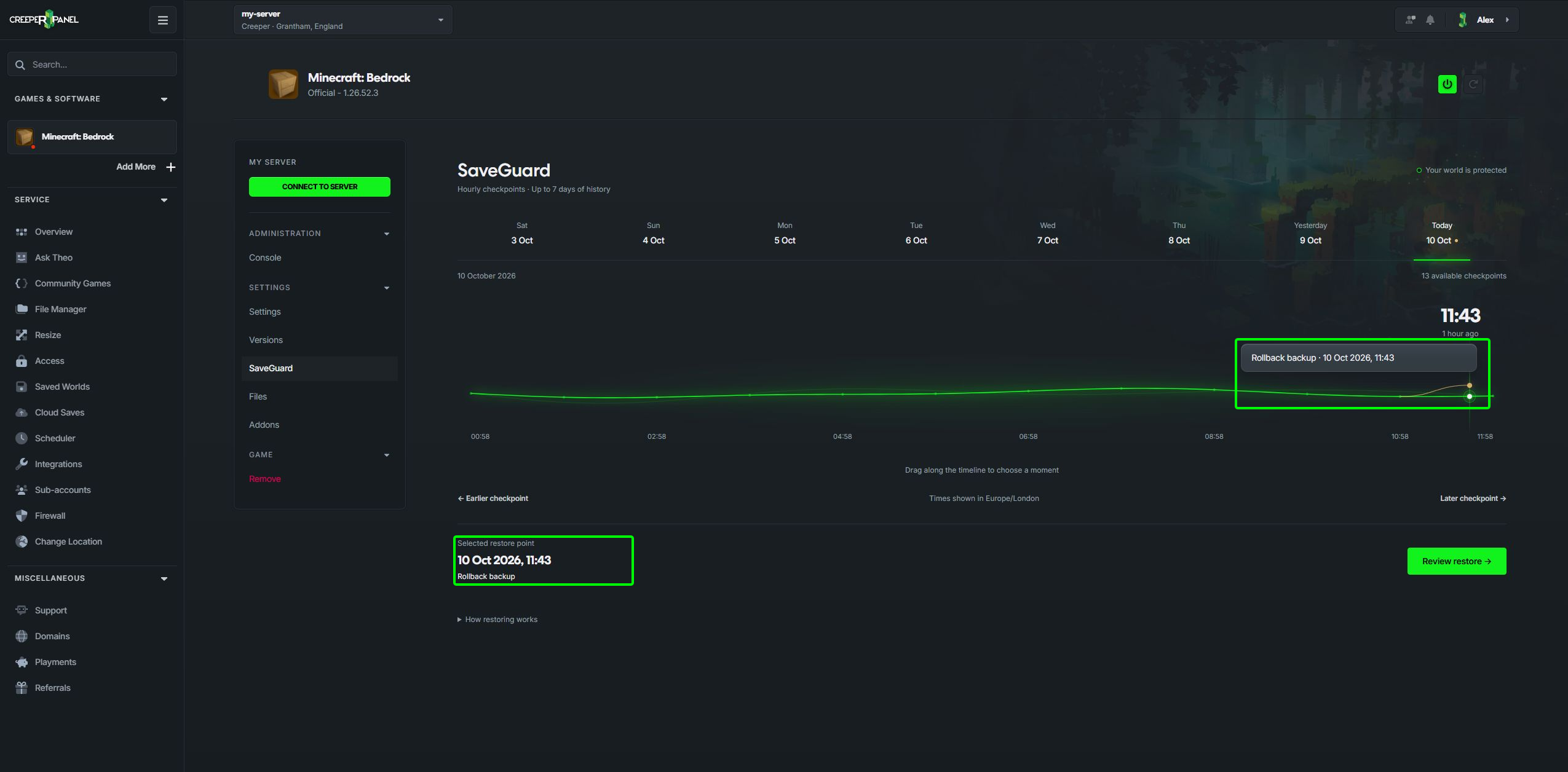
Rollback backups appear as branches off the timeline and are marked Rollback backup. Select one to see its date and time, then use Review restore in the same way as any other checkpoint. Choose the branch from before the restore you want to undo.
If there are no checkpoints yet
A newly protected instance may show SaveGuard is active and preparing your first checkpoint. Let the first backup finish, especially if your saves are large, then check again.
If the page says SaveGuard is not yet available for this server, there is no switch you need to turn on. Availability depends on your service and supported game. Contact support if you are unsure whether your instance should be protected.
SaveGuard protects supported game saves. It is not a complete copy of every file on your server, so keep your own copies of anything else you need before removing or replacing it.