Generating your own SSH key
NEVER share your private key with anyone, as this will allow them to access your server.
Windows
To generate an SSH key on Windows, you will need to download PuttyGen from https://www.chiark.greenend.org.uk/~sgtatham/putty/latest.html
Once you have PuttyGen downloaded, open it, and you should see a screen such as the one below.
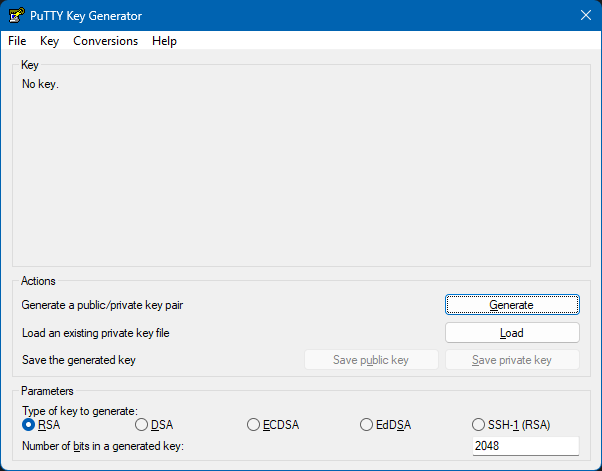
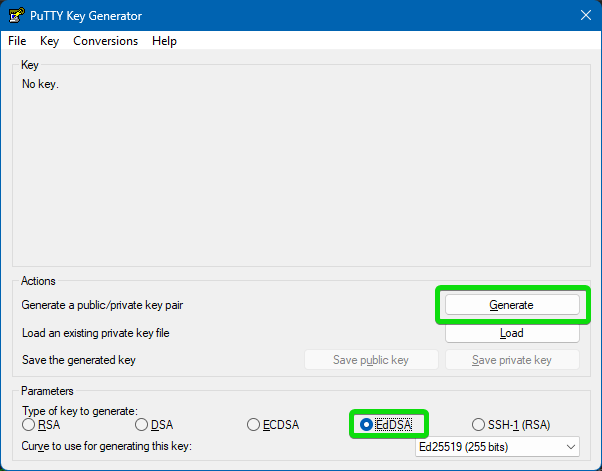
We recommend changing the Parameters at the bottom so that EdDSA is selected, this allows you to generate a key quickly, and provide a shorter, yet very secure key.
Once you have selected EdDSA click on the generate button.
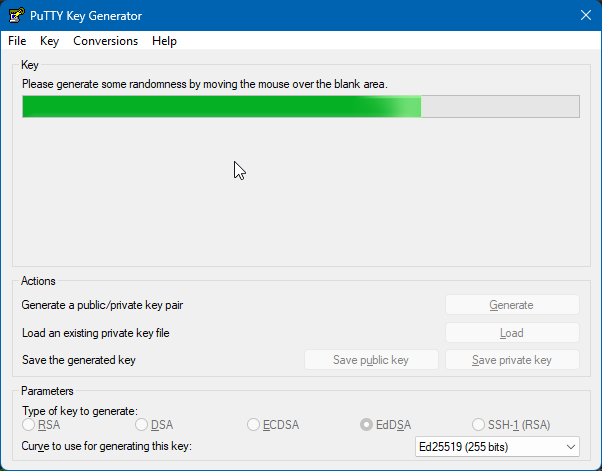
You will now need to move your mouse around in the box below the progress bar to generate your key.
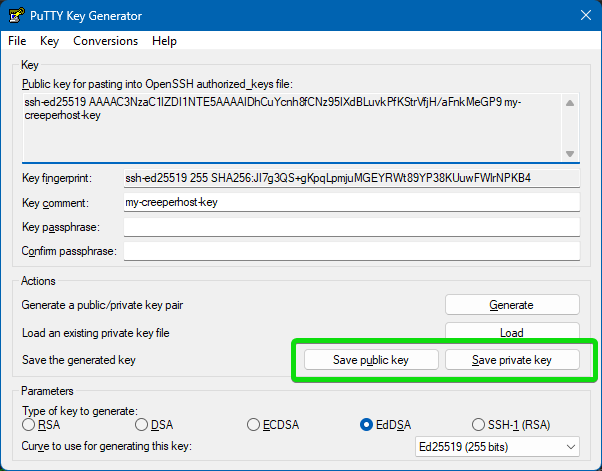
Once the key is generated and the progress bar disappears, click on the Save public key and Save private key buttons, and save them to a secure location on your computer. You can also set a passphrase/password on the keys if you desire.
macOS/Linux
-
Open the terminal app on your operating system.
macOS: Open Launchpad and type Terminal in the search bar at the topLinux: How you open the terminal varies depending on your flavour of Linux, it also may be namedconsoleorKonsole
-
Once the terminal is open, type
ssh-keygen -t ed25519 -f myCreeperHostSSHKey, and pressEnter.- You may be asked about setting a passphrase/password; this isn't a required step, but it does increase the security of your key.
You will now have generated a key in your User directory, and will need to upload the public key to your server.
- To get your public key, type the following in the terminal
cat myCreeperHostSSHKey.pub. - You should now see the public key be printed in the terminal; copy this, then paste it into the box on the CreeperPanel.