WinSCP Timestamp Fixes
Sometimes, when you upload a file to your server via WinSCP, you may encounter an error that looks something like this: set times: Operation not permitted, which results in your file not being uploaded. Don't panic - this is a common issue, and can be fixed relatively easily.
The root cause of this is the way WinSCP handles timestamps on files you upload - by default, it will try and preserve the original timestamp when the file is uploaded, but often encounters an error with permissions. The guide below will cover how to change this.
If you need a refresher on WinSCP, you can find our guide to getting connected to the CreeperPanel HERE.
Before we begin, you'll need to log into your server with WinSCP. Sign in as usual, and when you are connected:
- Find
Transfer Settingsin the toolbar, and open the adjacent drop-down list. - Head to the bottom, and select
Configure.
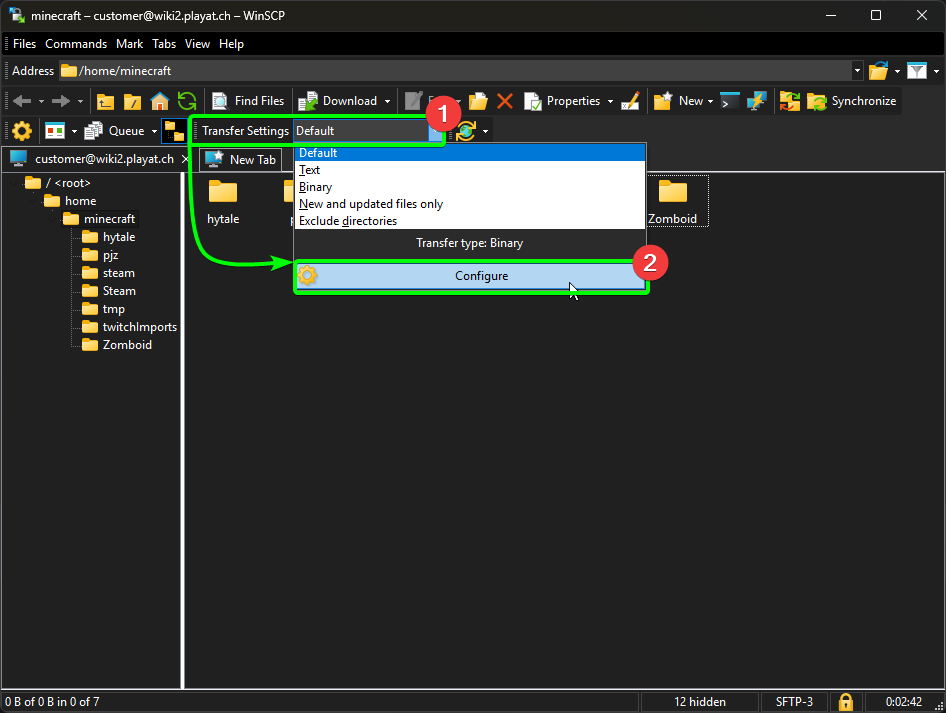
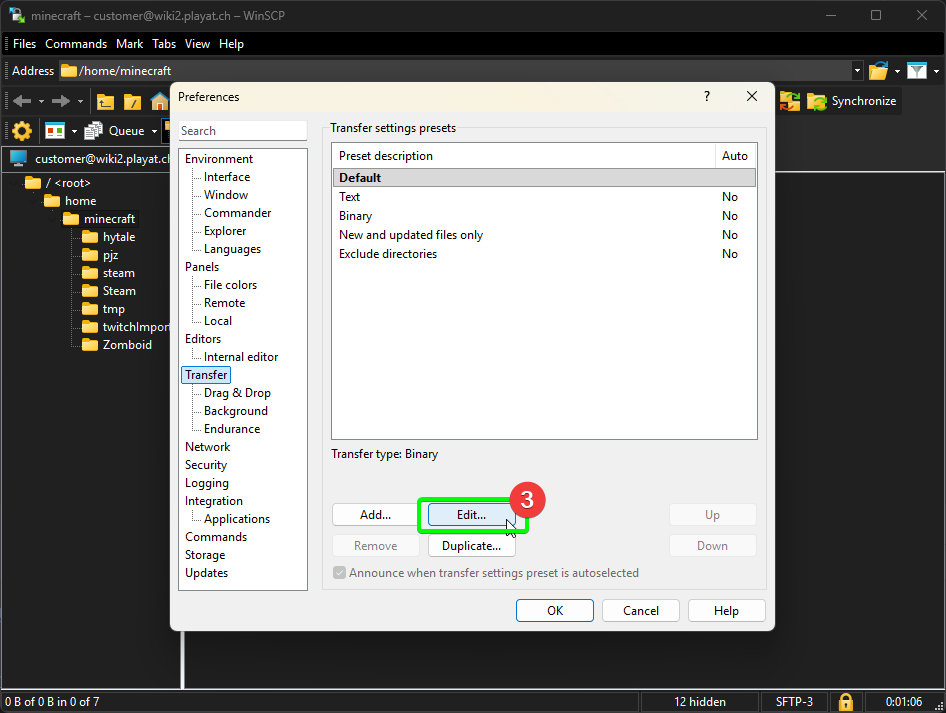
- Select the preset you wish to use (if you haven't added a transfer preset, make sure
Defaultis selected), and selectEditat the bottom. WinSCP will open the Transfer Settings window.
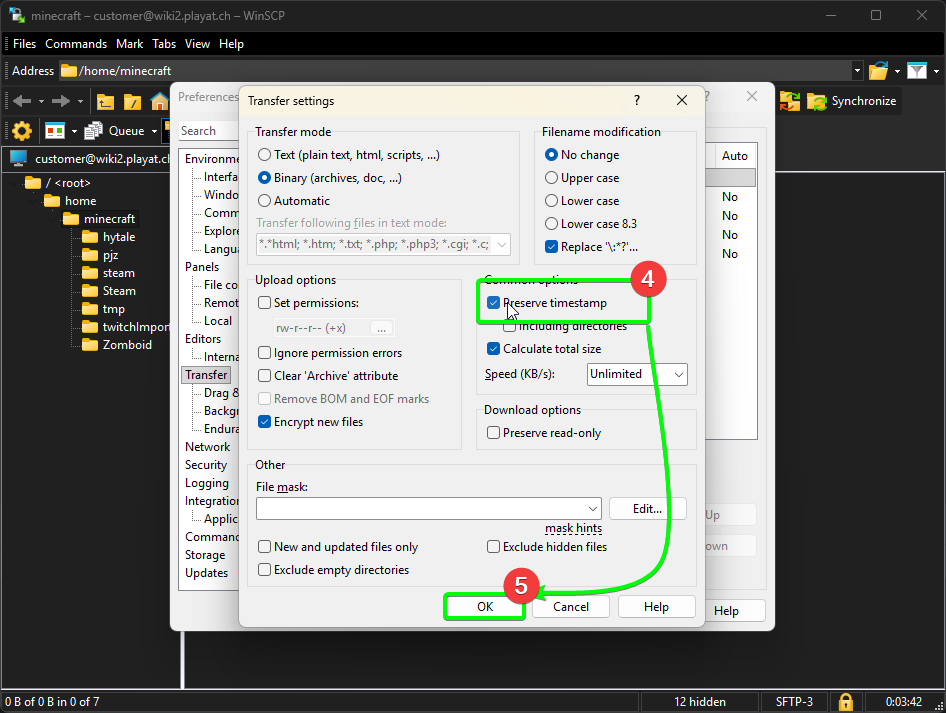
- You should see
Preserve Timestamp- make sure this is unchecked. With this option deselected, rather than try and edit the file's timestamp, WinSCP will use the upload time by default, which should mitigate the errors. - Select
OKto save your configurations.
You should now no longer encounter an error when attempting to upload a file. Awesome!