CyberDuck SFTP Guide
Firstly, download and install Cyberduck. This can be used on either Mac or Windows. You can do this by going to the Cyberduck website http://cyberduck.io
warning
You will now need to download the SSH/ SFTP key from the panel, a guide on finding and downloading the key can be found at https://www.creeperhost.net/help/docs/creeperpanel/file-manager/setting-up-ssh-sftp
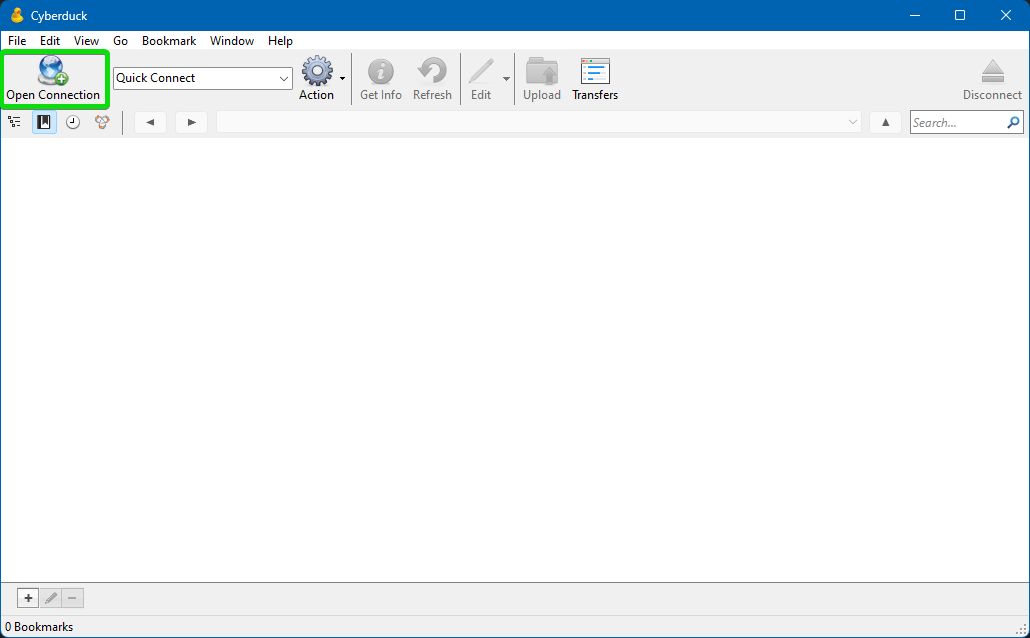
Open Cyberduck, then click Open Connection.
Ensure the following:
- Protocol is set to
SFTP. - The port is
22. - Enter your server's
Hostname(yourservicename.playat.ch). - Enter the user
customer. - Click on
Choose. - Click on the dropdown above the open button and select
All Files. - Navigate to where you saved the
.ppk(Windows), or.pem(macOS) file and click on it, then click onOpen.
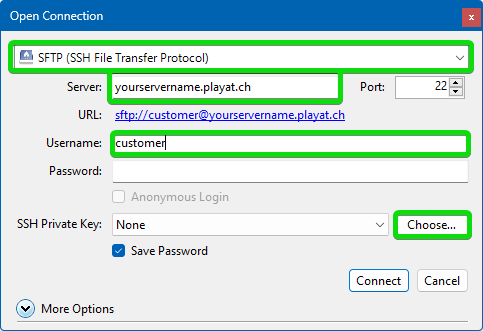
Finally, click connect, and you will be able to access the server's file system.