Use CreeperPanel Mount to access your server files
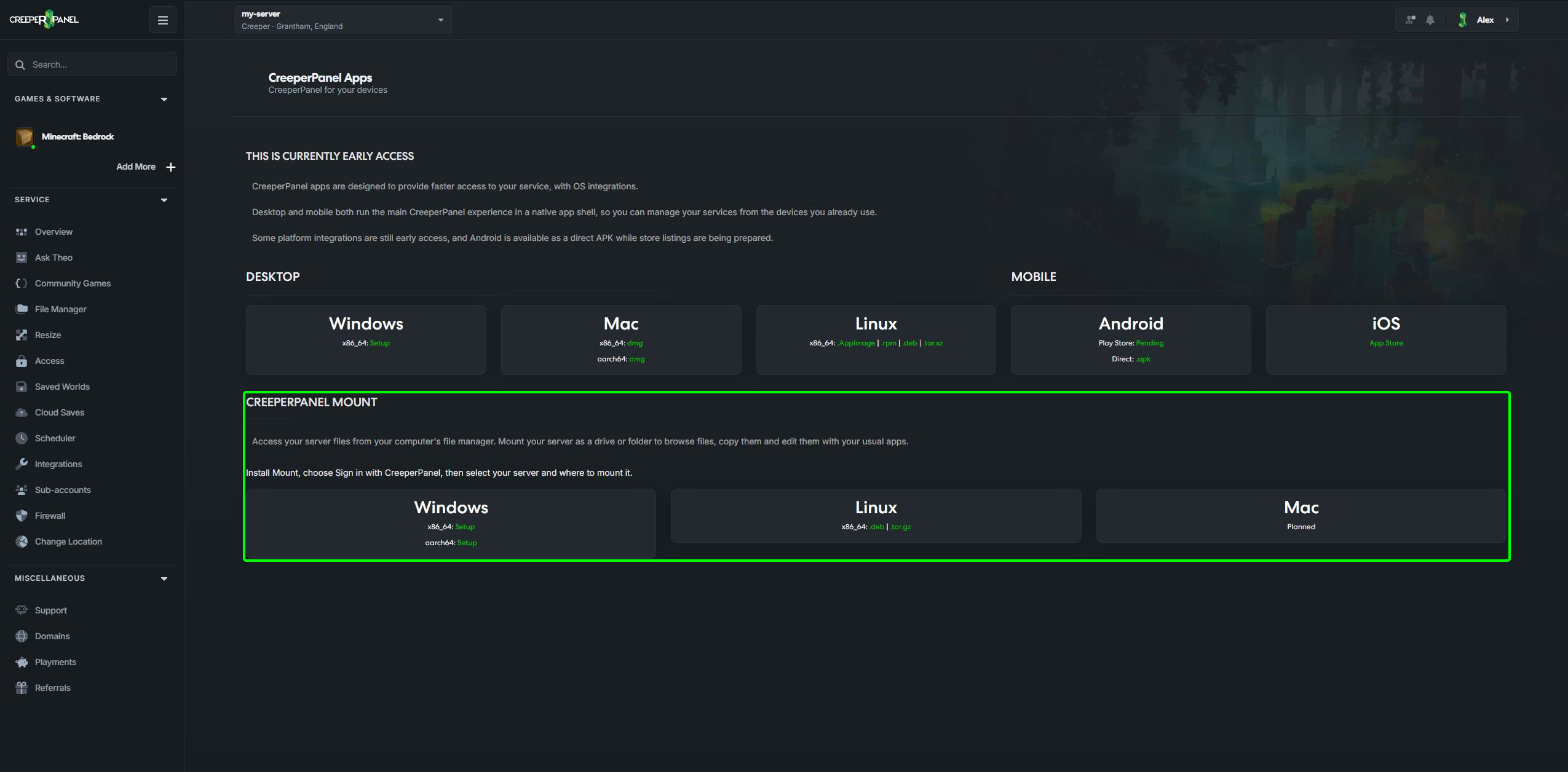
Prefer working with files on your desktop? CreeperPanel Mount brings your server into your computer's file manager as a drive or folder. Browse files, copy them and open them in your usual apps, with your server's access permissions still in place.
Download Mount
- Sign in to CreeperPanel and open your account menu using your name or avatar.
- Choose About, then Explore our apps.
- Find the CreeperPanel Mount section and download the package for your computer.
Windows installers are available for x86_64 (Intel/AMD) and aarch64 (ARM64). Linux x86_64 downloads are available as .deb and .tar.gz; the Linux preview targets Ubuntu 24.04 or a compatible desktop with a working system keyring. Mac support is marked Planned.
If the downloads do not load, select Try again.
Connect your server
- Install and open CreeperPanel Mount. The Windows installer includes the required filesystem driver; if setup requests a restart, restart before opening Mount.
- Choose Sign in with CreeperPanel. Your browser opens for sign-in, server selection and approval. If you only want to browse and download, turn on Read-only access before signing in.
- Back in Mount, choose a Cache folder on a local drive with enough free space.
- Choose an unused drive letter under Mount as on Windows, or an empty Mount folder on Linux.
- Select Mount server. Your file manager opens the mounted location, ready to use.
The cache holds file data and unfinished edits. If a save fails, keep its recovery copy until the issue is resolved.
Manage the connection
Use Mount's tray icon to reopen the app, switch servers, open settings or exit. Closing the window keeps the connection running; Exit disconnects it. Disconnect before changing the cache or mount location.
To remove Mount's access to your account, open Account → Linked Apps in CreeperPanel and remove its entry. Mount will need approval again before it can reconnect.
For an SSH terminal or a separate SFTP client, follow our SSH and SFTP setup guide.