Manage files in your browser
Need to upload a world, tweak a config or grab a log? CreeperPanel's File Manager lets you work with your server files without installing another app.
Find your files
Open File Manager under Service to browse your server, or select a game instance and open Files to start in that instance's folder.
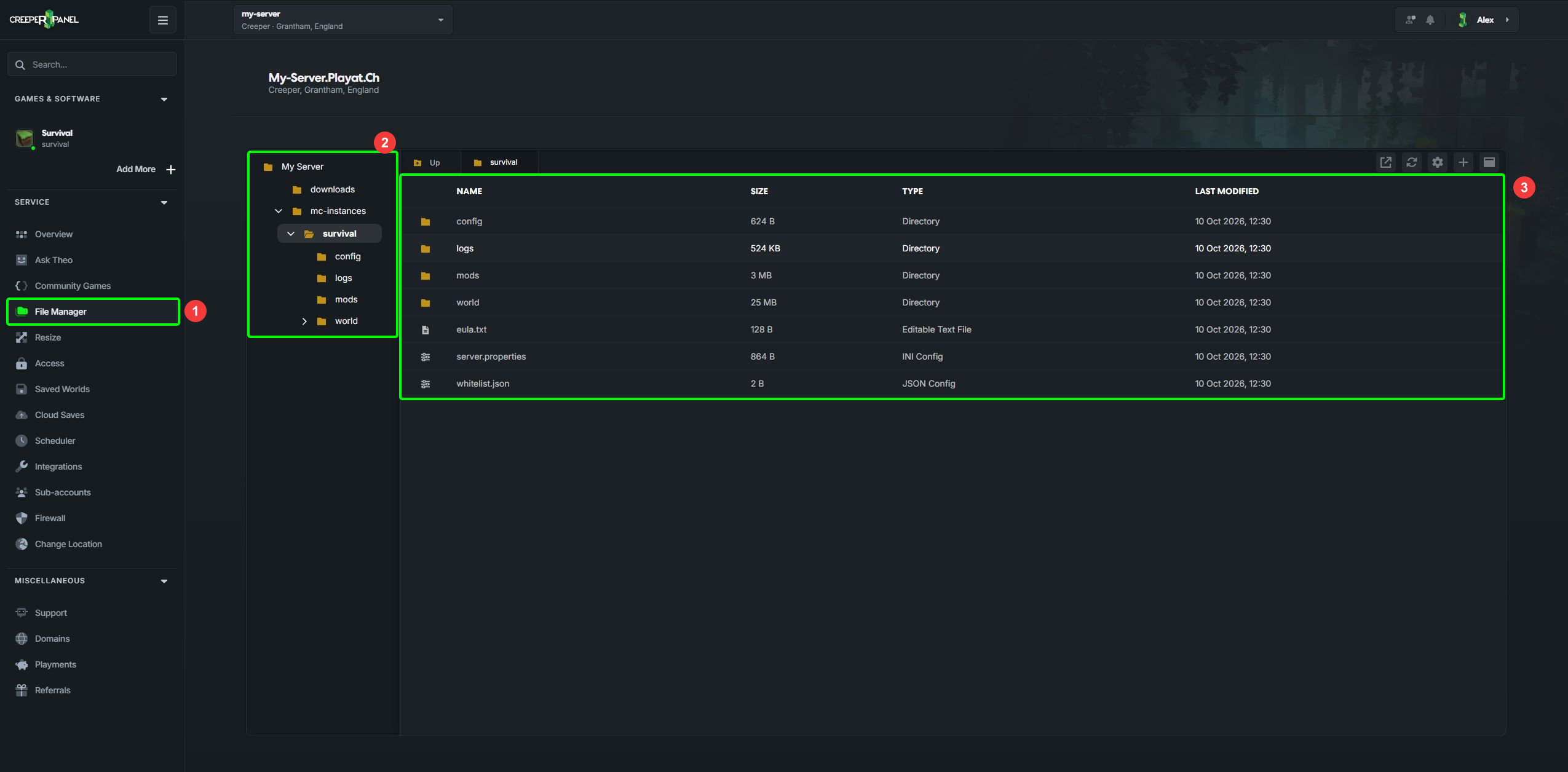
1: File Manager. 2: Folder tree. 3: File list.
Use the folder tree on the left or double-click a folder in the file list. Up takes you to its parent folder. On a smaller screen, use Tree to show the folder tree. You can drag the divider to give either pane more room.
Select Name, Size or Last Modified to sort the list. Use Refresh if a file created by your game has not appeared yet.
Upload files and folders
- Open the destination folder.
- Drag files or folders from your computer into the file list.
- Keep the panel open and wait for the upload to finish before starting your game or using the new files.
If an upload is interrupted, use Resume upload beside it. If it can no longer be resumed, the panel offers to restart it from the beginning. The cancel control stops an upload you no longer need.
Stop your game before replacing a world or files it is currently using. Keep a copy of anything you might want back.
Edit a configuration file
- Right-click a text file and choose Open, or double-click it.
- Make your changes in the editor.
- Select Save. An asterisk beside a tab's name means it still has unsaved changes.
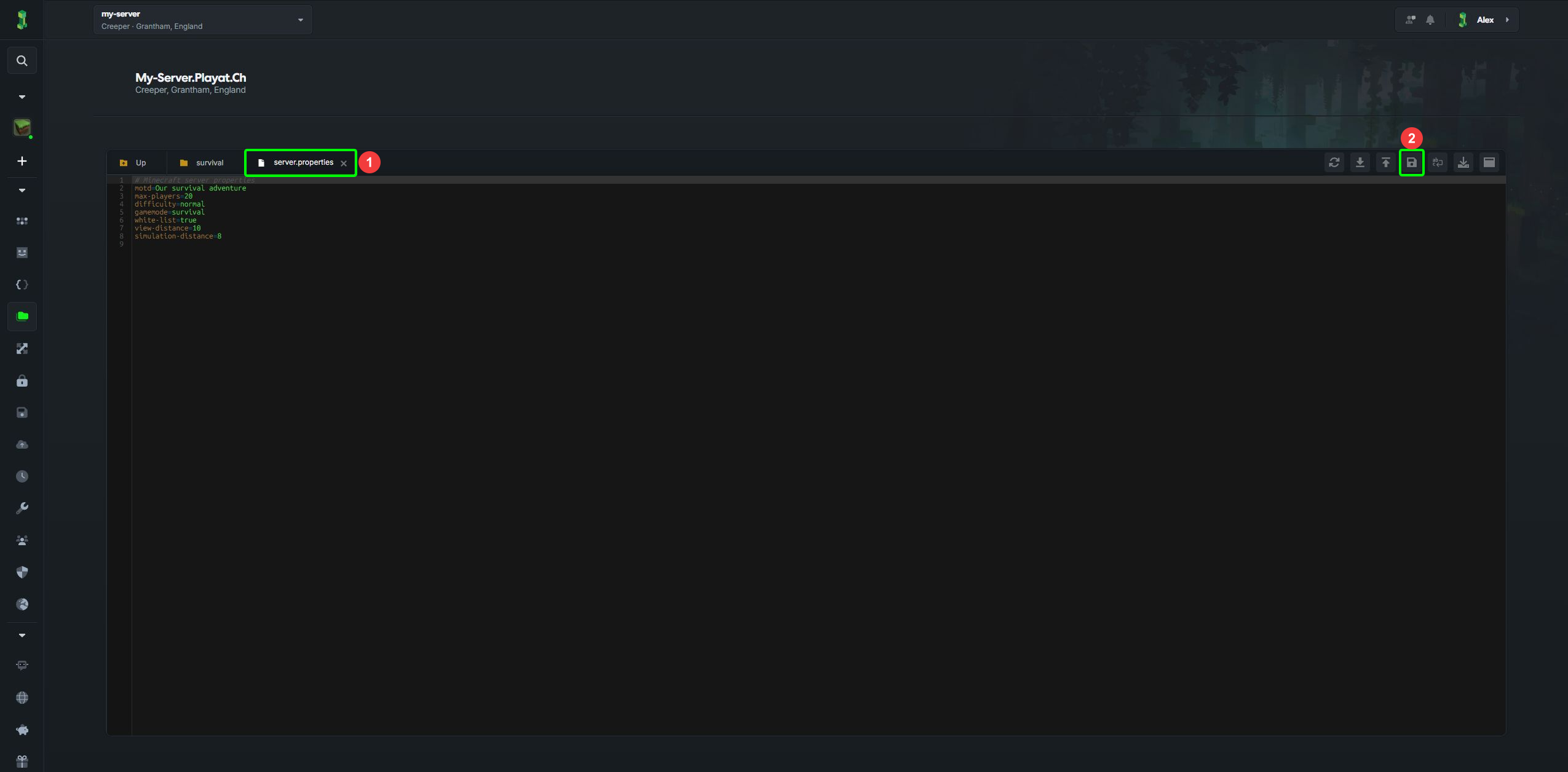
1: Open file tab. 2: Save.
You can keep several files open in tabs. Use Toggle Line Wrap for long lines, or Maximise for more space. JSON files also offer Prettify JSON to make their formatting easier to read.
For a large log, the panel may offer Load last 25 MiB. This gives you a read-only view of the end of the file, where recent messages usually appear. Choose Load entire file if you need to edit it; a very large file can take time to open.
Closing a tab with unsaved changes asks whether to discard them. Save first if you want to keep your edits.
Copy, move and download
Right-click a file or folder to see the available actions:
- Download saves a file to your computer. For a folder, choose Download as Zip.
- Copy → Duplicate makes another copy in the same folder. Use the copy-to-folder option to choose a different destination.
- Move lets you choose a destination folder. Rename changes the name in place.
- Copy → Path to Clipboard is handy when support asks where a file is stored.
- Delete removes the selected item. Download a copy first if you may need it again.
The Add files or folders button creates a new file or folder. Archives also have Extract in their menu; read the confirmation before extracting over existing files.
When a file is being downloaded onto your server, its row shows transferred data, progress, speed and estimated time where available. Use its cancel control if you no longer need the transfer.
Give your files their own window
Where available, Open in separate window gives File Manager its own browser window. You can keep it beside the console while checking logs or editing configs. Finish uploads and save your changes before closing it.
Prefer your desktop's file manager? Try CreeperPanel Mount. For a separate file-transfer client, see SSH and SFTP.