Getting started with CreeperPanel
CreeperPanel is where you manage your server, games, files and account. Start by checking the selected service: changes apply to that server, so this matters when you have more than one.
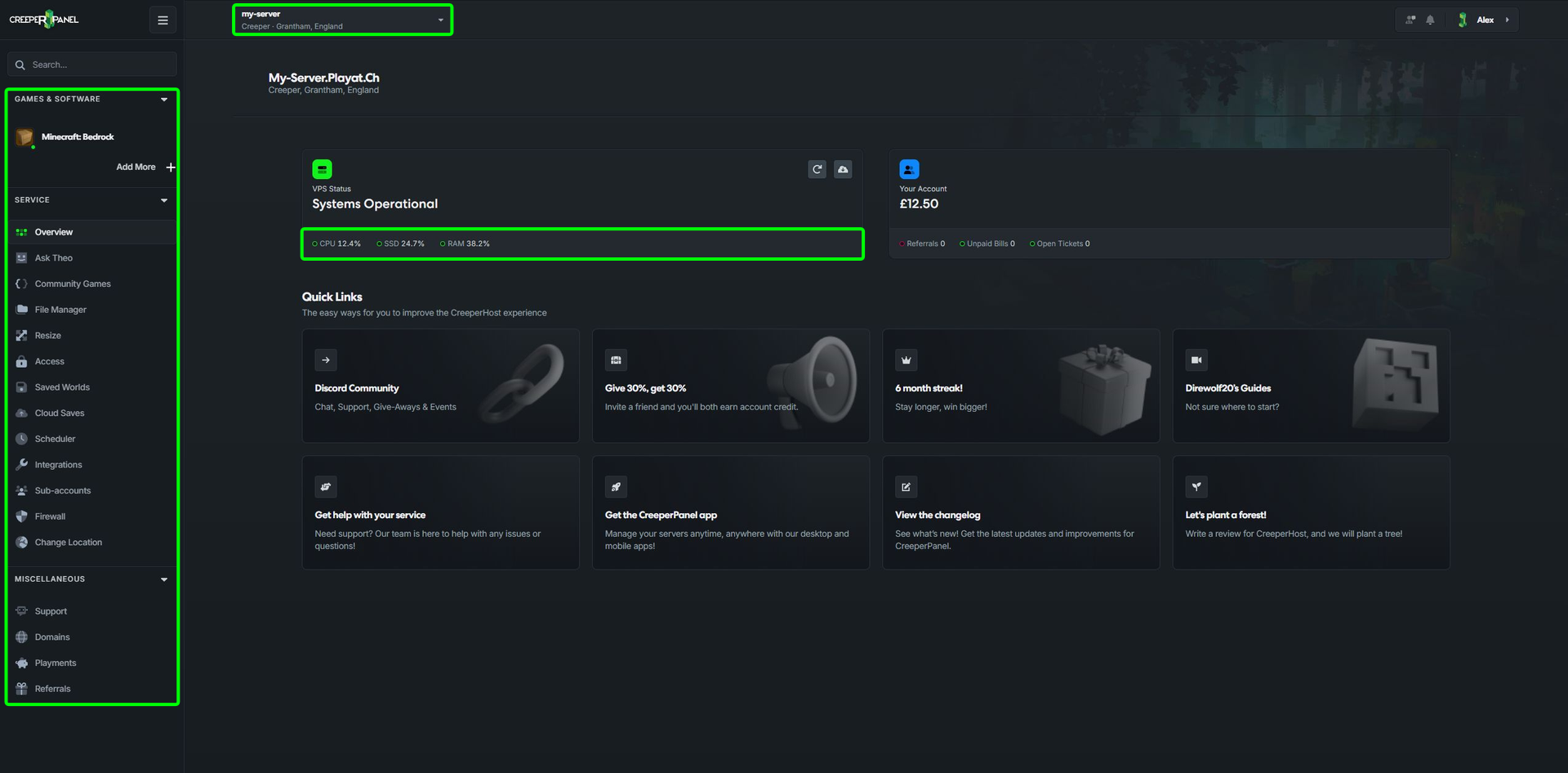
Find your way around
Use the server selector to switch services. Overview brings together your server status, resource usage, account information and useful links. Select the resource/status panel to open Monitor.
Your installed games appear in the navigation. Select a game or instance to open its console, then use its menu for settings, versions, worlds or mods. The choices vary by game. An instance is a separate game setup, which can have its own version, world and settings.
Server tools such as File Manager, Resize, Scheduler and Firewall apply to the selected hosting service. The account menu holds Profile, invoices and account settings. Use Support when you need a hand.
Compact and expanded navigation
Select Navigation layout at the top of the sidebar and choose:
- Automatic: the panel chooses a layout to suit the window width.
- Compact: icons leave more space for the page. Hover over an icon to see its label.
- Expanded: labels stay visible beside the icons.
Both layouts open the same pages. Use navigation search when you know a page's name; in compact mode, select the search icon first. Expanded navigation is used while ads are enabled.
Guides may show either layout. Follow the page names even if your sidebar looks narrower than the screenshot.
Keep favourite pages handy
Open a page you use often and select the heart control labelled Add to favourites. It then appears under Favourites in the navigation. Select Remove from favourites on that page to remove the shortcut. Favourites are shortcuts, so you can still reach the original page through its usual menu.
Why some options differ
Your game, plan and account permissions determine which tools appear. Eco includes the browser File Manager, Scheduler, Firewall and available CreeperRadar controls. Manual mod uploads and account activity logs are also available where applicable.
Eligible Premium services add tools such as Ask Theo, Cloud Saves, SSH/SFTP access, Discord integrations and sub-accounts. Some controls are only available to the account owner. Saved Worlds appears when your account has earlier saves available, and Diagnostics may appear when support enables it for an issue.
If you cannot find a tool, check the selected service and your account permissions before assuming the navigation layout has hidden it.
Start playing
- Install a game, or create a Minecraft instance.
- Find your connection address.
- Check disk usage or resize your server.
- Set your panel language.
- Return to a previous world or order a server.
If you have no active server, Home brings your account and available saved worlds together.