Your panel, your language
Choose a language for CreeperPanel, chat with Theo in it and write to our support team in your own words. Translation helps keep the conversation moving so you can get back to playing.
Change the panel language
You can choose Language on the sign-in page, before logging in. Already signed in?
- Open your account menu using your name or avatar in the top-right corner.
- Open Language, then search for or select your preferred language.
- The panel updates as soon as the language loads.
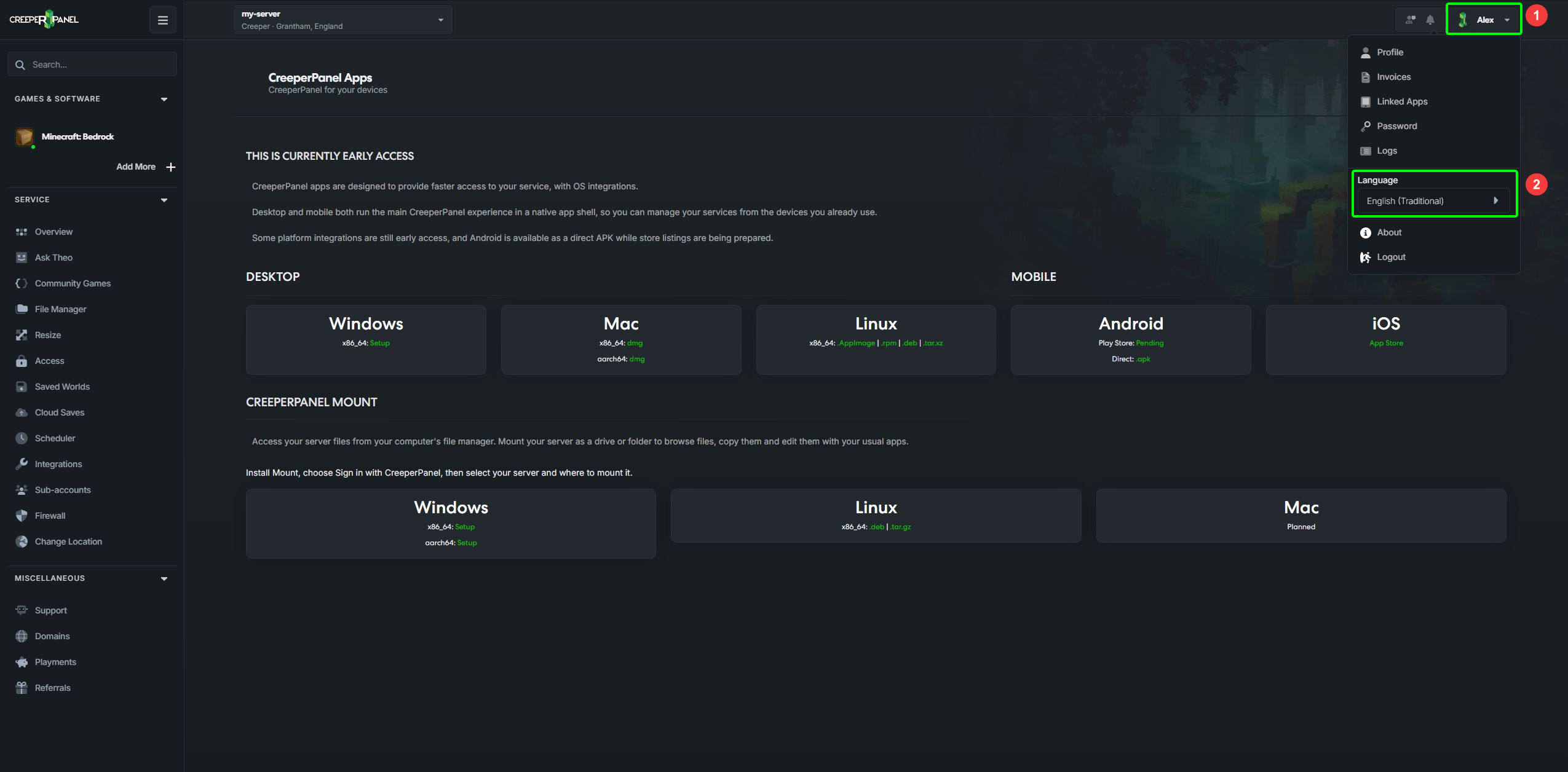
The same choice is available at the start of the Getting Started guide, alongside an example of how support translations work.
Your choice is remembered in that browser. If you use another browser or device, choose your language there too. If a piece of text has not been translated yet, it appears in English.
Open the selector for all available languages, including regional English and a few playful extras.
Speak to Theo in your language
Ask Theo uses the language selected in your account menu for its replies. Change Language there when you want Theo to use another language; future replies follow your choice.
Copy commands and file paths exactly as shown, even when the explanation around them is translated.
Write to support in your own words
You do not need to translate your question yourself before contacting support. When you write a new ticket or reply in a language other than English, the panel can include an English translation alongside your original message.
- Write your message as usual. When the panel detects a non-English language, an English translation preview appears above your Original message.
- Read the preview before sending. The language icon and switch control Include an English translation for support.
- If you change your message, use Refresh translation to update the preview. An outdated preview also refreshes when you send.
- Send your message when you are happy with it. Our team receives your original wording and the English translation together.
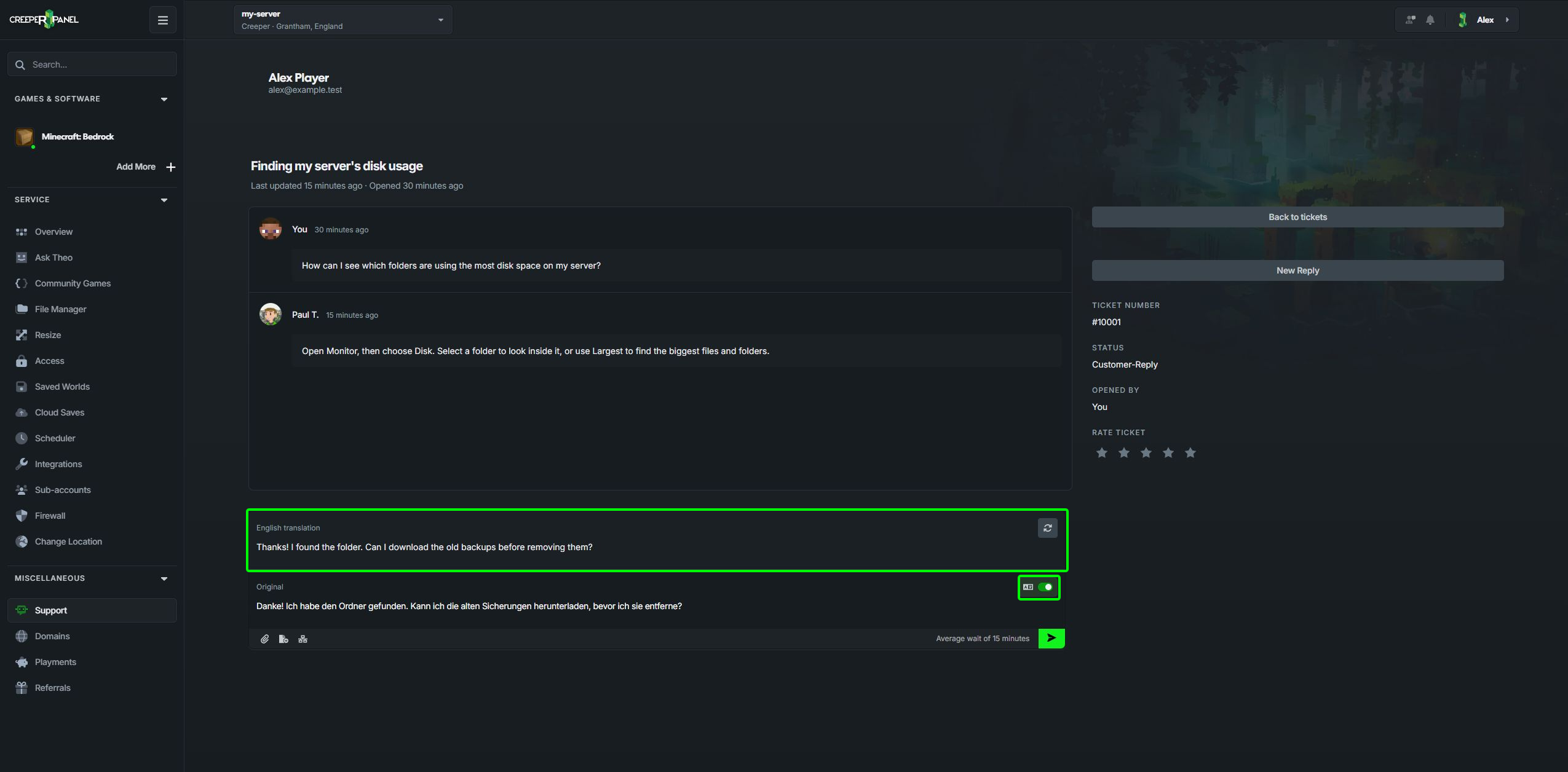
The highlighted preview lets you check the translation before sending. Use the switch beside Original to choose whether to include it.
If the panel cannot identify the language, you can switch translation on yourself. If a translation fails, try refreshing it, or switch translation off to send your original message.
Keep error messages and file names exactly as they appear so we can find the right problem.
Read support replies in your language
When your panel language is not English, staff replies in your tickets are translated into that language automatically. The icons beside a message let you switch between the two versions:
- Document icon: show the original message.
- Language icon: show the translation.
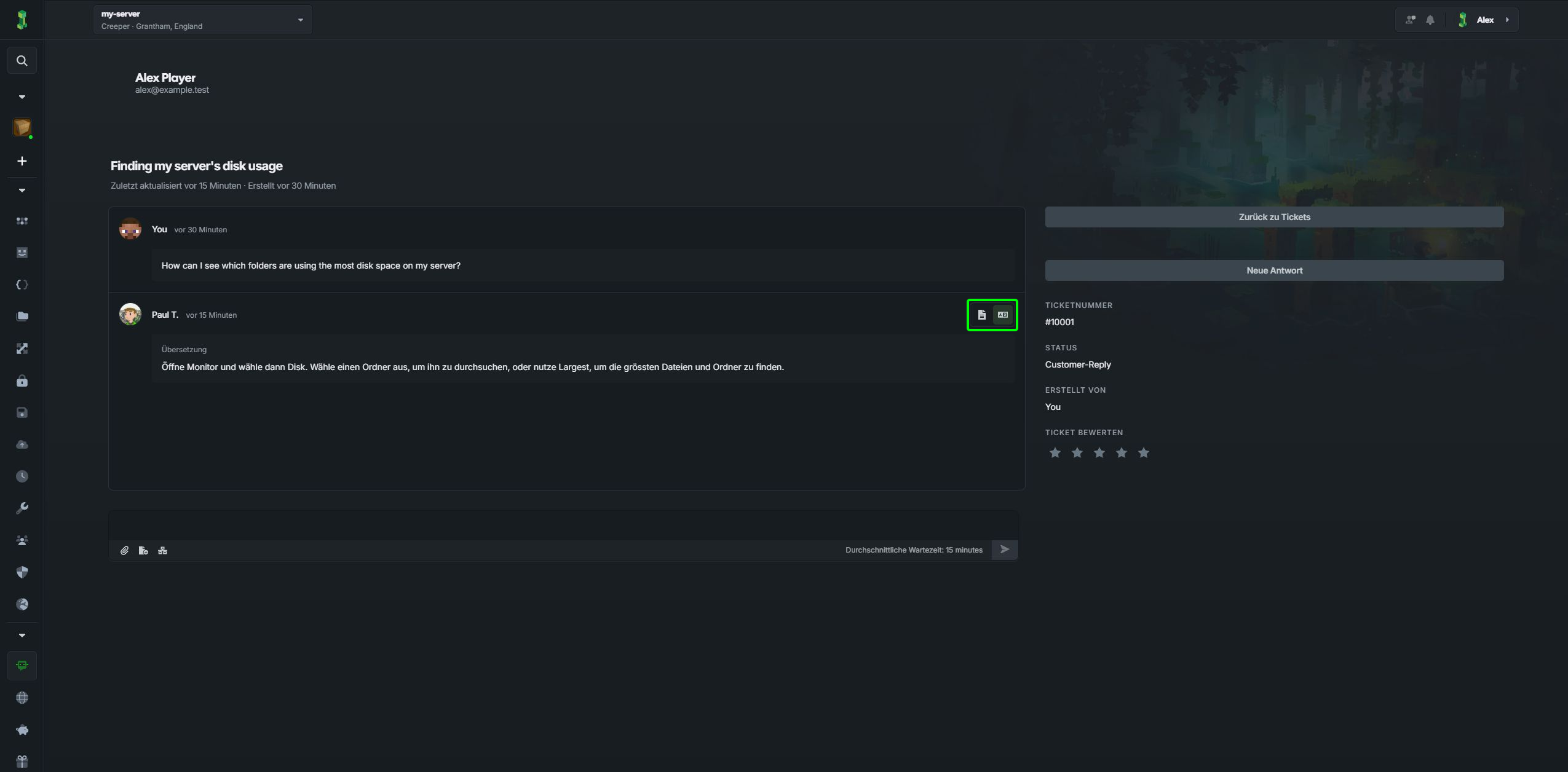
Your own messages sent with an English translation also let you switch between your original wording and the English version. Attachments and images remain available alongside the message.
If a translation is unclear, check the original and ask us to explain it another way.
Use translation in Discord support
Prefer to chat while you play? Open a Discord support chat, then use Choose your language in the chat's welcome message.
Selecting a language other than English turns on automatic translation for that chat:
- Your messages are translated into English for our team.
- Staff replies are translated into your selected language.
- Each translation appears as a separate Auto-translated reply linked to the original message, so both versions stay available.
Messages already in the target language do not need an extra translation. If you edit a message, its translation updates too; deleting the original removes its translation.
You can change the selection at any time. Choose English to turn translation off. This is a separate choice for your Discord chat, so changing the panel language does not change it. The selection applies to new messages, rather than translating the whole conversation history. Attachments are not translated.
If an older chat has no language selector, ask the team to add it. Only you, as the customer who opened the chat, or a staff member can change its language.
Help us improve a translation
Spotted something that reads oddly? Open the panel's language selector and choose Submit a correction or language… to visit our translation project. A little local knowledge goes a long way.