Updating your server
warning
Before updating your server, ensure your selected instance has been switched OFF to prevent data loss/ corruption. For assistance with starting/ stopping your server, please follow our guide HERE.
For assistance locating your instance(s), please follow this guide
Updating to latest version
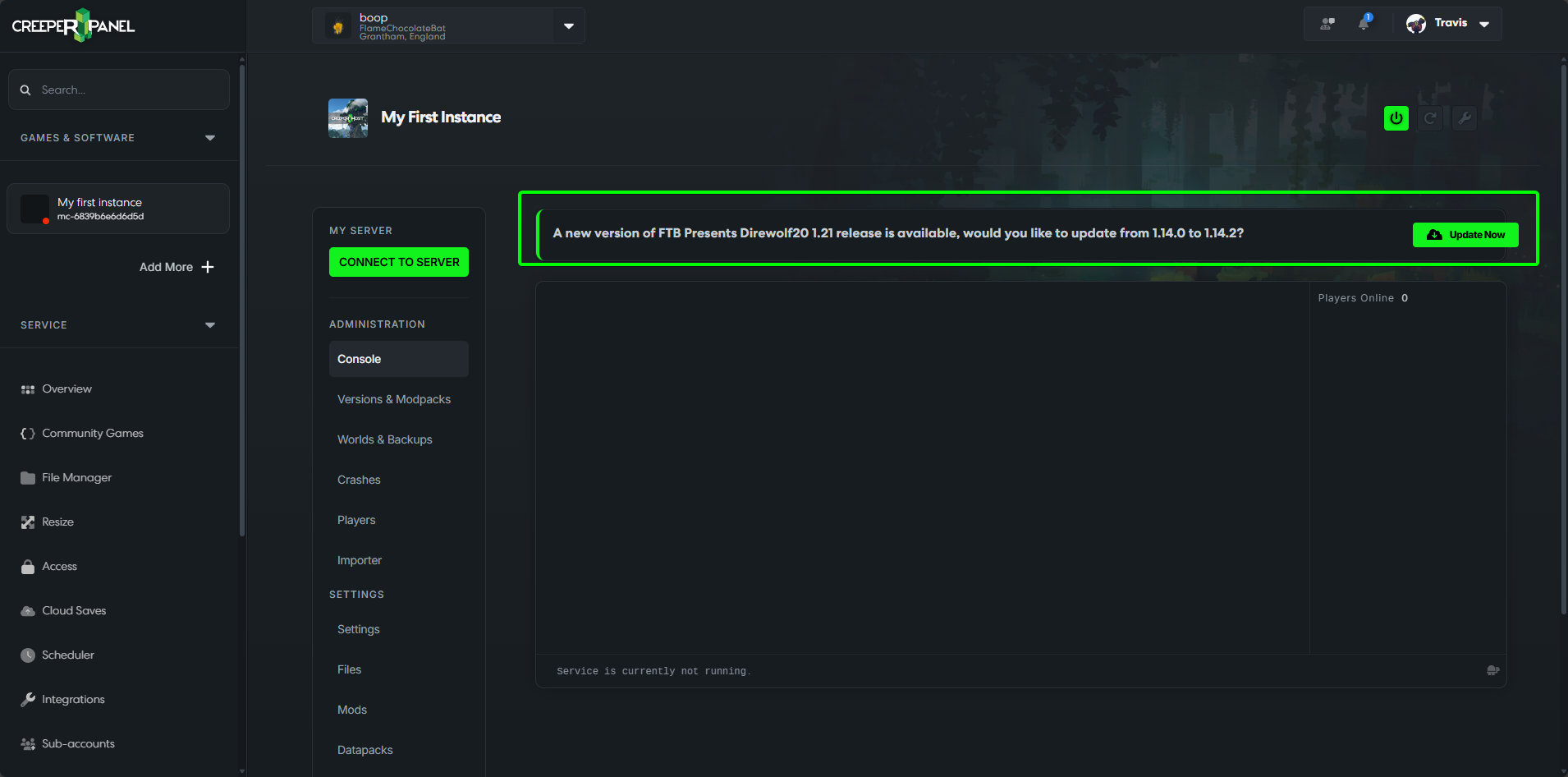
- After you have found your instance, click on the
Updatebutton below theStart/ Stopbuttons.
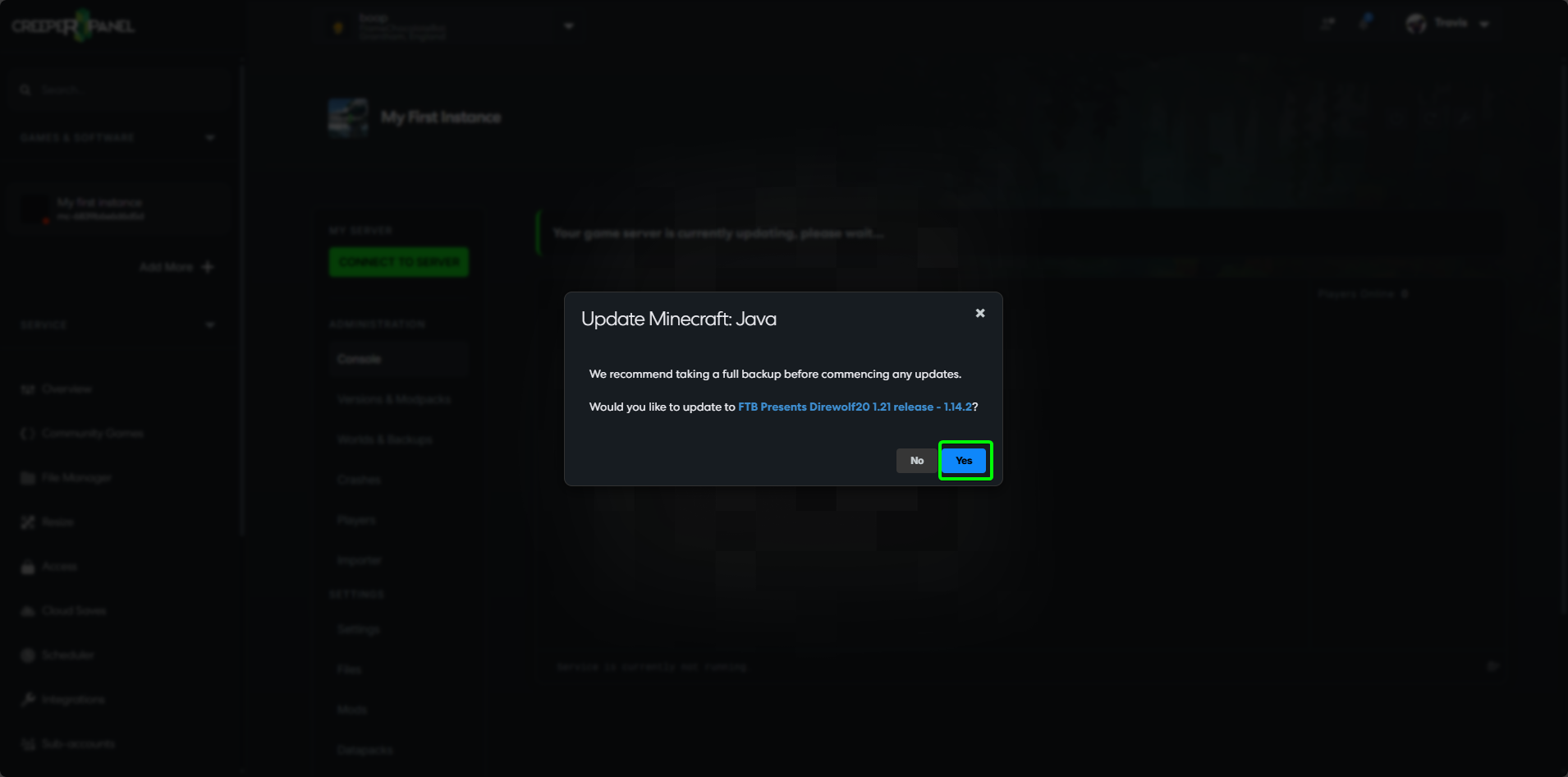
- The panel will give you a confirmation box; select
Yes.
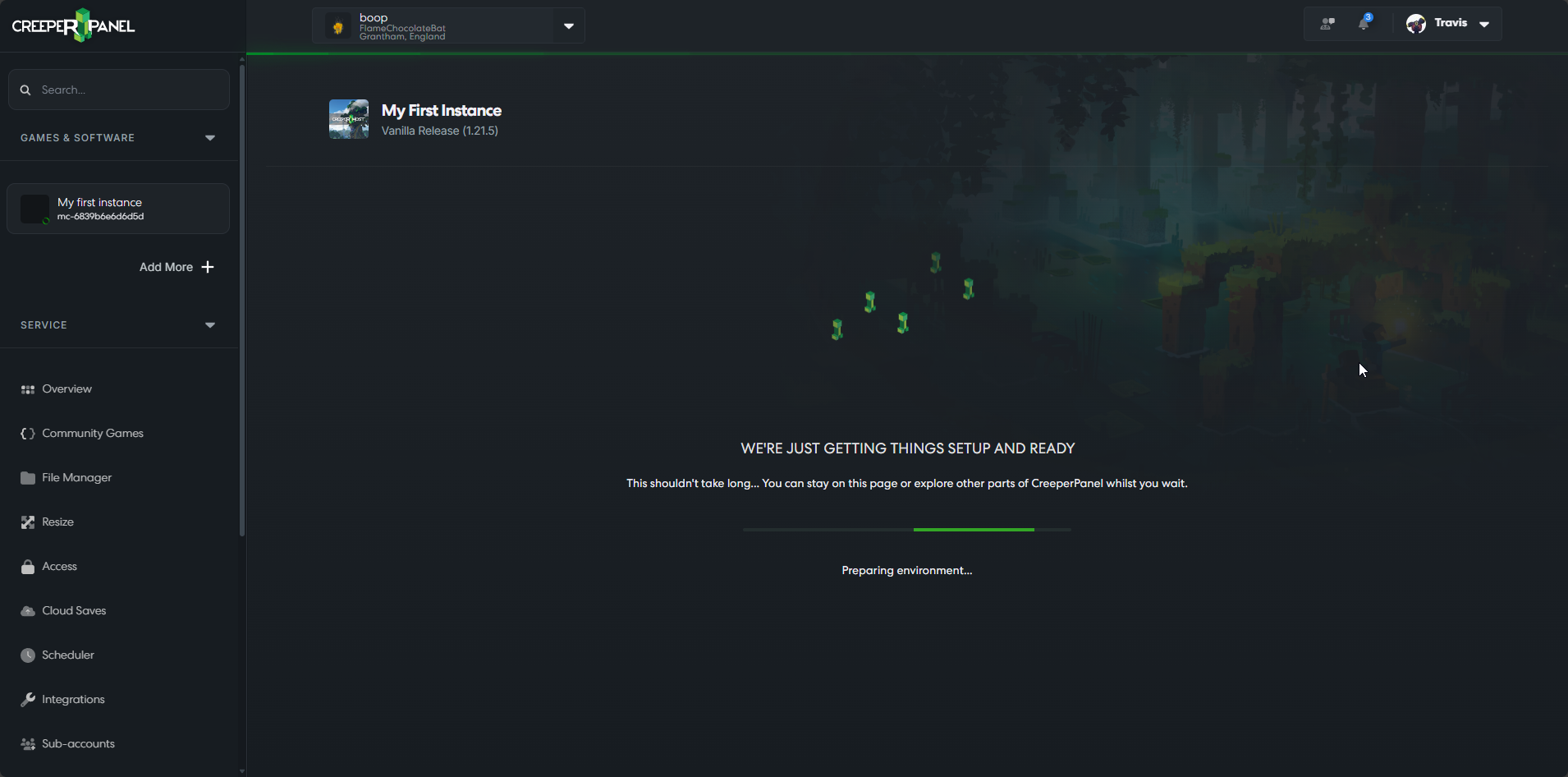
- While the version is installing, the Panel will show you a progress screen.
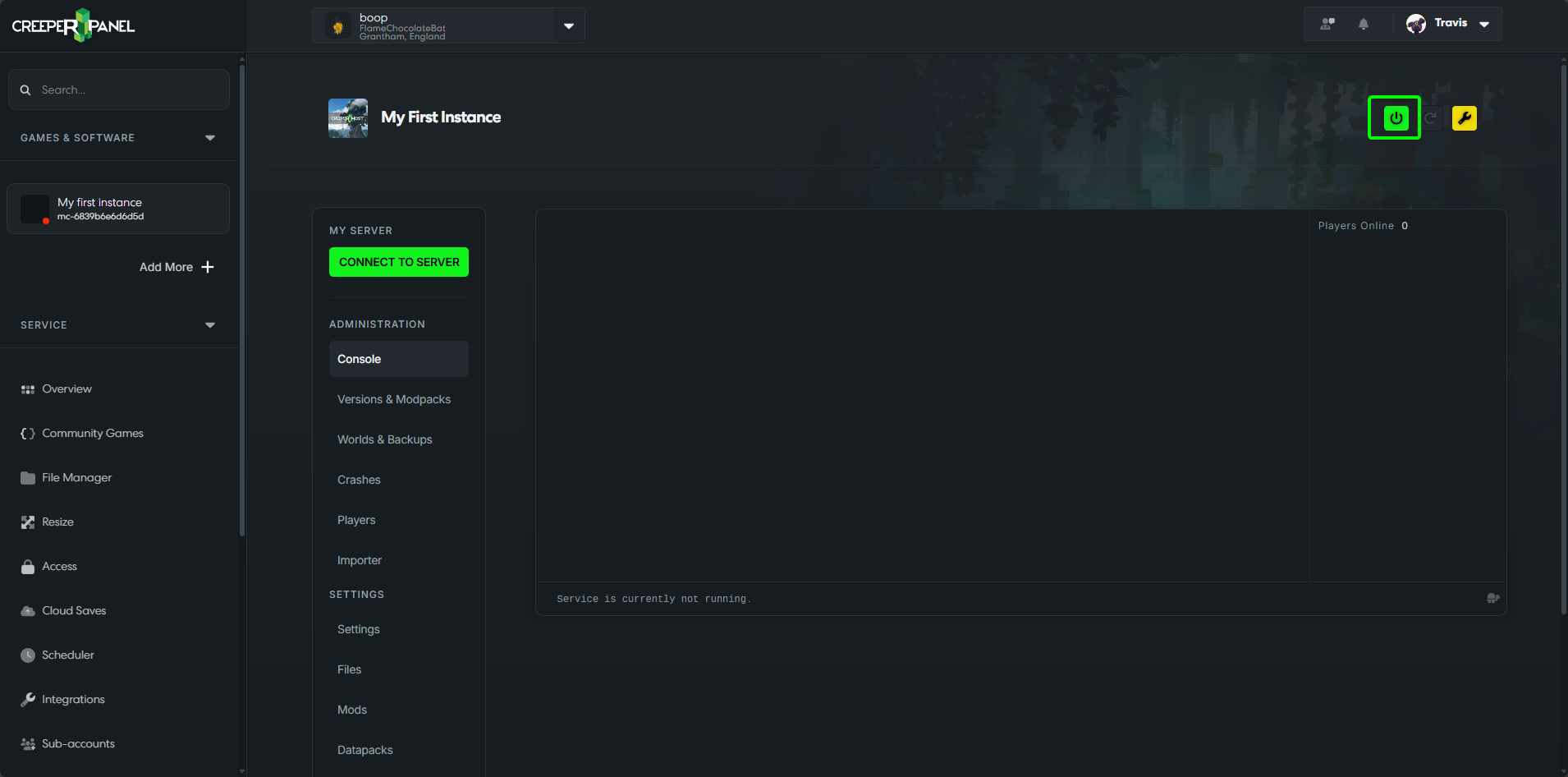
- Once the install has finished, you will be sent back to the console screen and can once again start the server.
Updating to a specific version
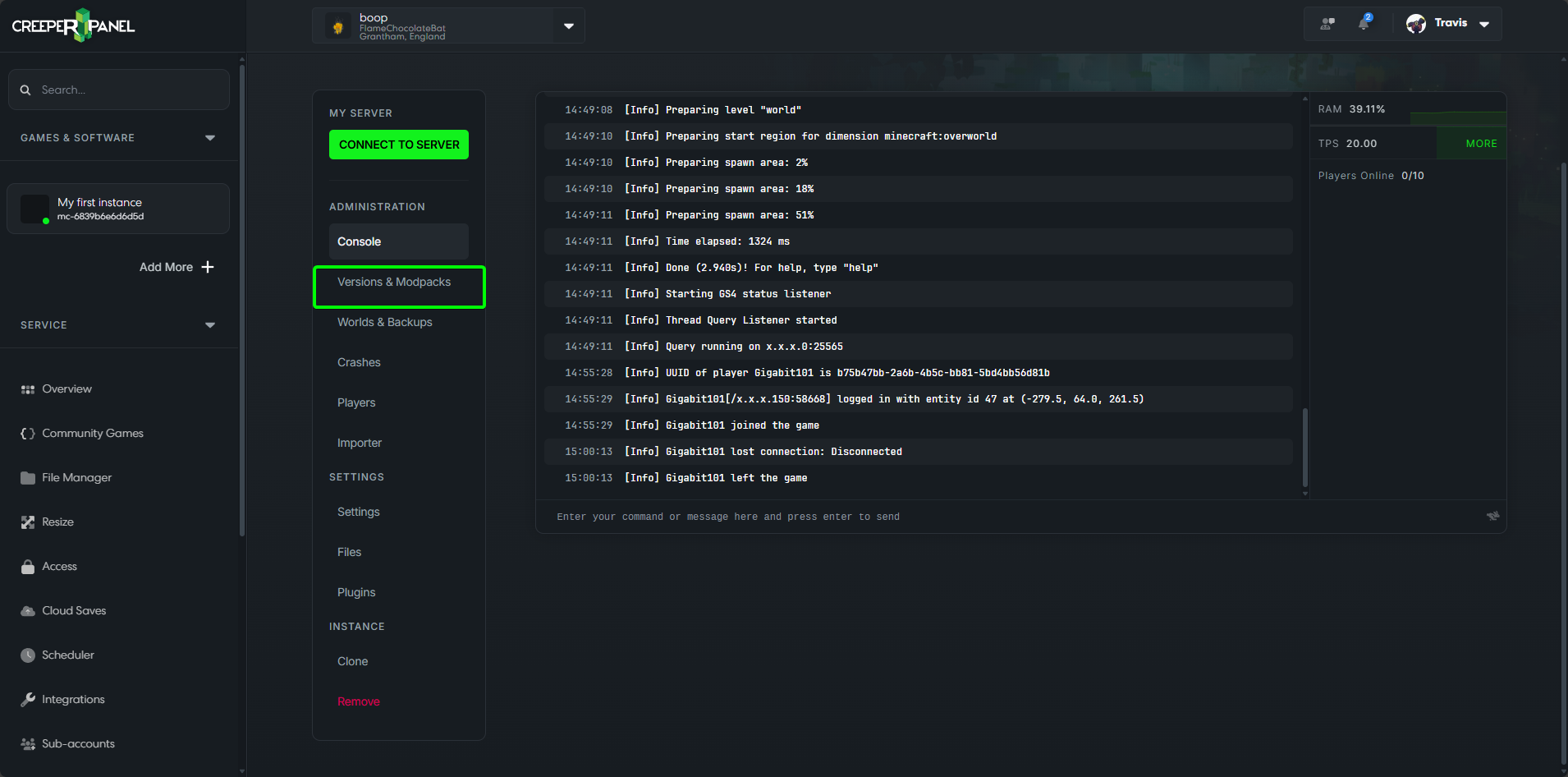
After stopping your instance, you can now click on Versions.
On the Versions page click in the Search Versions textbox at the top of the page and enter the name of the modpack you want to install or update.
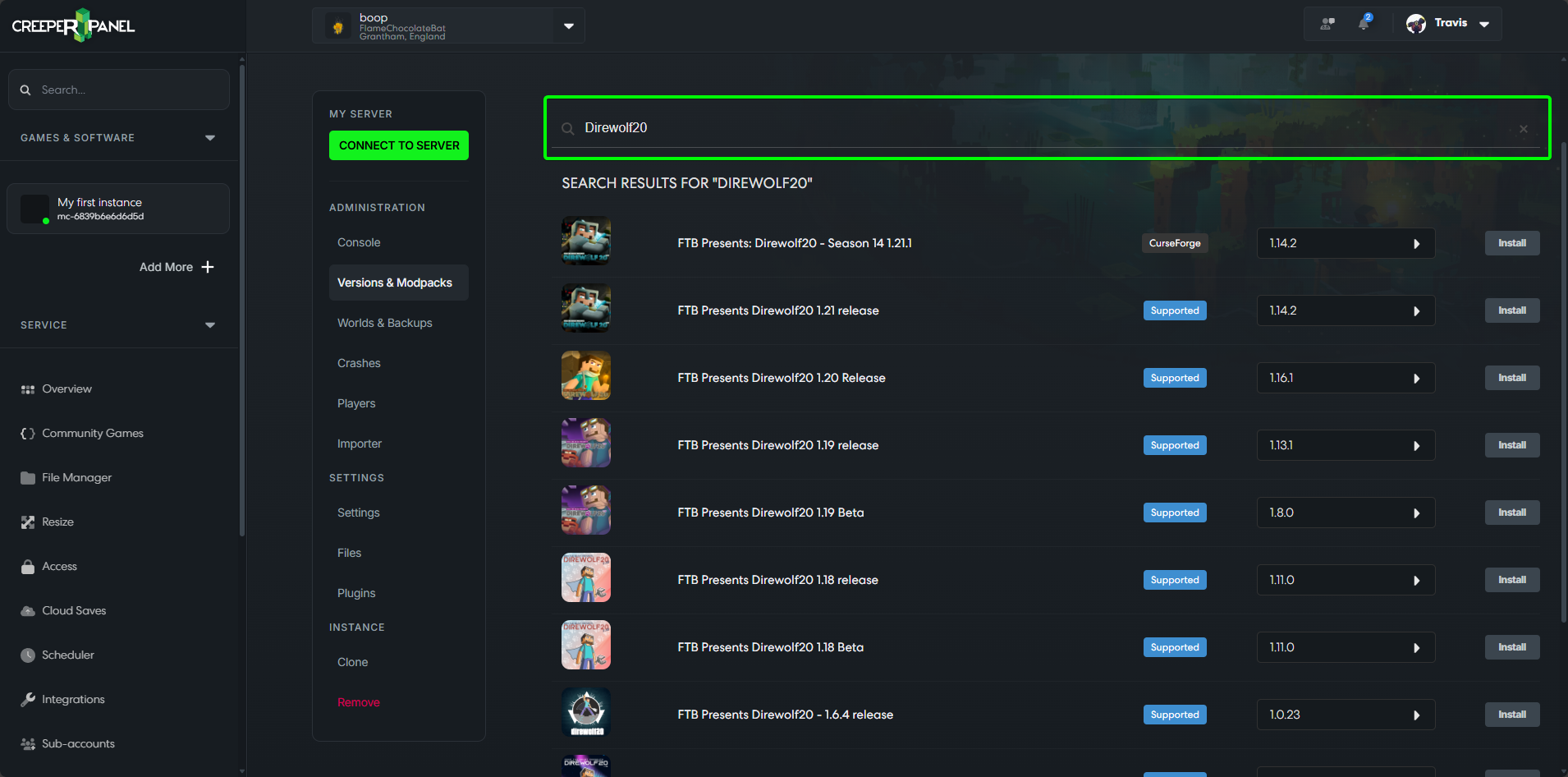
When you find the modpack you want to install or update, select your desired version from the adjacent dropdown. Next, click Install and wait for the Panel to redirect you back to the console.