Remove erroring tile/block entities (Forge/NeoForge)
warning
Setting this option will remove (delete) any block/tile entity that it deems as "broken" from the world
Minecraft 1.13+
Forge
Forge config location <world>/serverconfigs/forge-server.toml
- Select your instance from the
Games & Softwaretab.
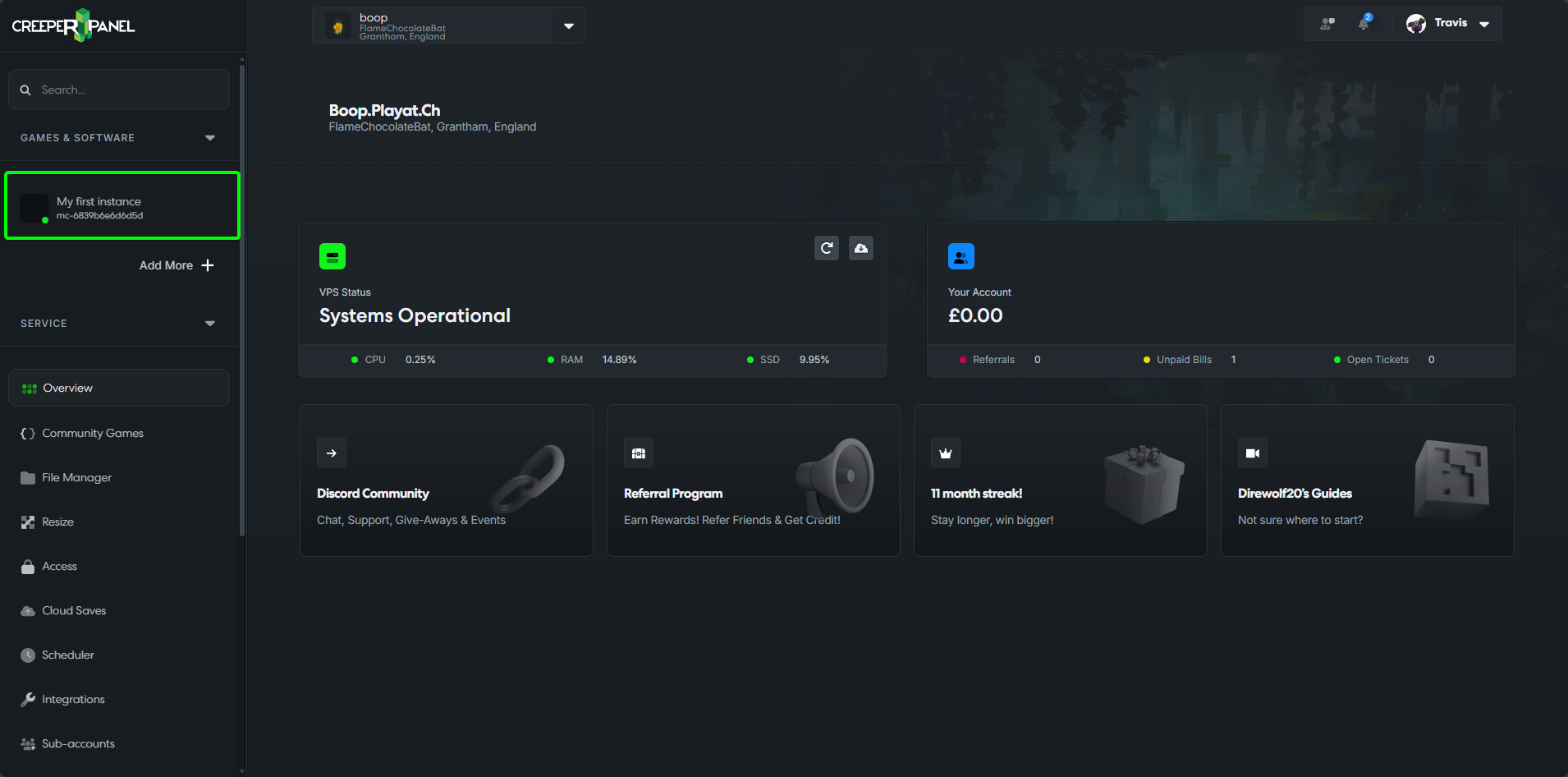
- Select
Files, found underSettingsin the instance's submenu.
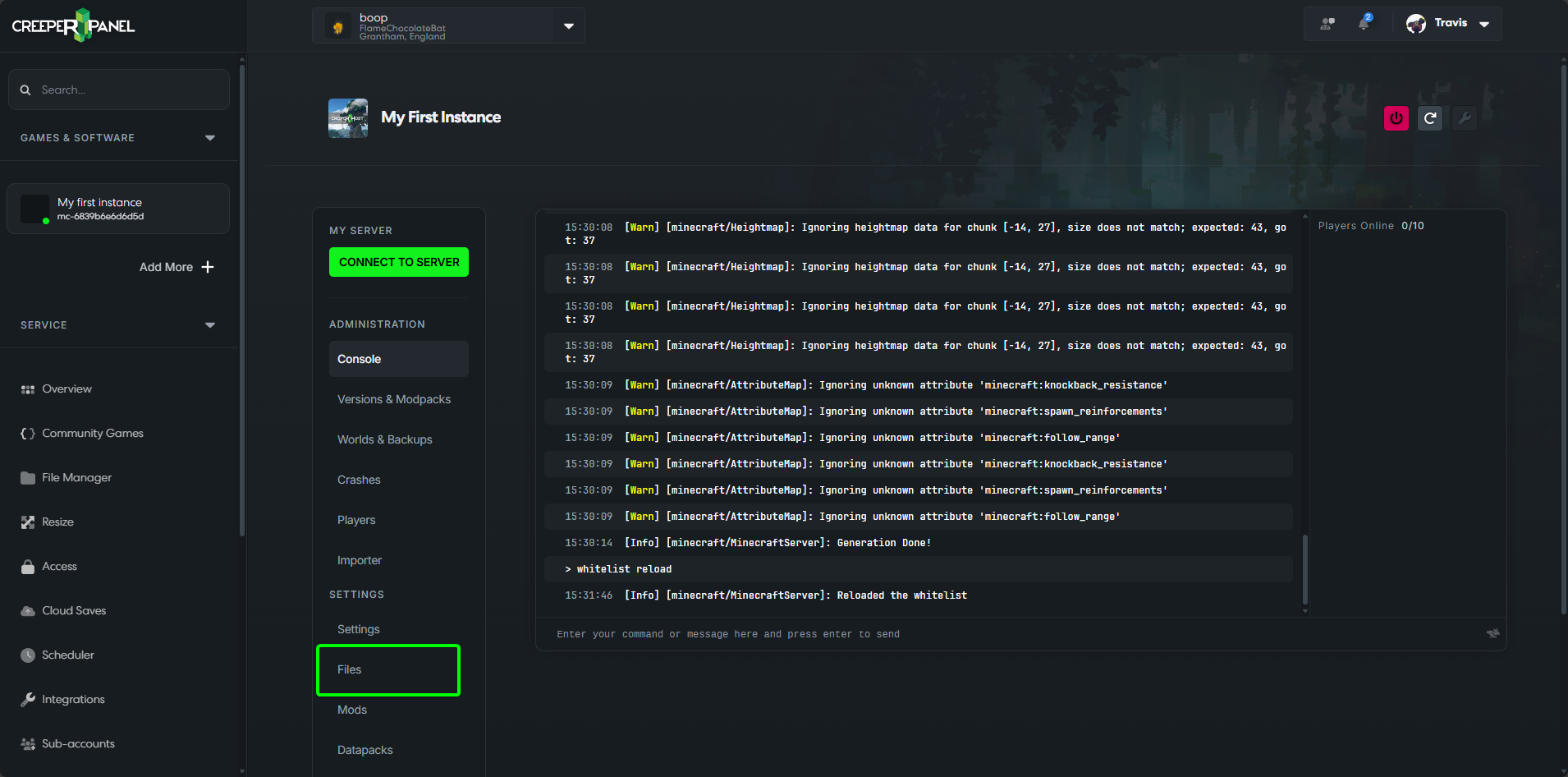
- Find the directory for the world you want to fix. This directory is called
worldby default, but will depend on the name you set for the world when creating the server.
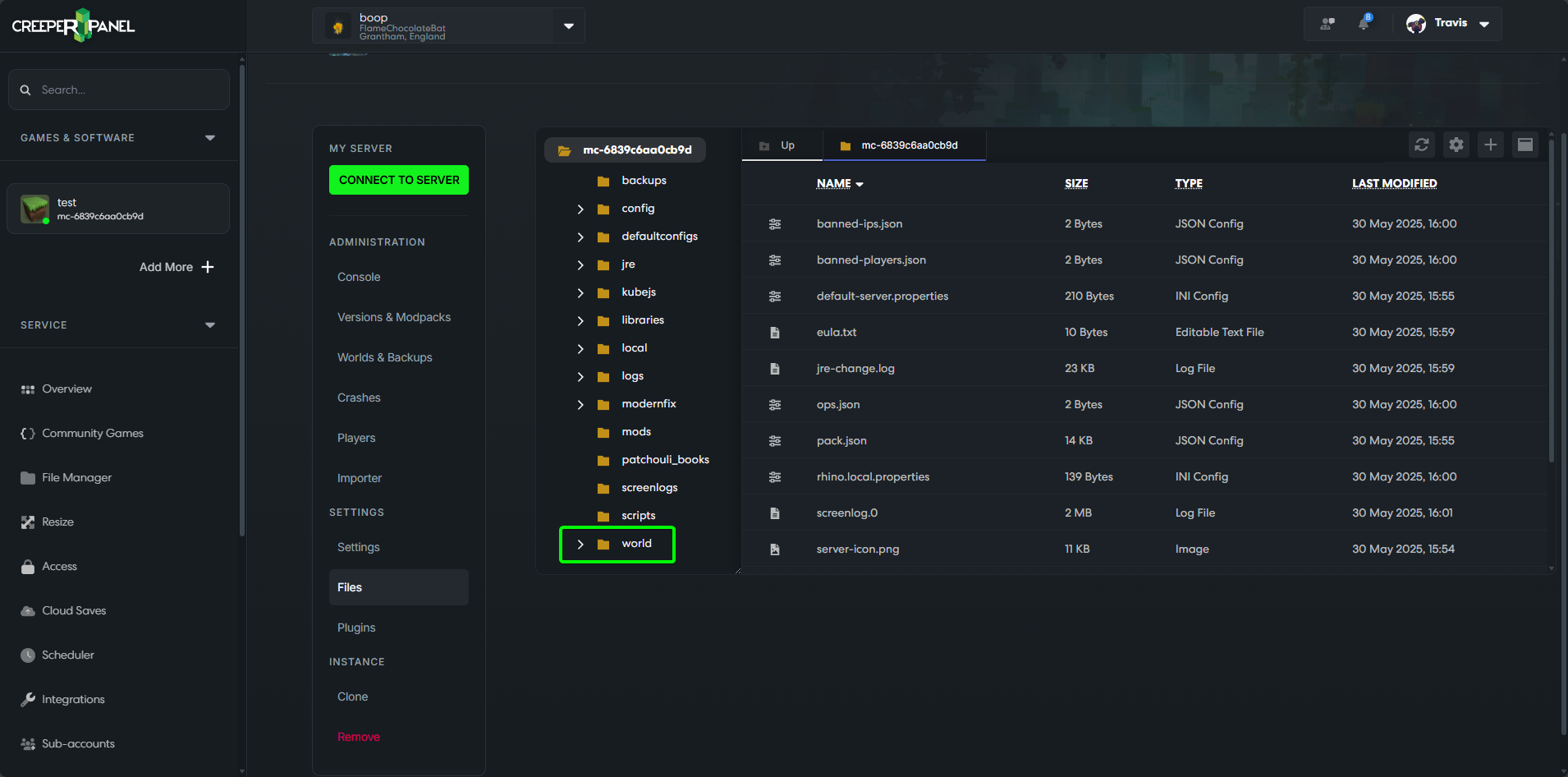
- Find the
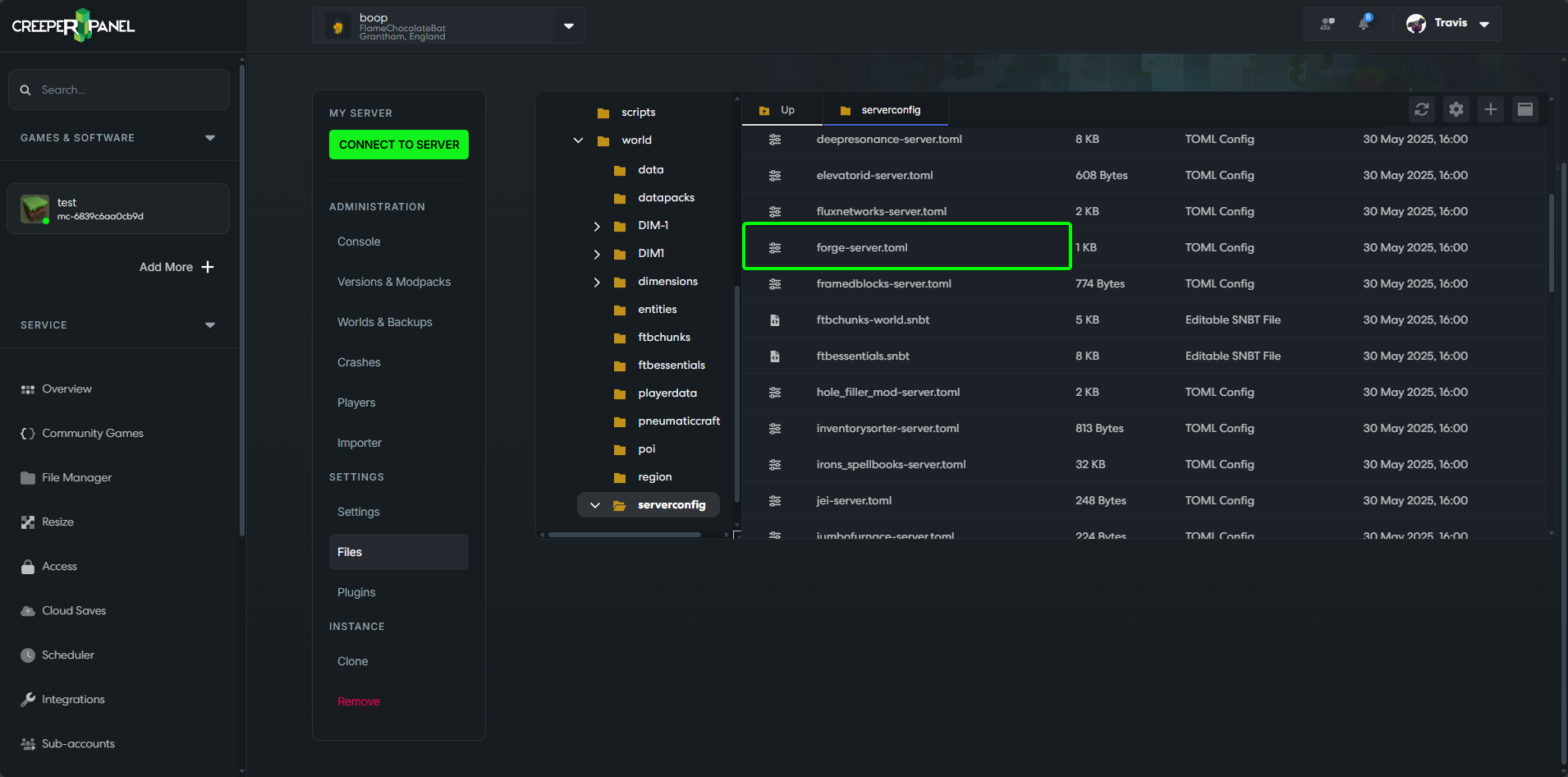
serverconfigdirectory.
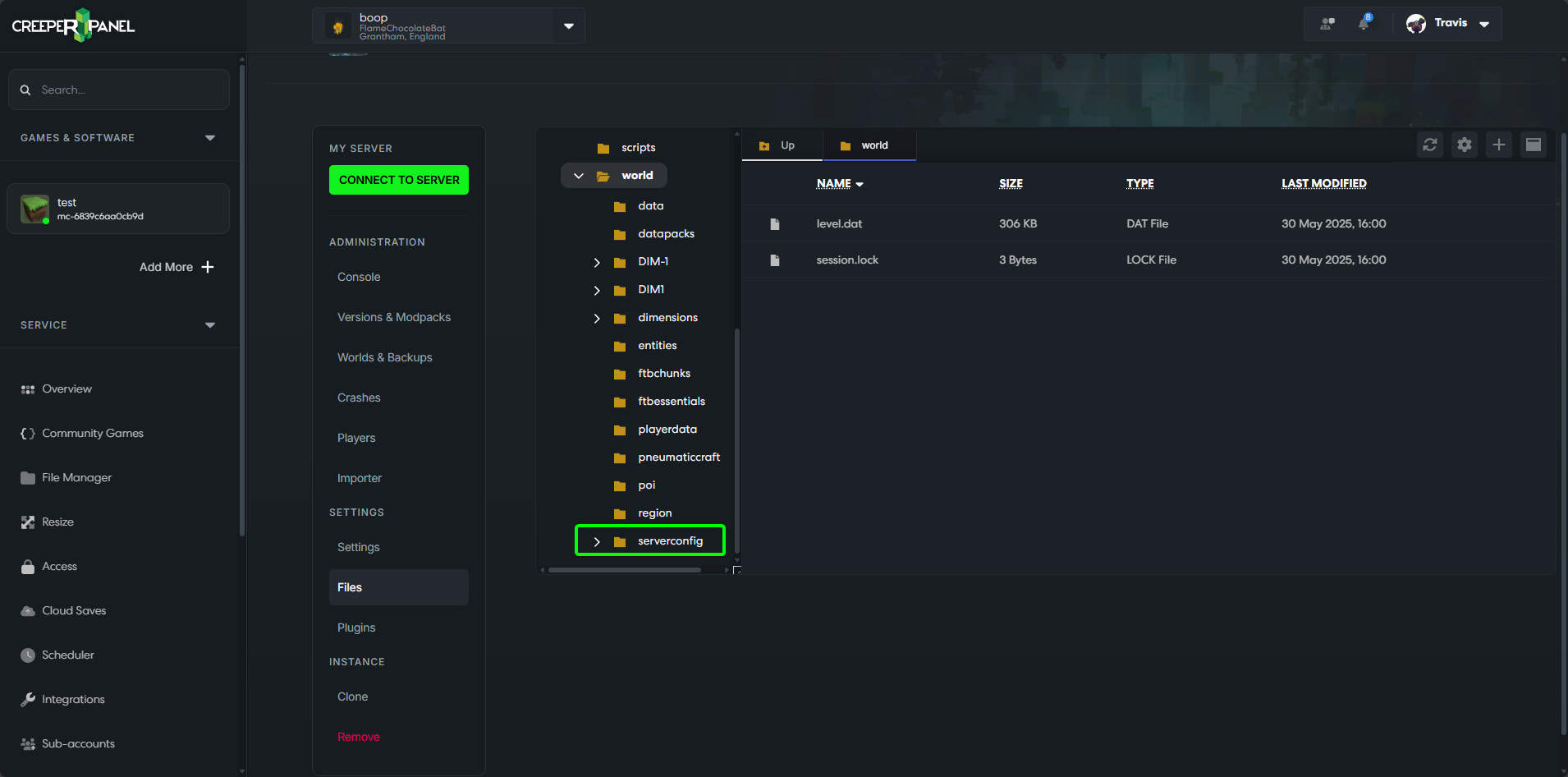
- Locate
forge-server.tomlin theserverconfigdirectory, and double click to open it.
- Find the option for
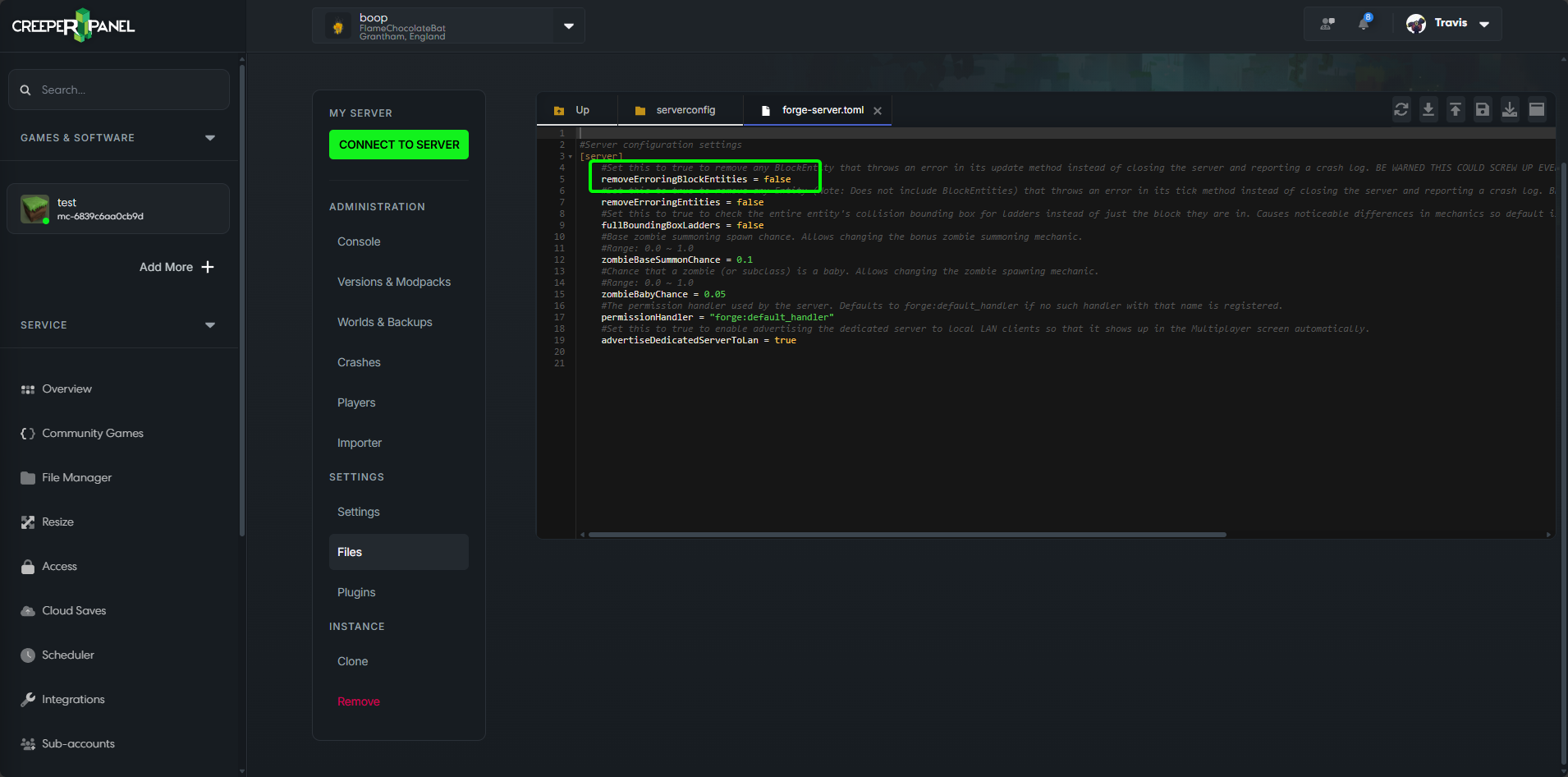
removeErroringBlockEntities, and set the value totrue.
- Save your changes using the
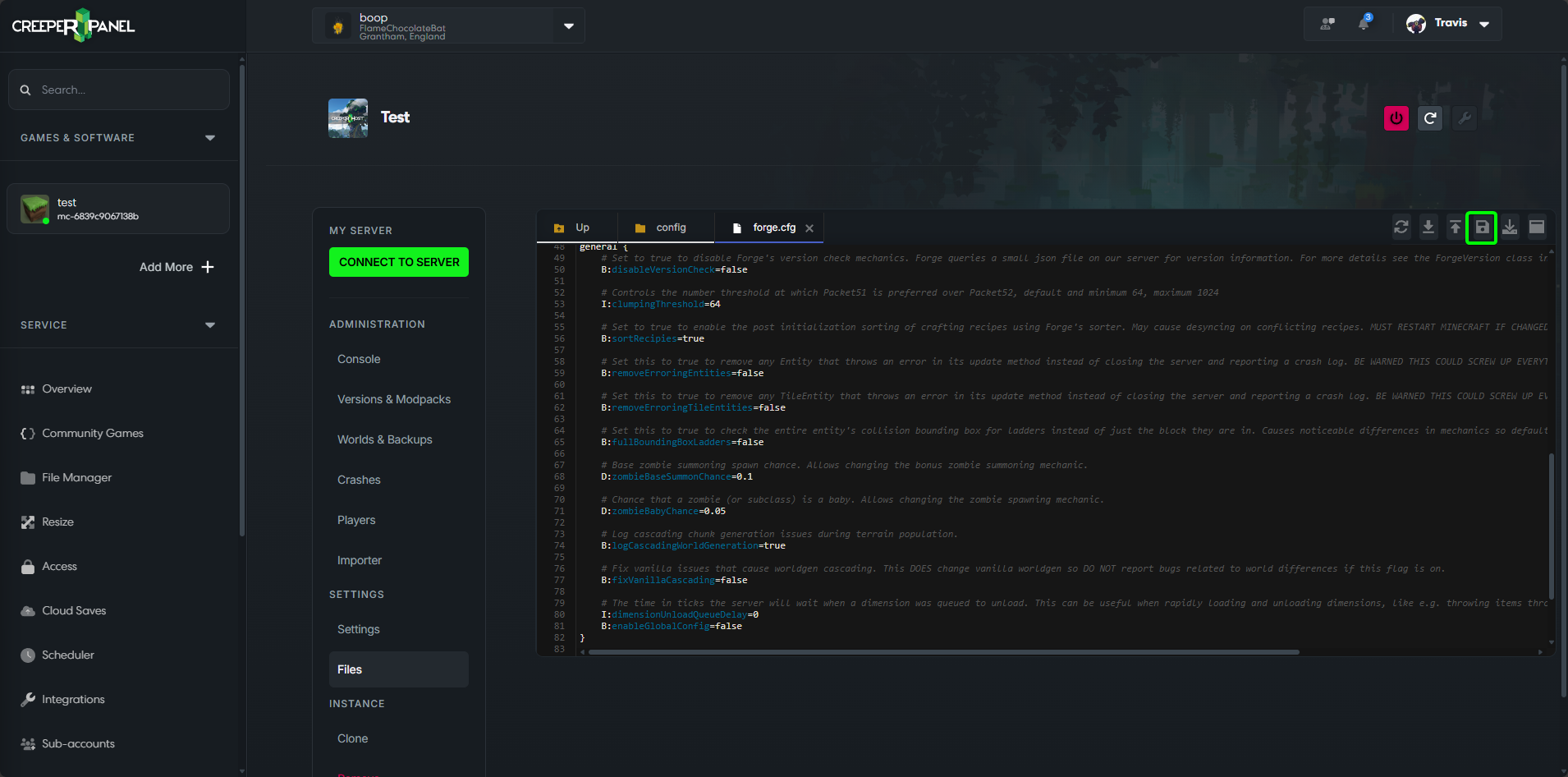
Savebutton.
info
Now that the option has been changed you should now restart your server for this to take effect.
NeoForge
NeoForge config location config/neoforge-server.toml
- Select your instance from the
Games & Softwaretab.
- Select
Files, found underSettingsin the instance's submenu.
- Select the
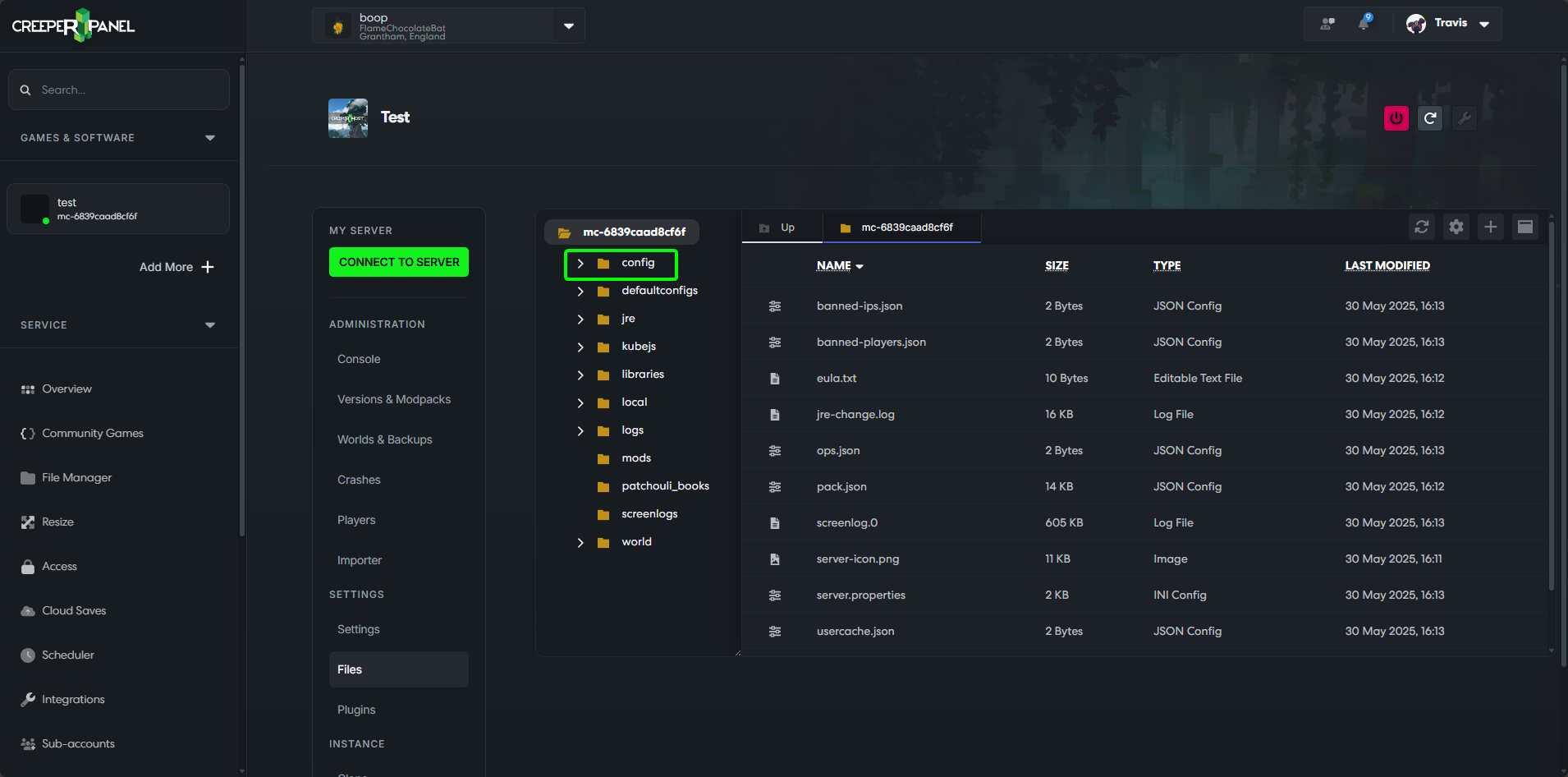
configdirectory.
- Locate the
neoforgeforge-server.toml, and double click.
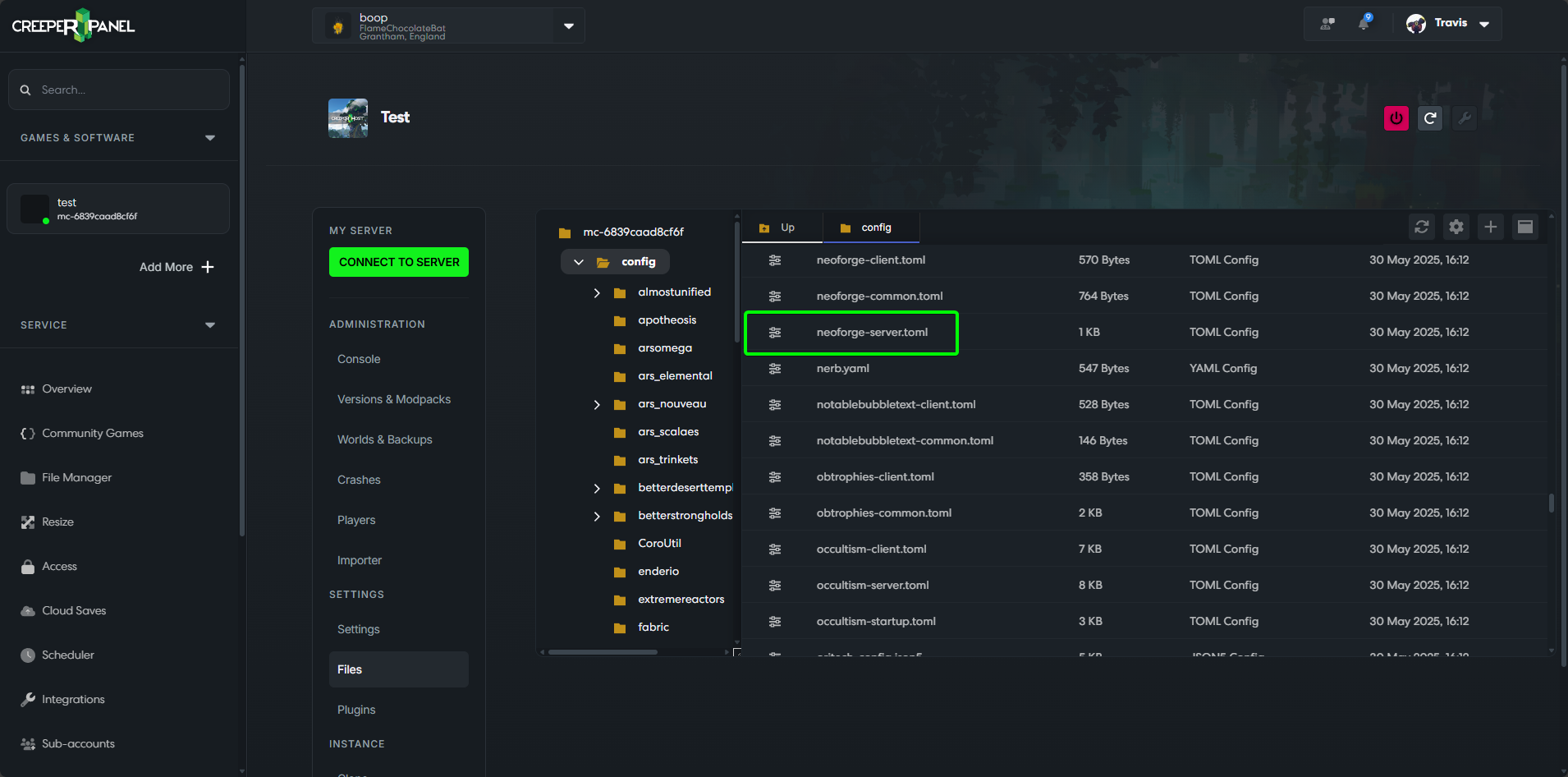
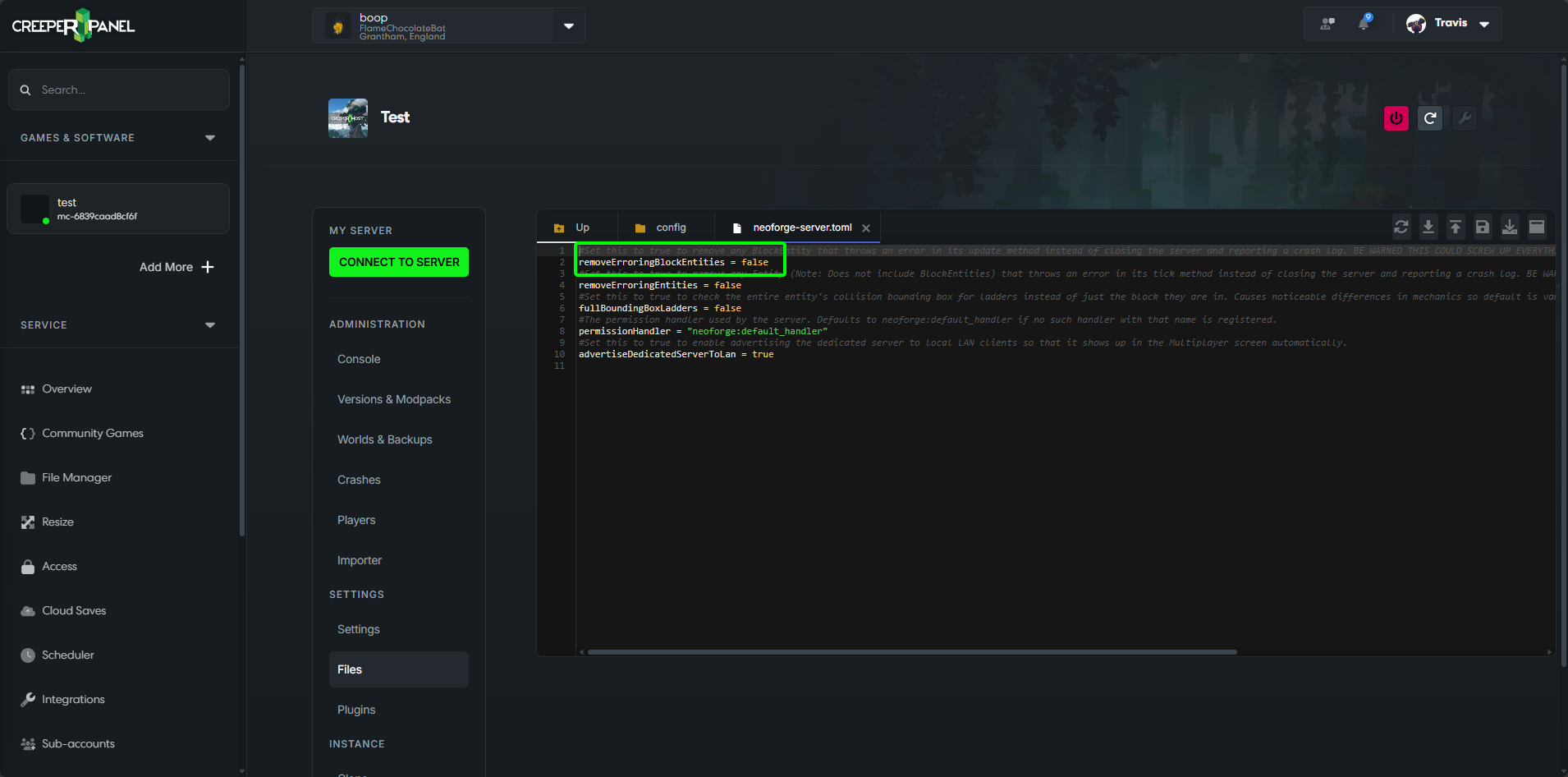
- Find the option for
removeErroringBlockEntitiesand set the value totrue.
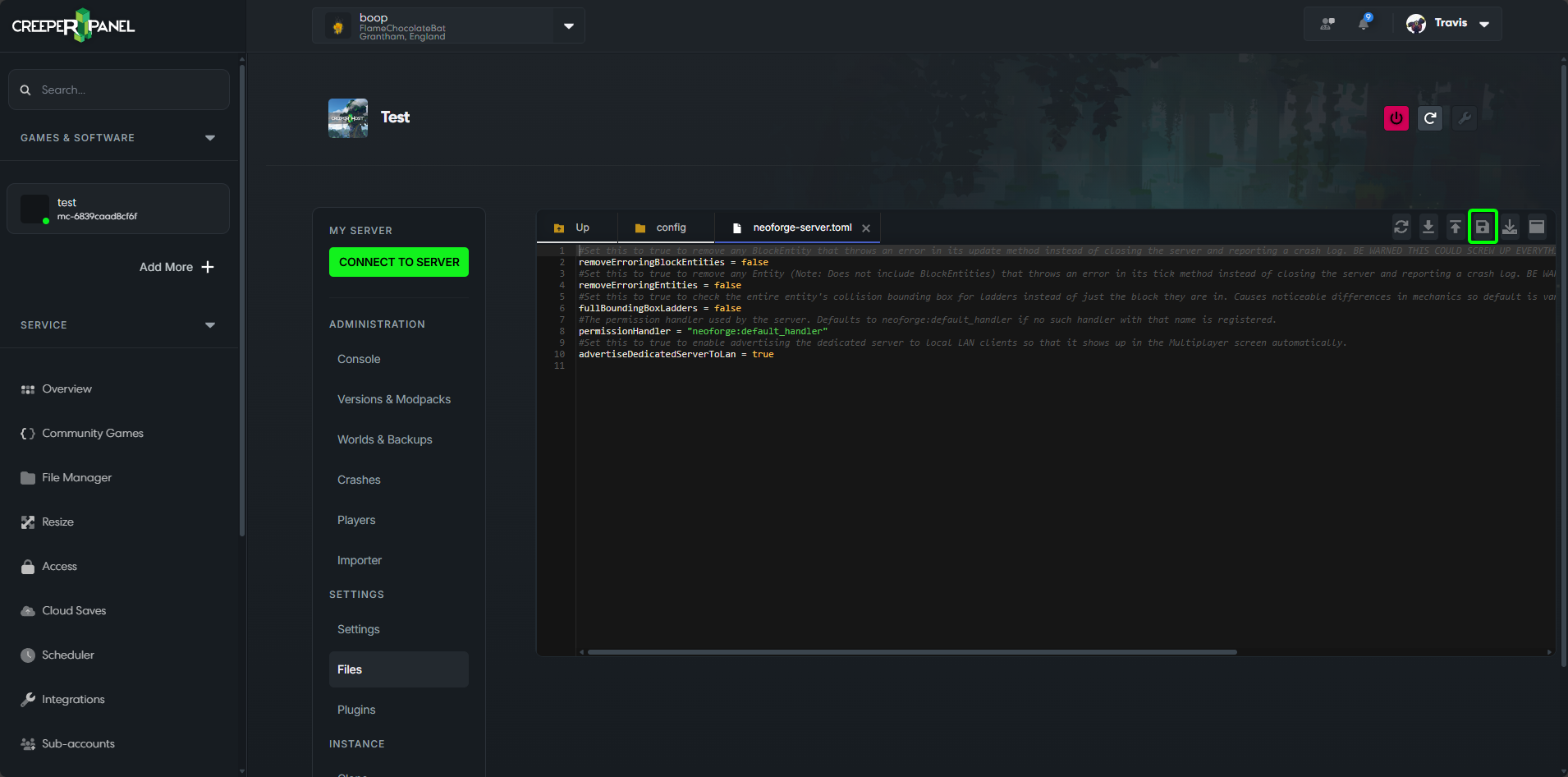
- Save your changes using the
Savebutton.
info
Now that the option has been changed you should now restart your server for this to take effect.
Pre Minecraft 1.13
Forge config location config/forge.cfg
- Select your instance from the
Games & Softwaretab.
- Select
Files, found underSettingsin the instance's submenu.
- Select the
configdirectory.
- Find
forge.cfg, and double click to open.
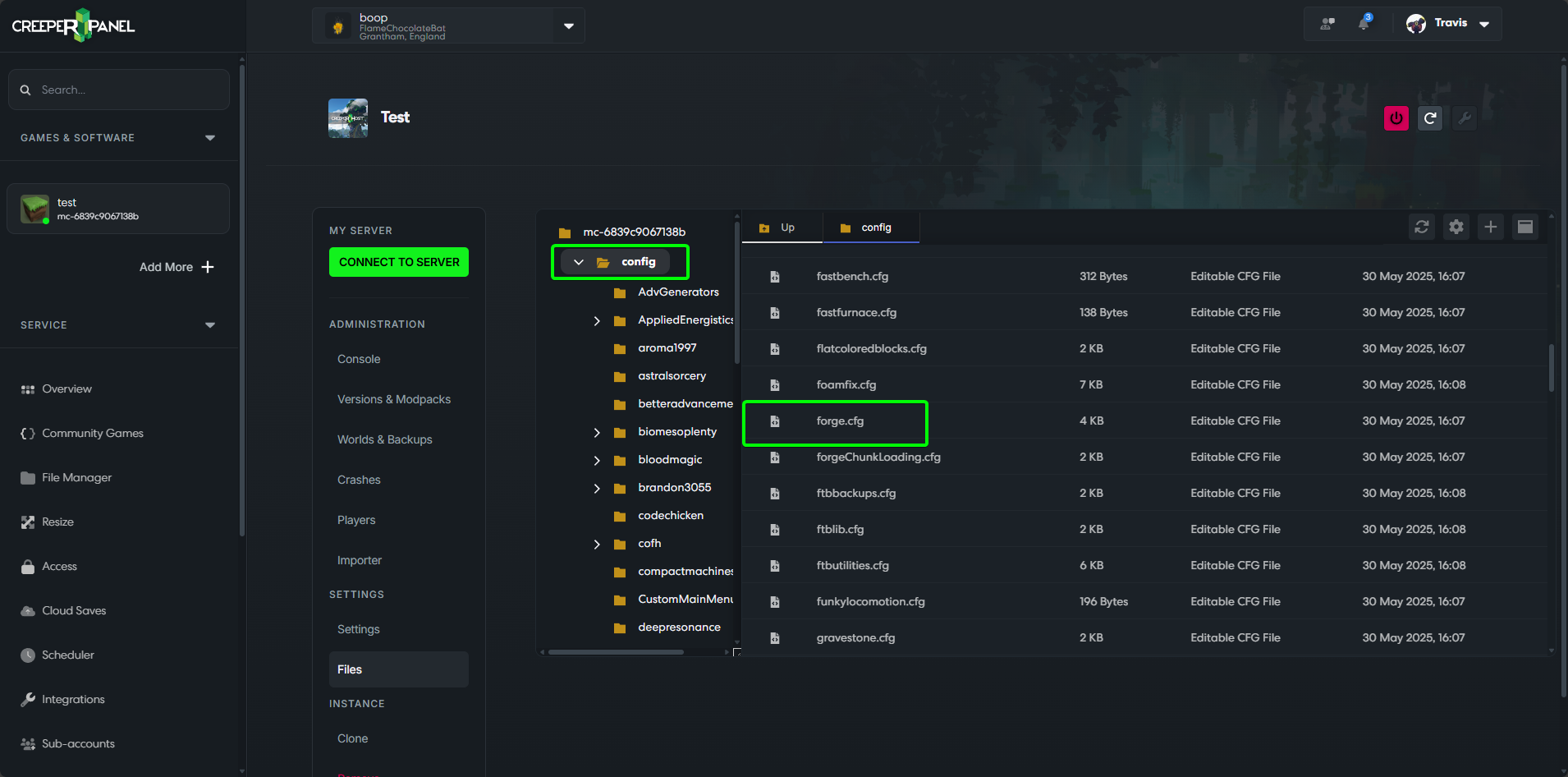
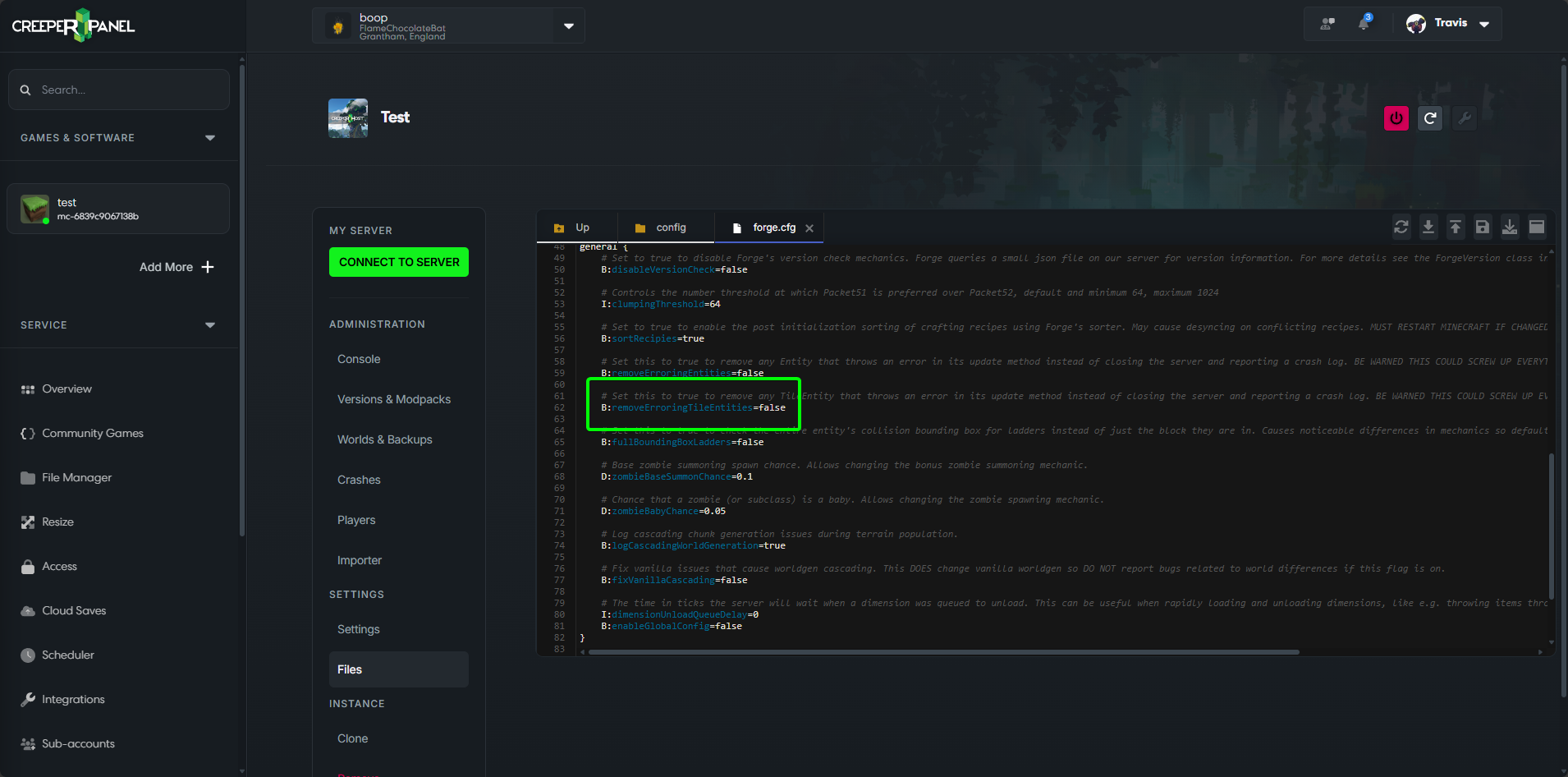
- Find the option for
removeErroringTileEntitiesand set the value totrue
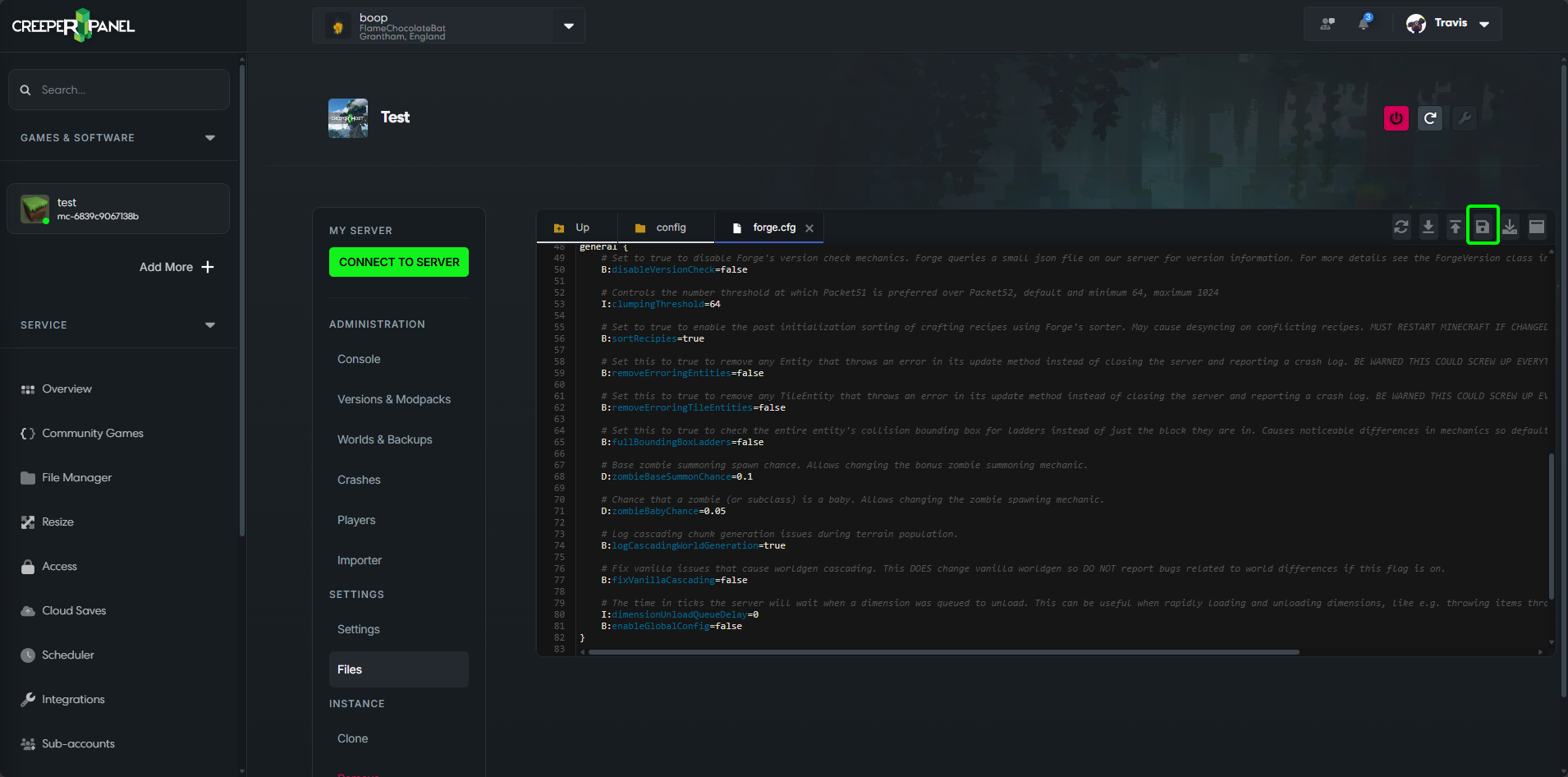
- Save your changes using the
Savebutton.
info
Now that the option has been changed you should now restart your server for this to take effect.