Authorising your Hytale server
Before managing the game, you will need to prove you own Hytale by logging in to your Hytale account. To start:
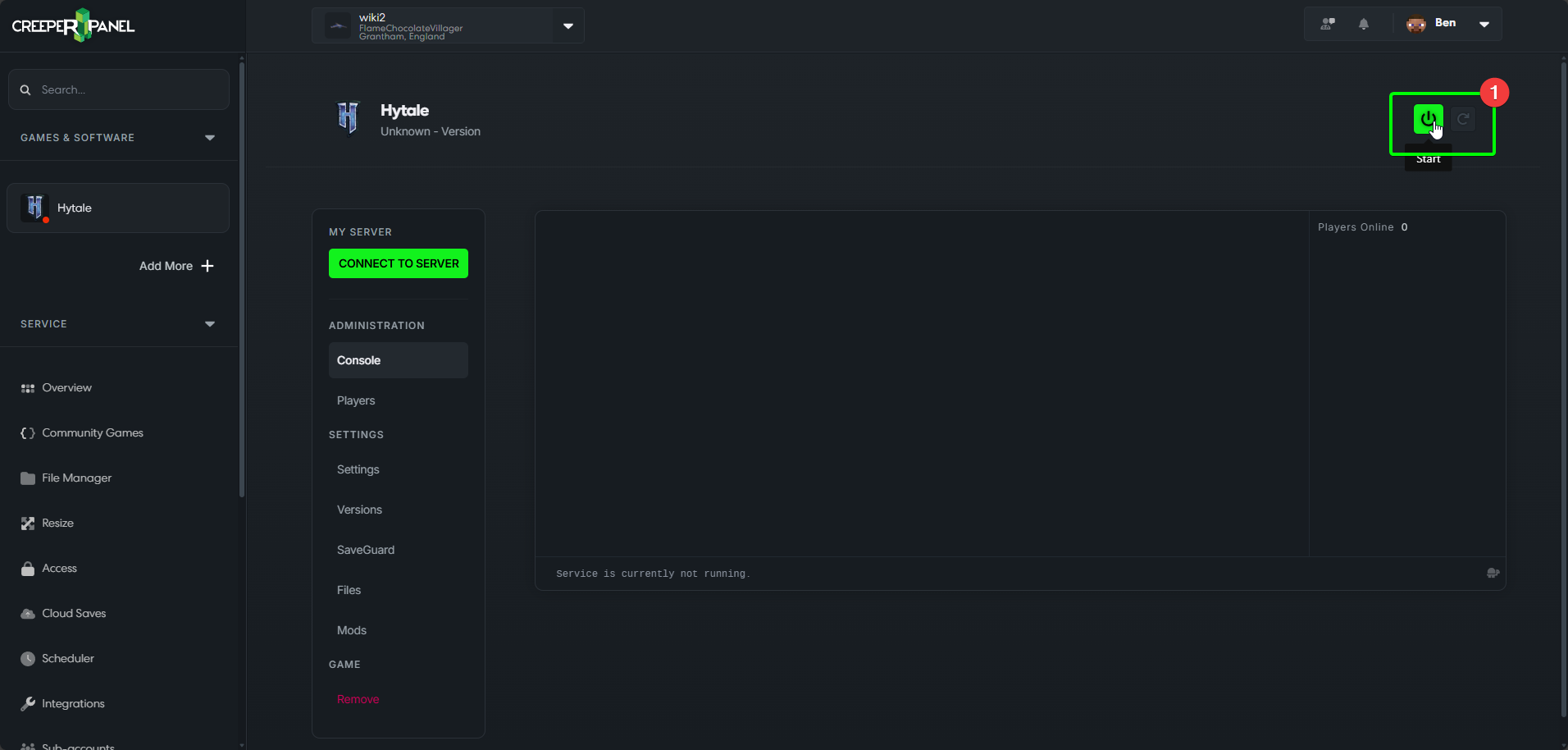
- Switch your server on using the green power button in the top right of your window.
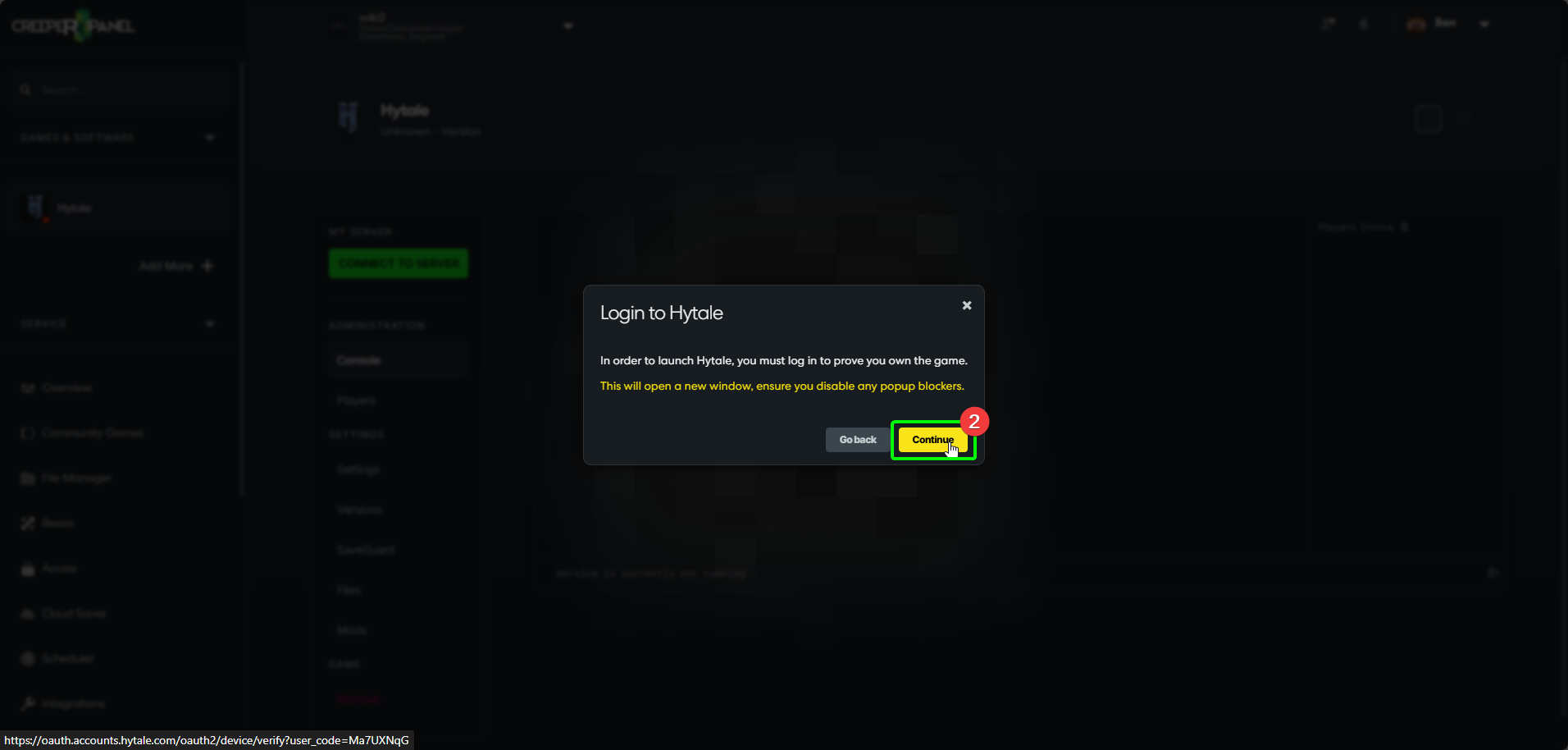
- A pop-up will appear, informing you that you will need to log in - select
Continue. This will open a new window.
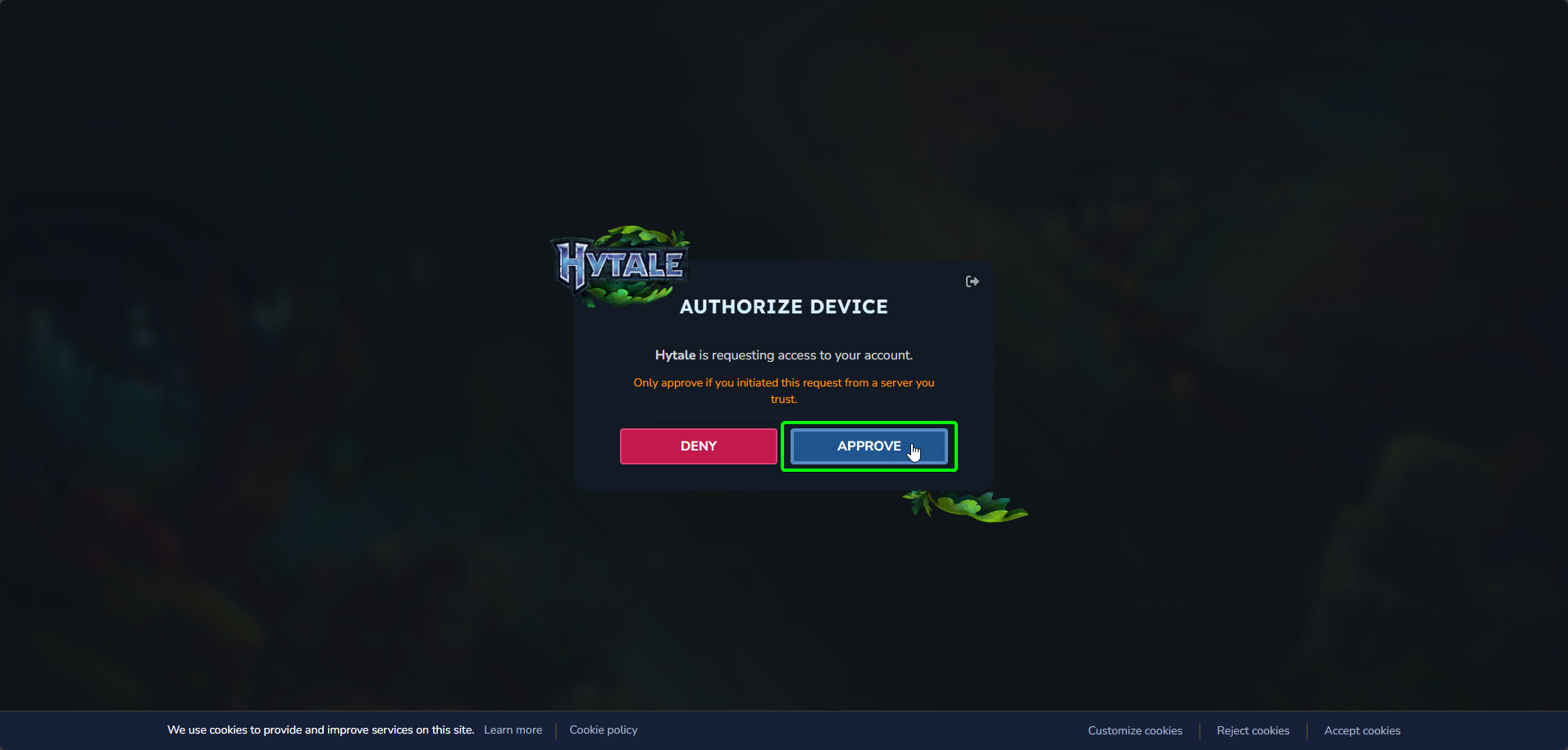
- In the new window select
Approve, and complete the security check.
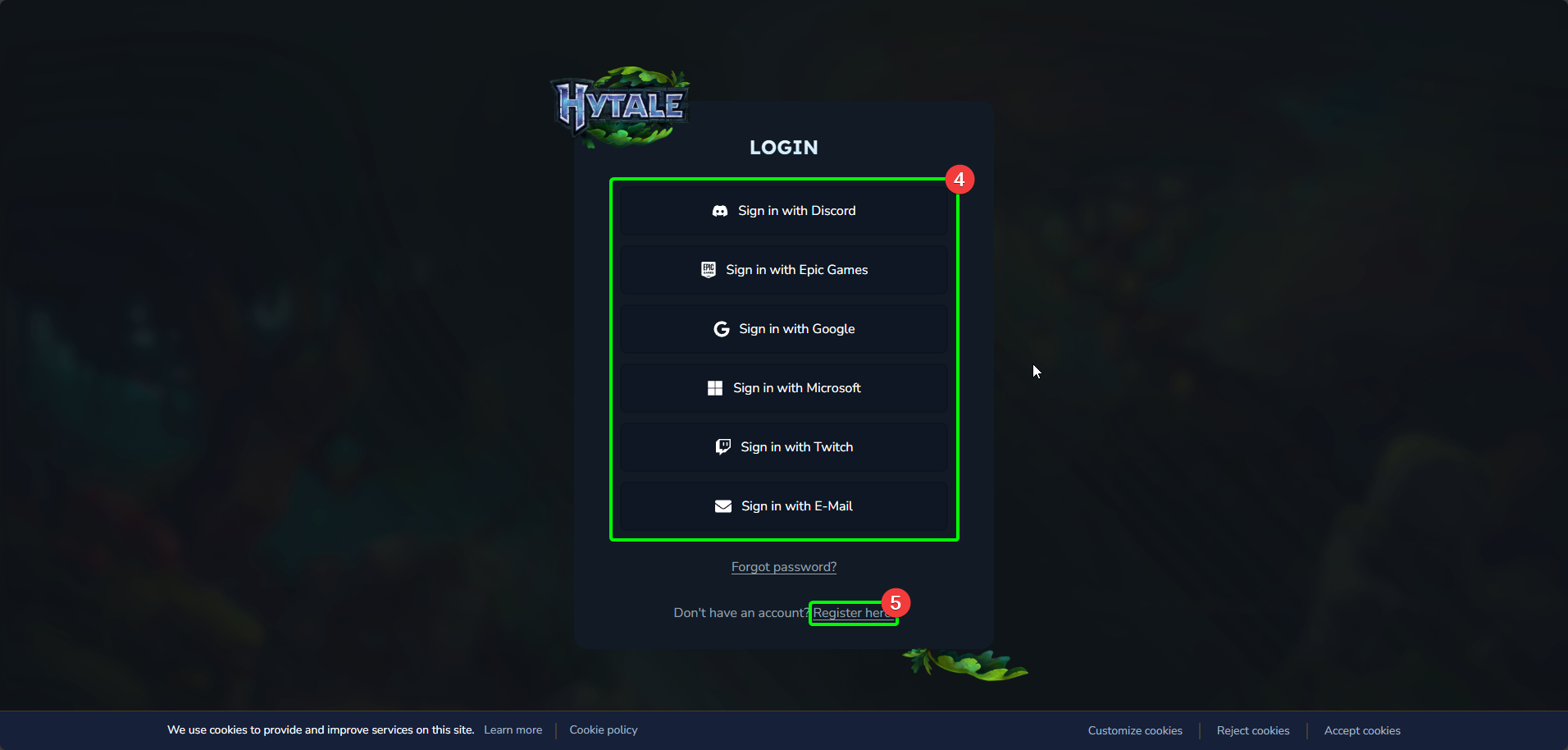
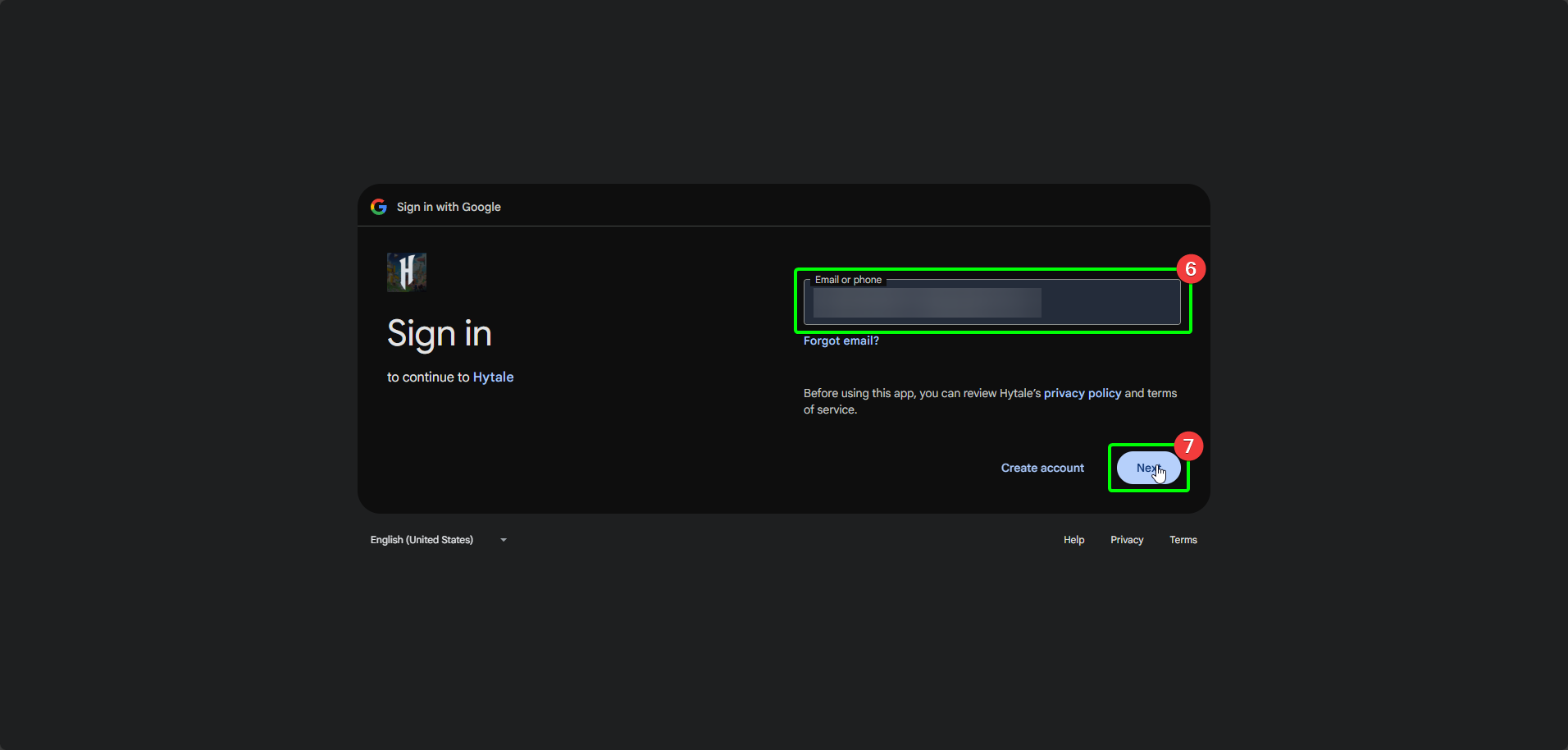
- On the next page, select the sign-in method you used to create your Hytale account. If you have already logged in, the site may remember your last login method and offer it. We'll continue with Google for this guide.
- If you haven't already created an account, you can register at the bottom of the page.
- Enter your email in the appropriate field.
- Select
Next.
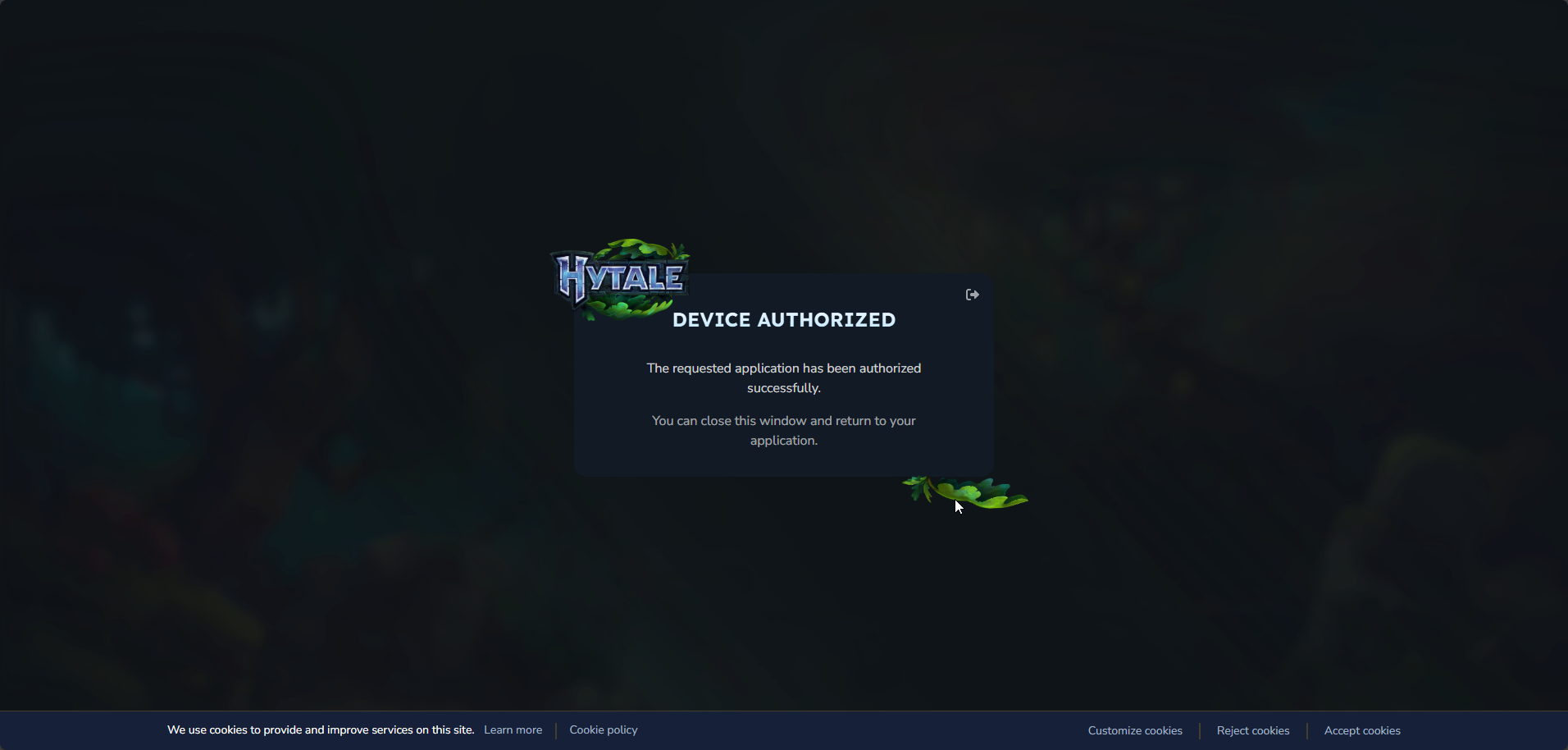
- After entering your password and logging in to your Hytale account, you should be redirected to a page informing you whether your device was authorised. You should be able to close this window, and return to the CreeperPanel.
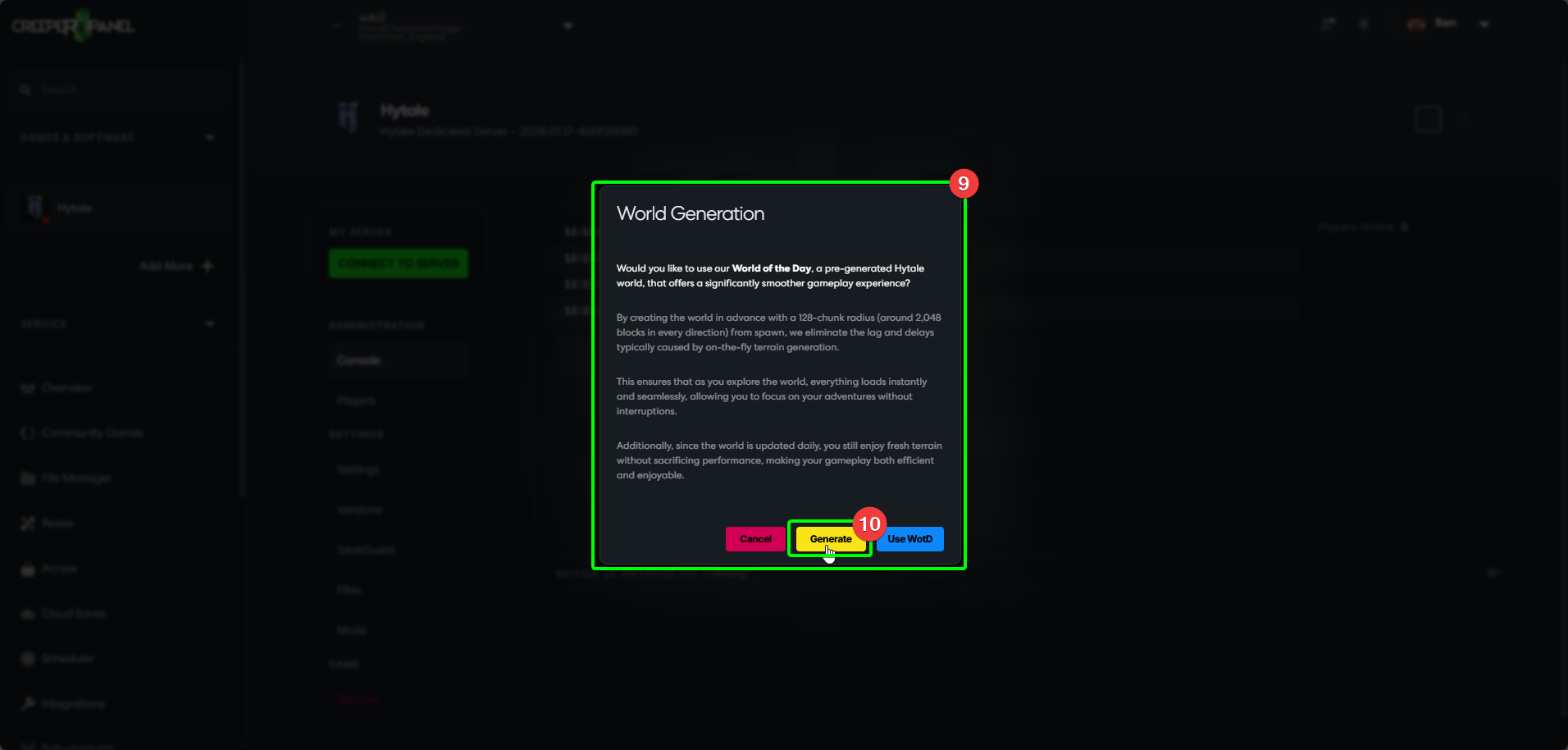
- Back at the Panel, Hytale should have started after your server was authorised - you should now see the
World Generationpop-up! - Select
GenerateorUse WotD.
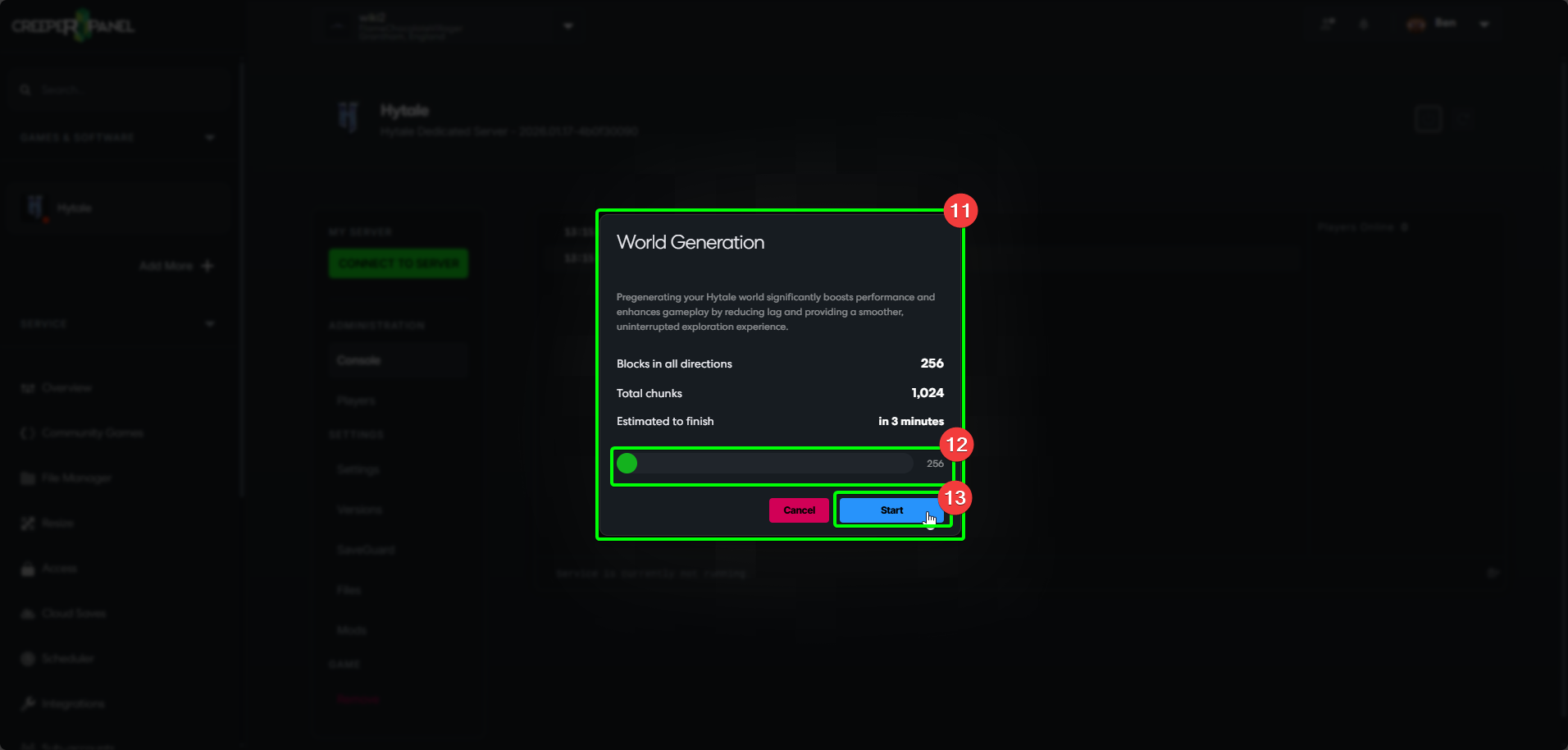
- If you select
Generate, the pop-up will present you with a new window. - Set the number of blocks to be generated here - a higher value will take longer to load, as shown just above the slider.
- When you are happy, select
Start.
Your Hytale server should start the loading process. For a first-time start, this may take a moment longer, but you should still be able to see your server is active by the usual indicators.
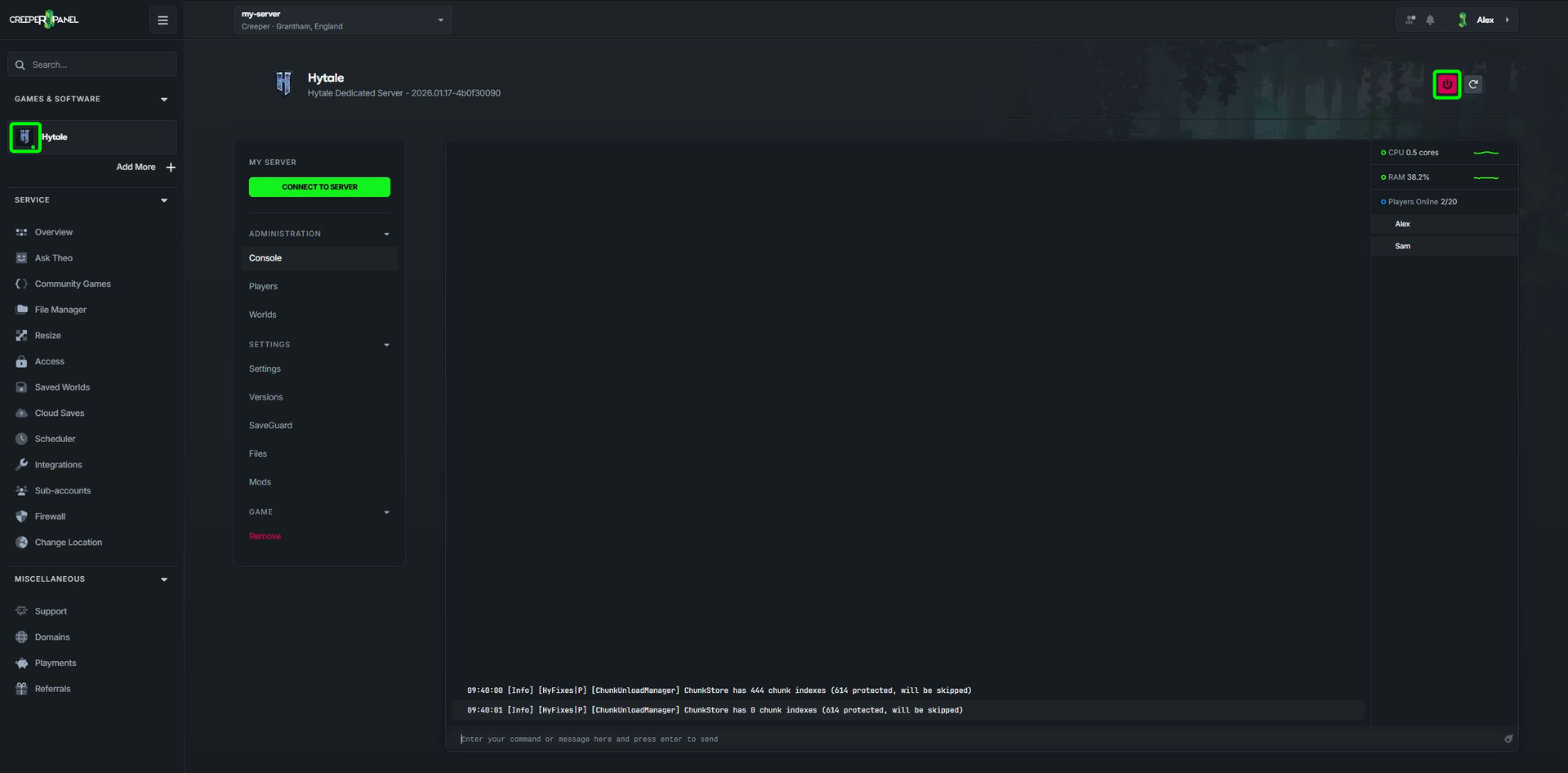
An active Hytale server, shown by a green dot on the Hytale icon, and the power button being red
See world generation for the difference between Generate and Use WOTD, or managing worlds to bring an existing save.