Adding mods to your Hytale instance
Stop your Hytale instance before adding or changing mods, then restart it to apply your changes.
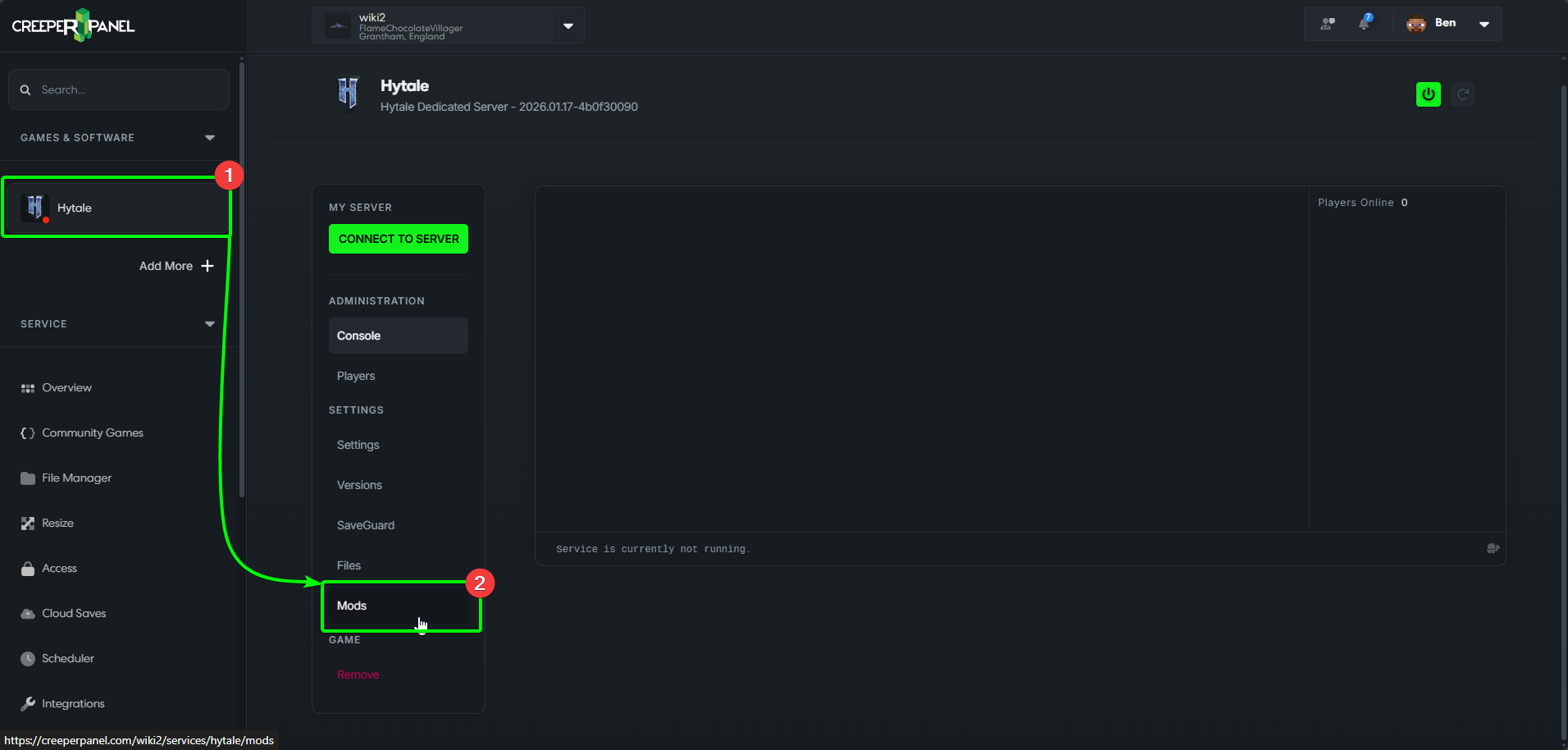
Adding mods to your Hytale instance is incredibly easy to accomplish with the CreeperPanel. To get started:
- Navigate to
Hytalein the sidebar of the CreeperPanel. - Navigate to
Mods, found underSettingsin the sub menu.
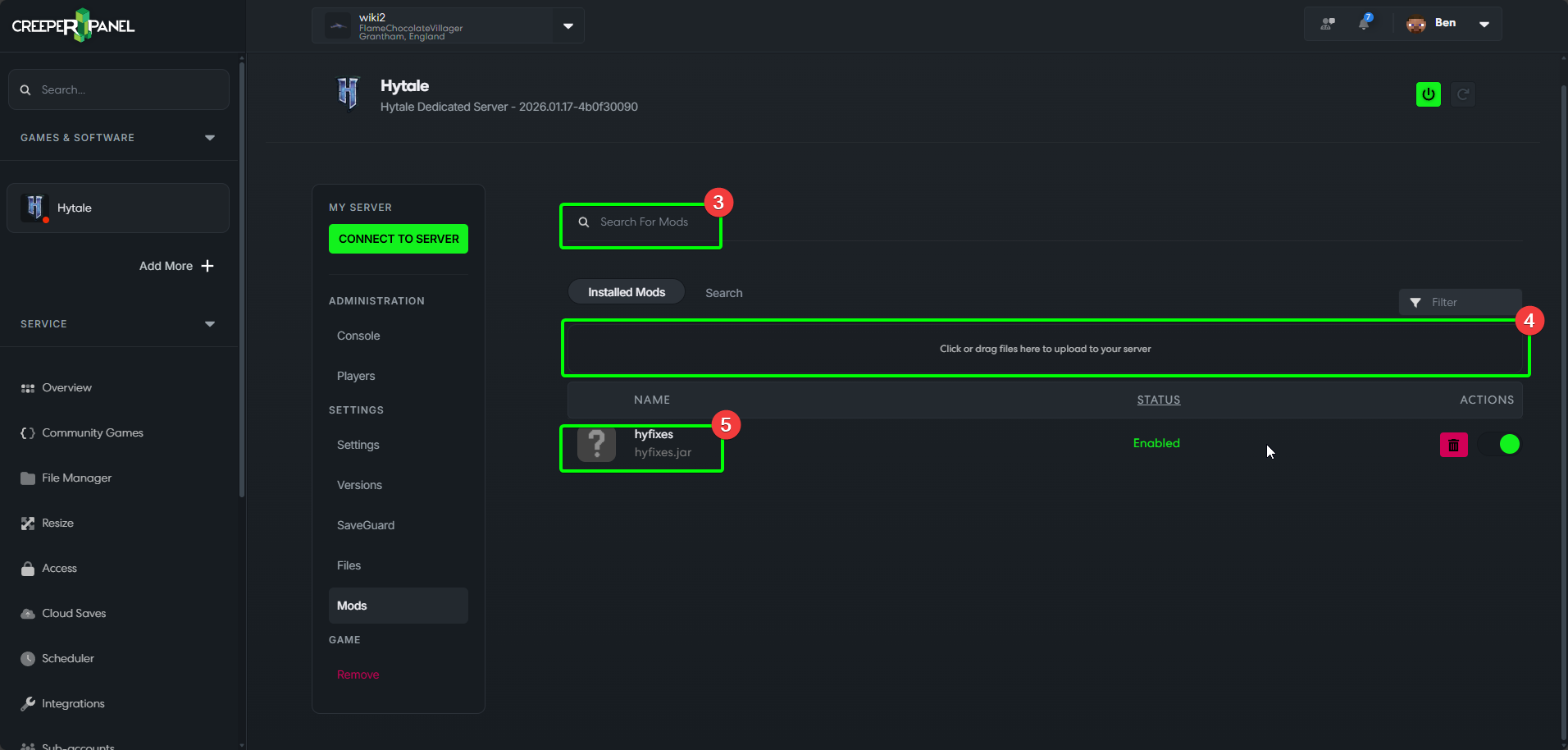
Now you're on the Mods tab, you should be able to see:
- A search bar - you can use this to search for a specific mod or mods.
- Drag'n'Drop box - you can drag mod files from your client machine to this box to upload them to the mods folder.
- A list of installed mods and their status.
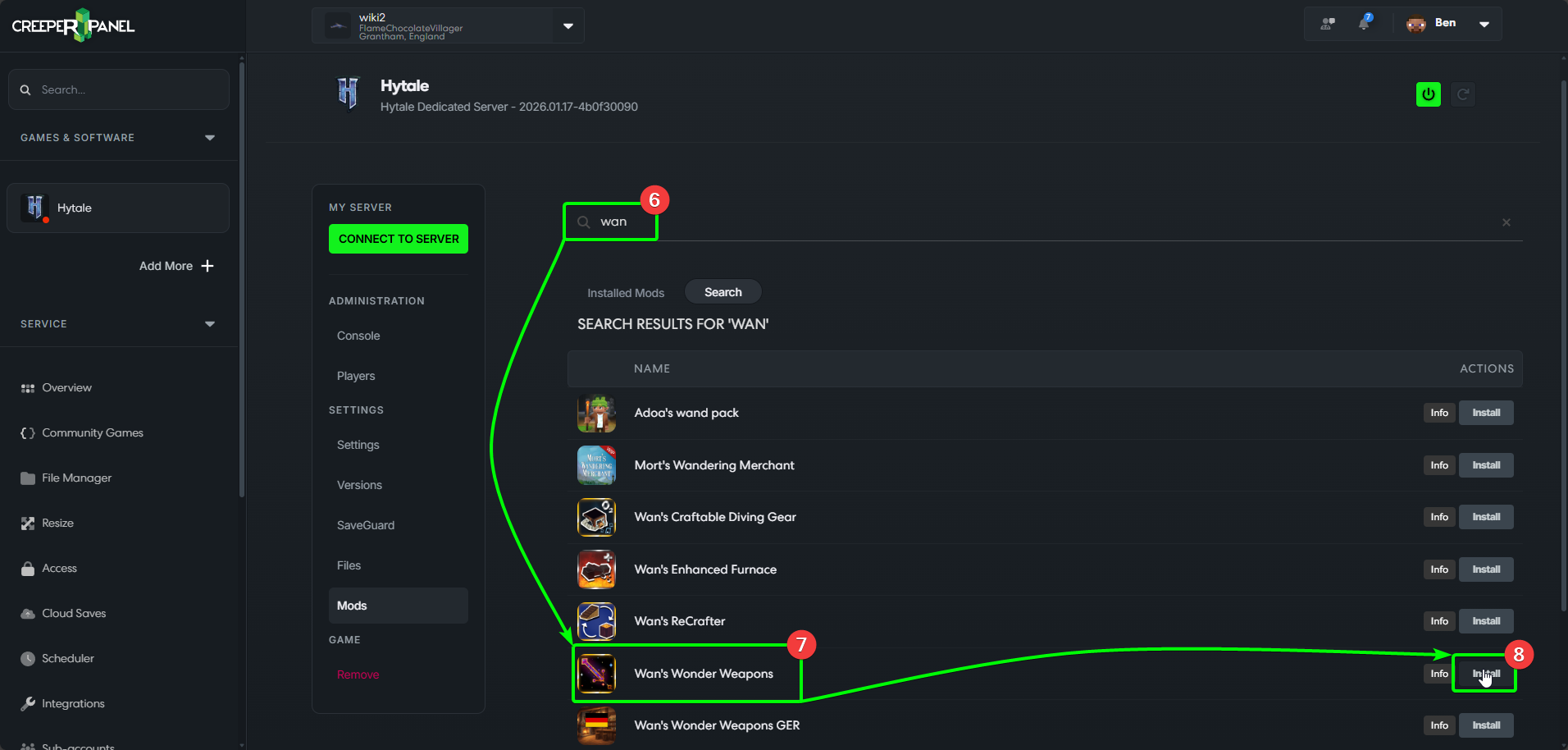
To find a mod in this guide, we'll use the search bar.
- Click on the search bar, and type the name of the mod you wish to install. The Panel will auto-populate results as you type - the more you enter, the more specific your search will be.
- Find the mod you wish to install.
- Select
Install. The Panel will download and install the selected mod.
- If you would like to confirm the mod has installed, you can select the
Installed Modstab at the top of the mod list. - You should see the mod installed; in the
Statuscolumn, should showEnabled.
Check the mod author's requirements before installing, including compatibility with your Hytale version.
Update and manage your collection
Stop the instance before changing mods. In Installed Mods, use a mod's download button when Update Available appears, or Update All to apply the available updates together. Wait for the operation to finish before starting Hytale again.
When installing a mod from the catalogue, the Panel checks its declared required dependencies. Read the dependency prompt and choose Install Dependencies to include them. A manually uploaded JAR or ZIP still needs the dependencies described by its author.
Use the installed-list switch to disable a mod while keeping its files, or the remove control to delete it. Back up the world before removing mods that add content.