FTB App
Download the FTB APP
You can download the FTB App from https://www.feed-the-beast.com/ftb-app
Uploading logs from the FTB App
If you are asked to upload logs from the FTB App, but are unsure where those log files are, you can follow this guide on finding the correct files to upload.
Open the FTB App, then navigate to the Library page of the app.
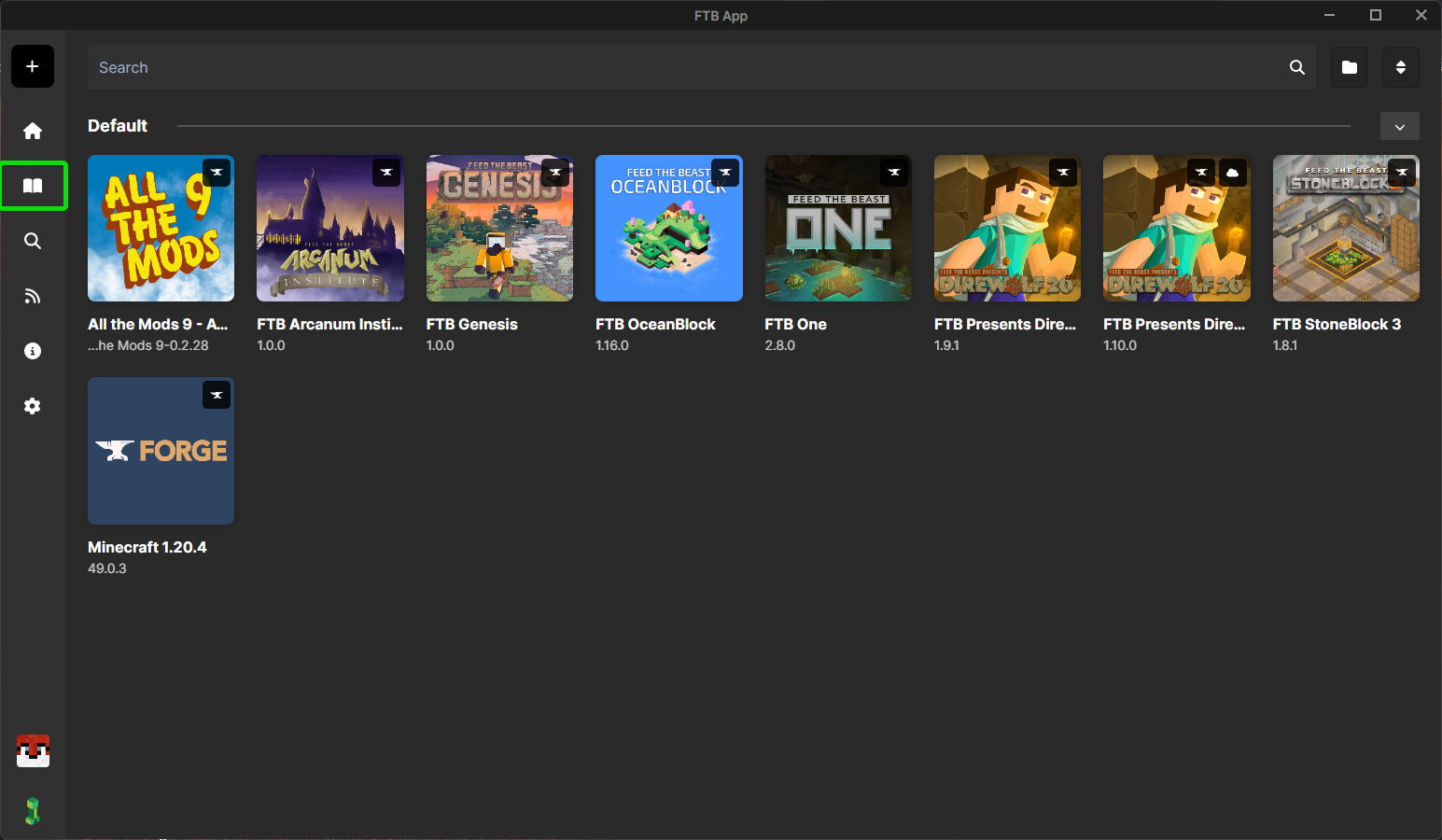
Once on the Library page, click on the image of the modpack you are having issues with. You will be taken to the Description page for that modpack; you should now see a large Play button with 3 vertical dots to the right of the button.
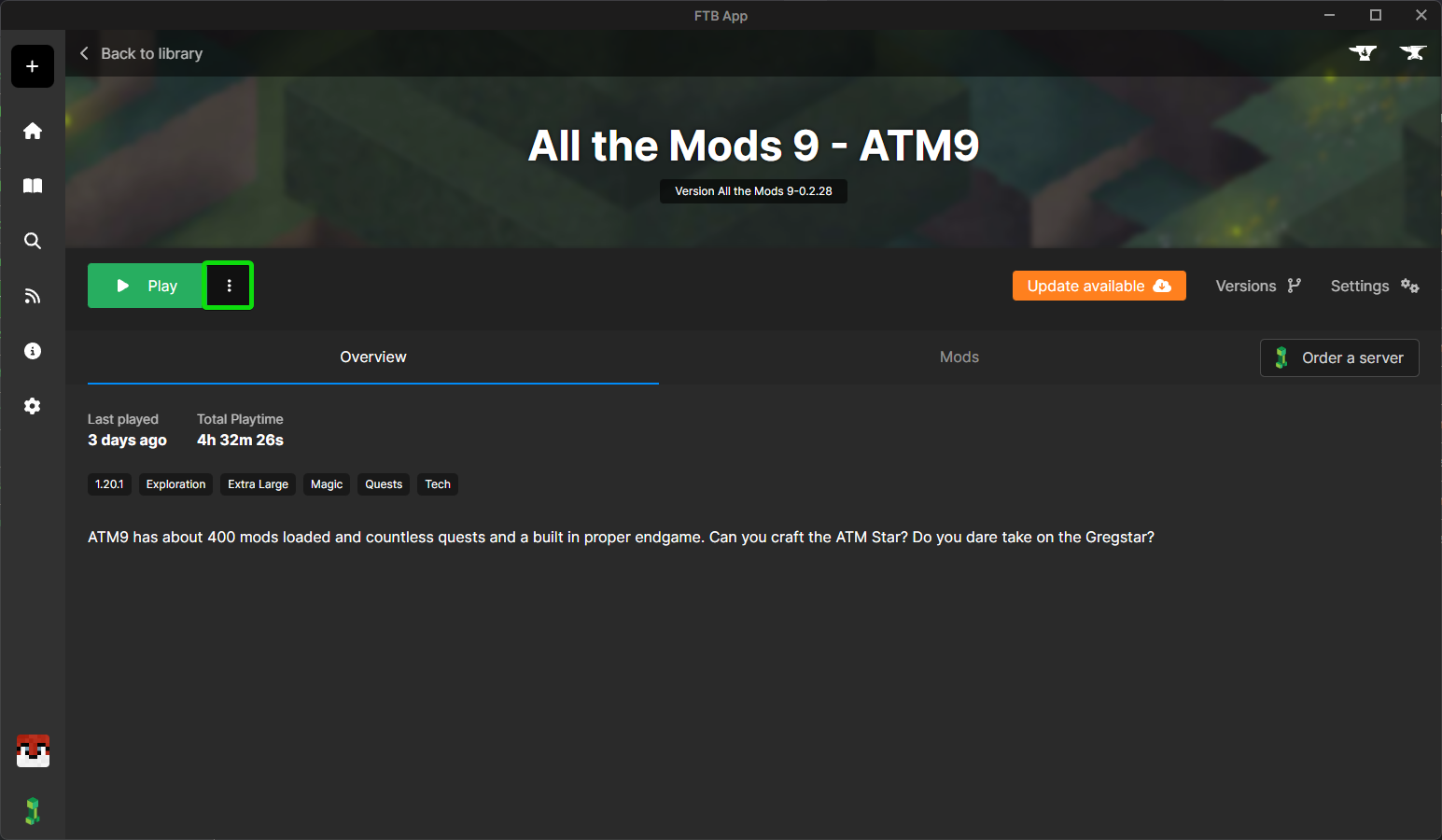
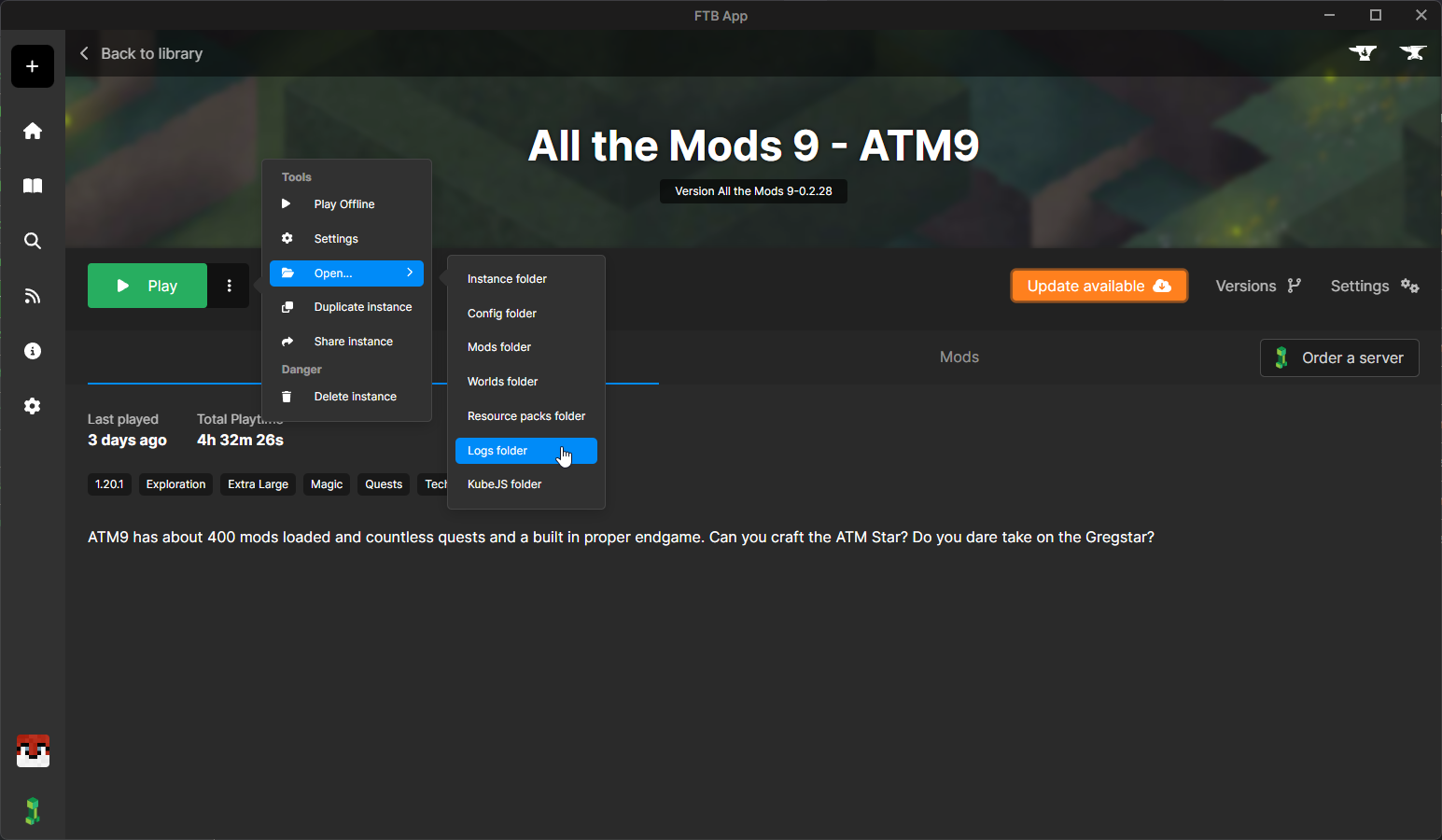
Click on the 3 dots button to display a menu. Hover over the Open option. In the sub menu that opens, click on the Logs Folder option.
This should now open your File Explorer to the location of the logs folder for your selected instance. If you don't see the window, it can sometimes start minimised in the background.
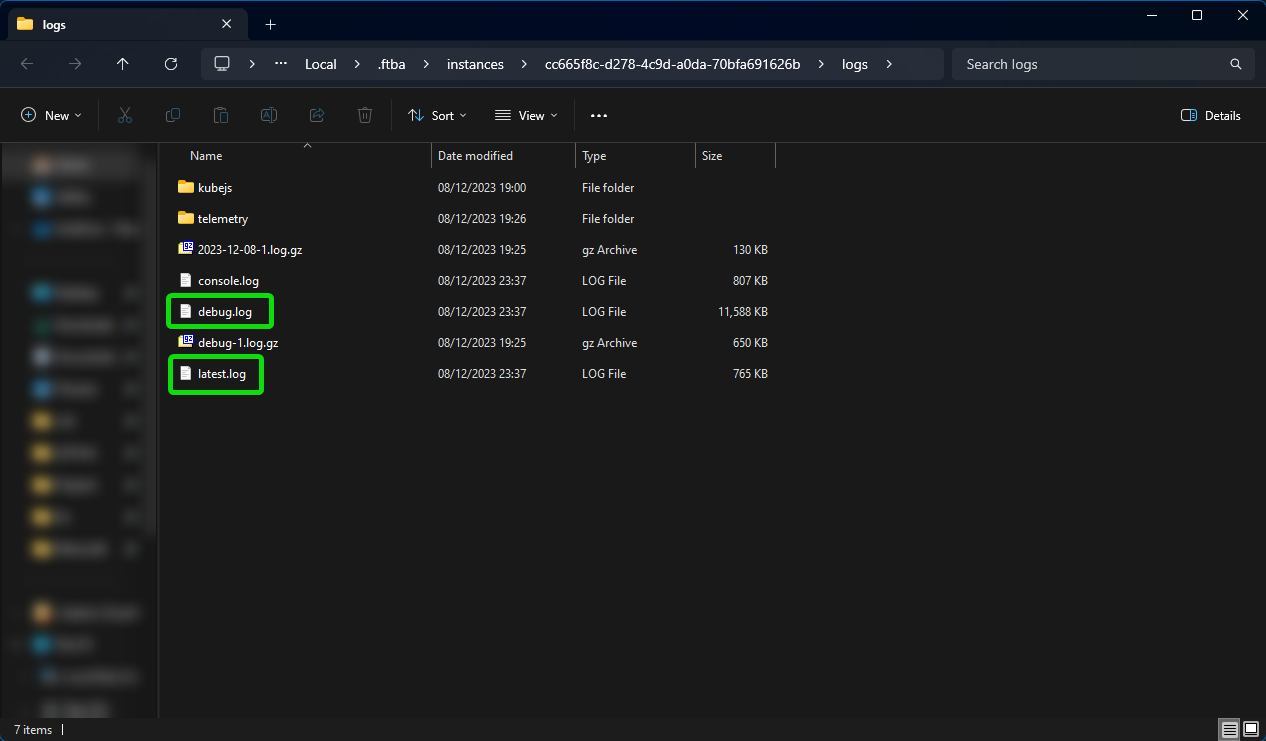
In this folder, you should see a few files, including a latest.log and debug.log.
To open these files, right-click them. Select Open With > Notepad.
With the file open, press CTRL+A, to highlight all the text.
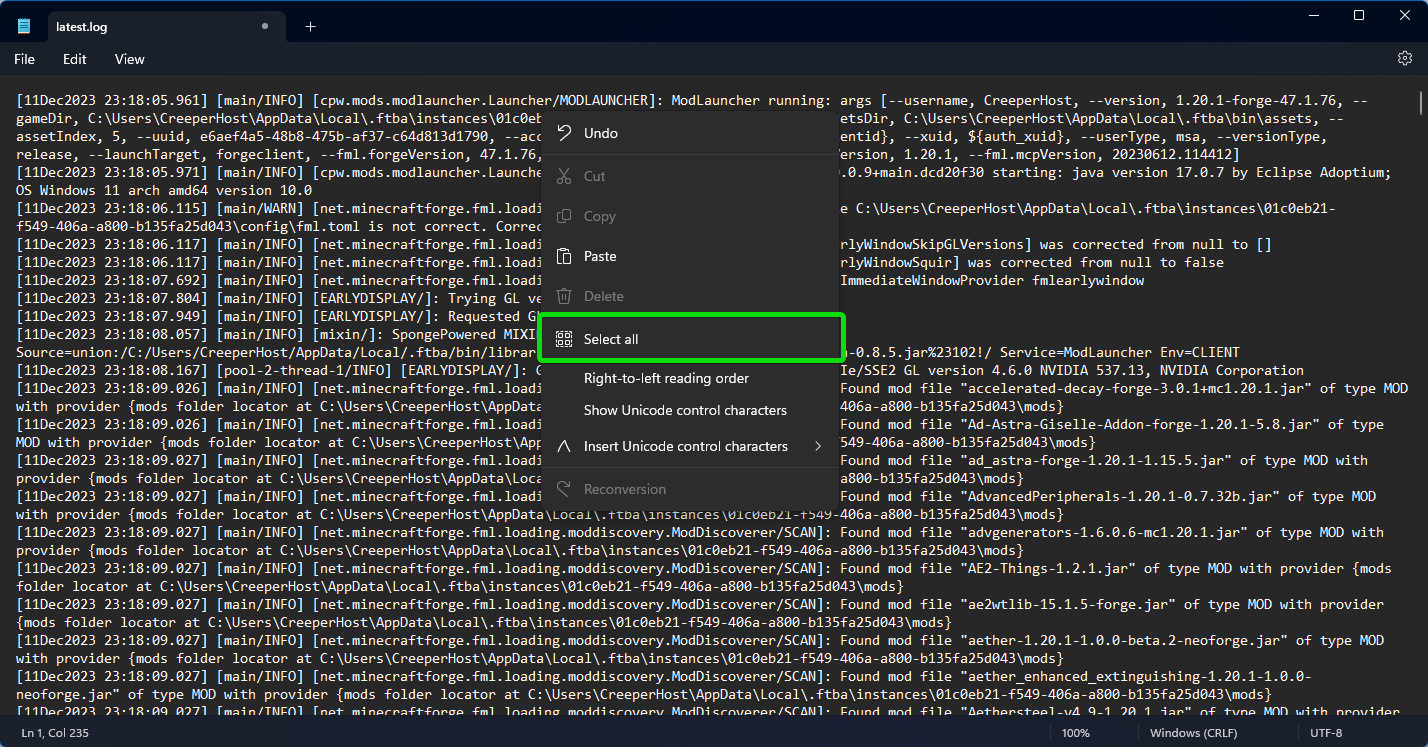
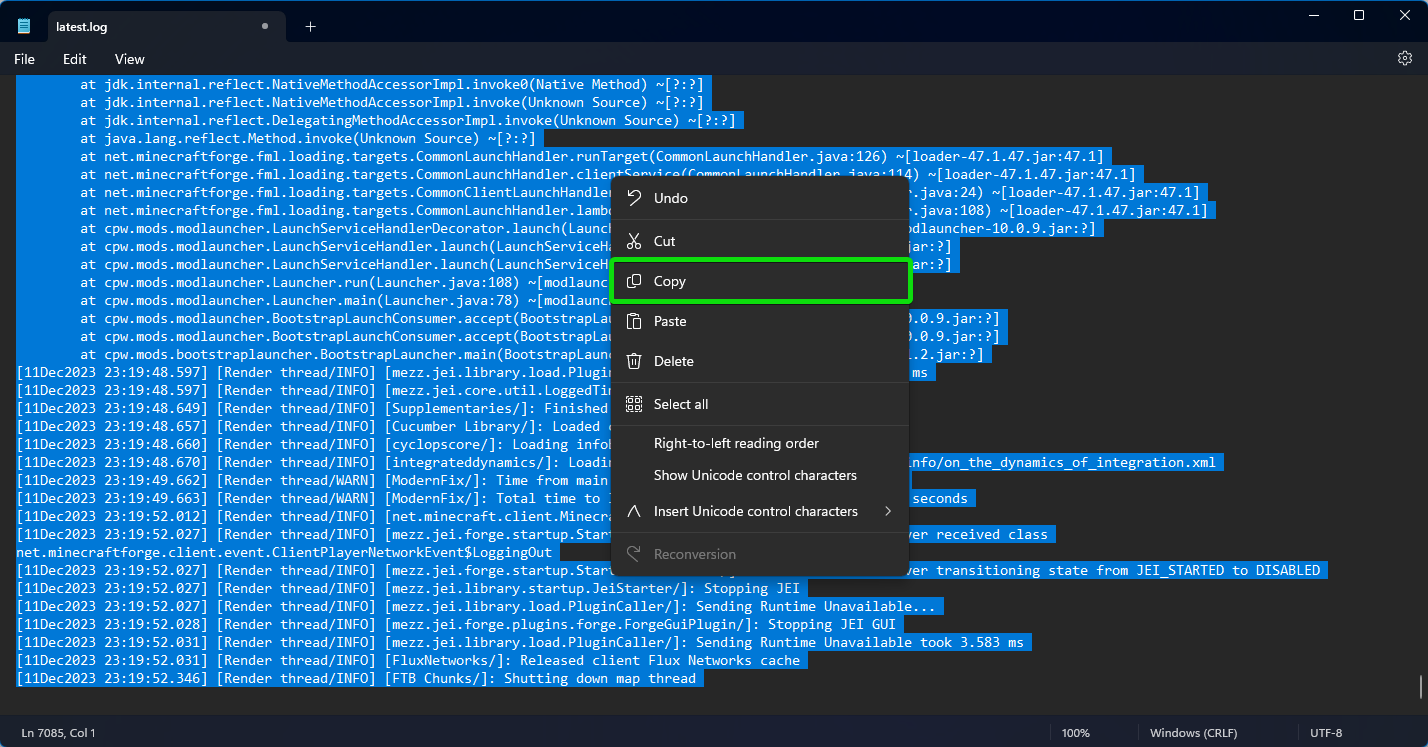
Now the text is highlighted, press CTRL+C, or right-click and select Copy, to copy the text to your clipboard.
Head over to https://pste.ch/; right-click the main body of the page, and select Paste to paste the contents there. Click on the Save icon button in the top right. Copy the URL, and paste it into your chat with Support.