Updating your Mods in Vintage Story
- Select
Vintage Storyin the software list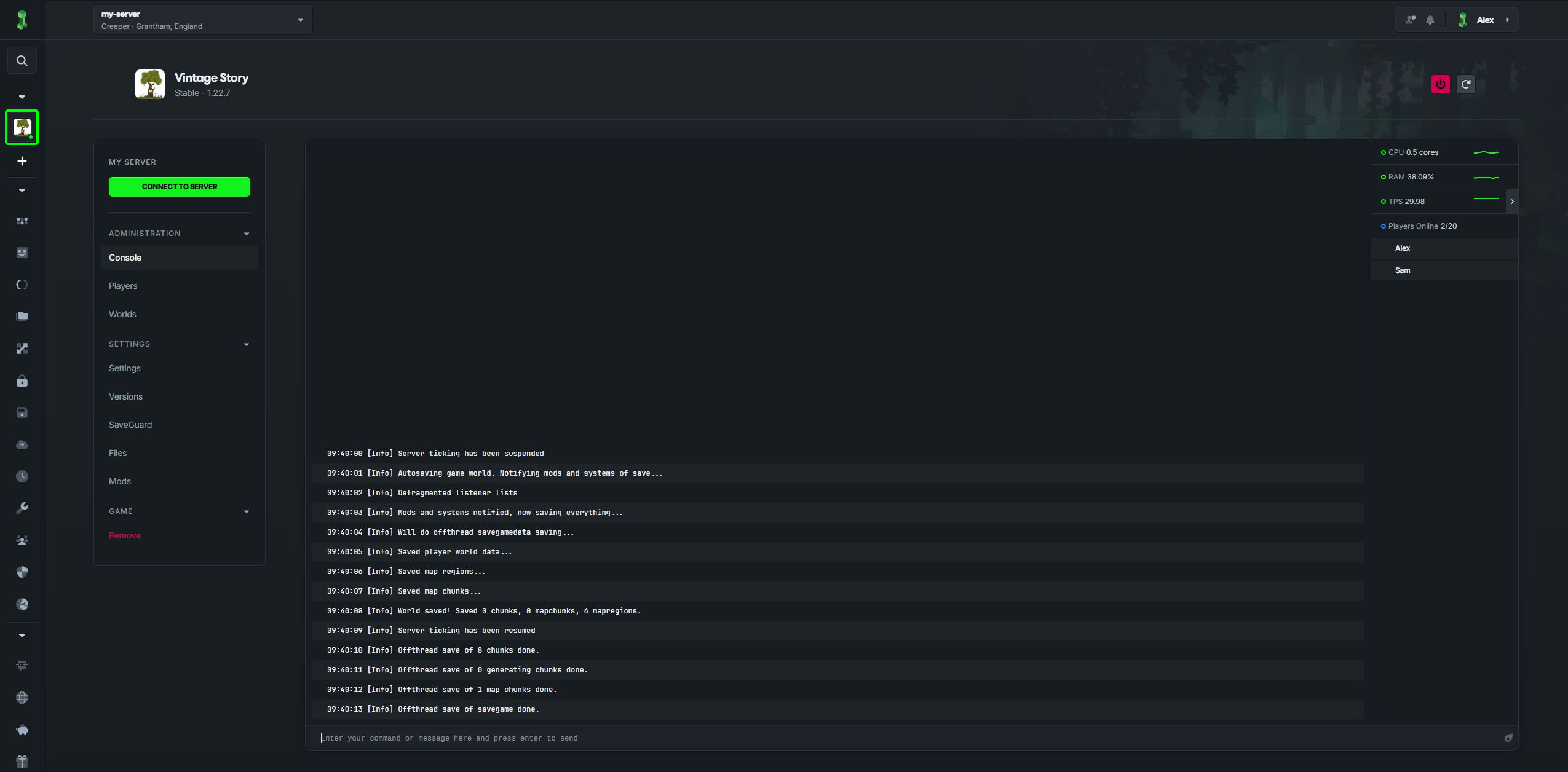
- Make sure to stop your server
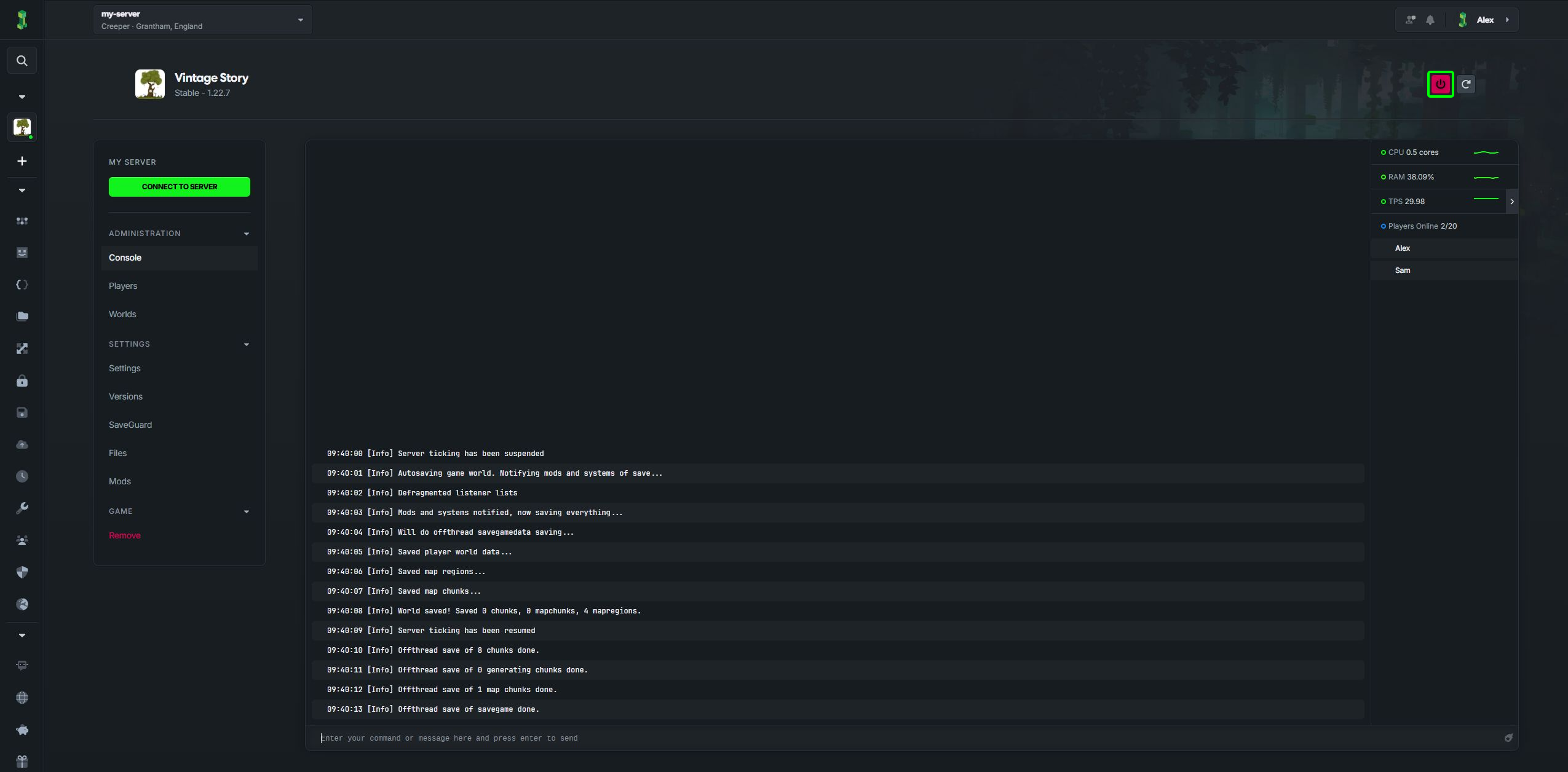
- Select
Mods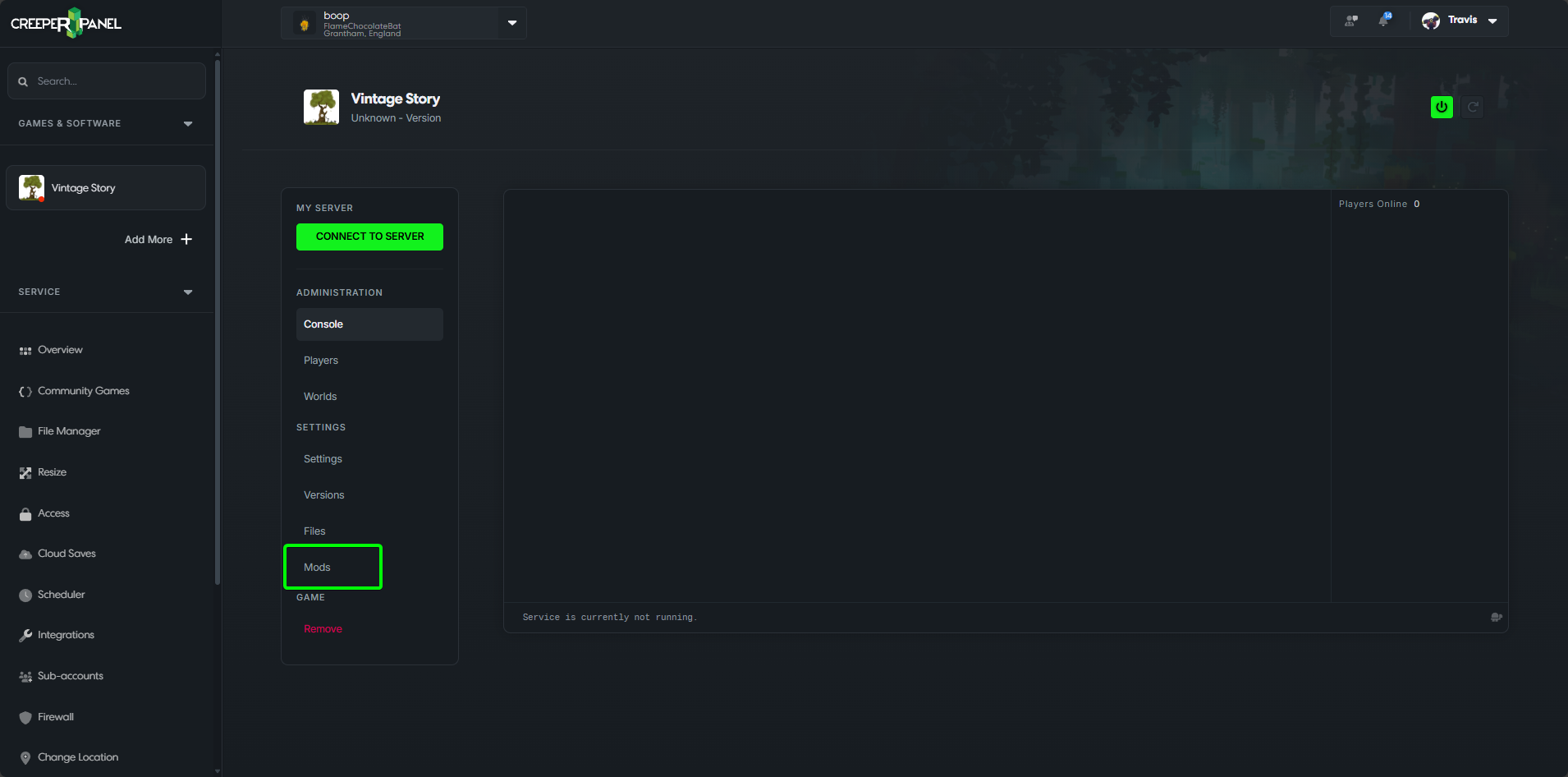
- If a mod has an update you should see an 'Update Available' message
The CreeperPanel will only show updates to mods that are compatible with version of Vintage Story your server has installed
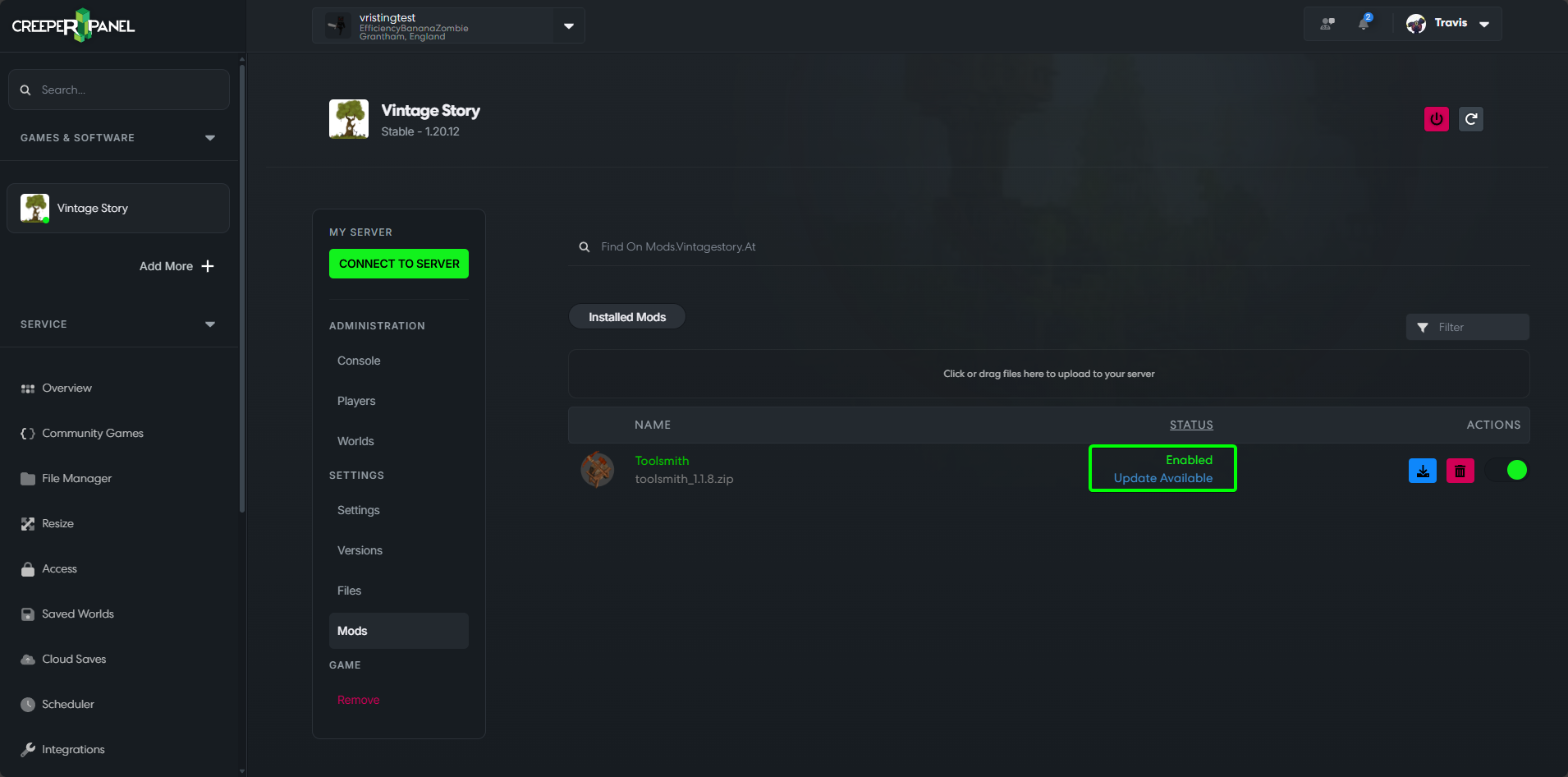 5. Click on the
 Update button
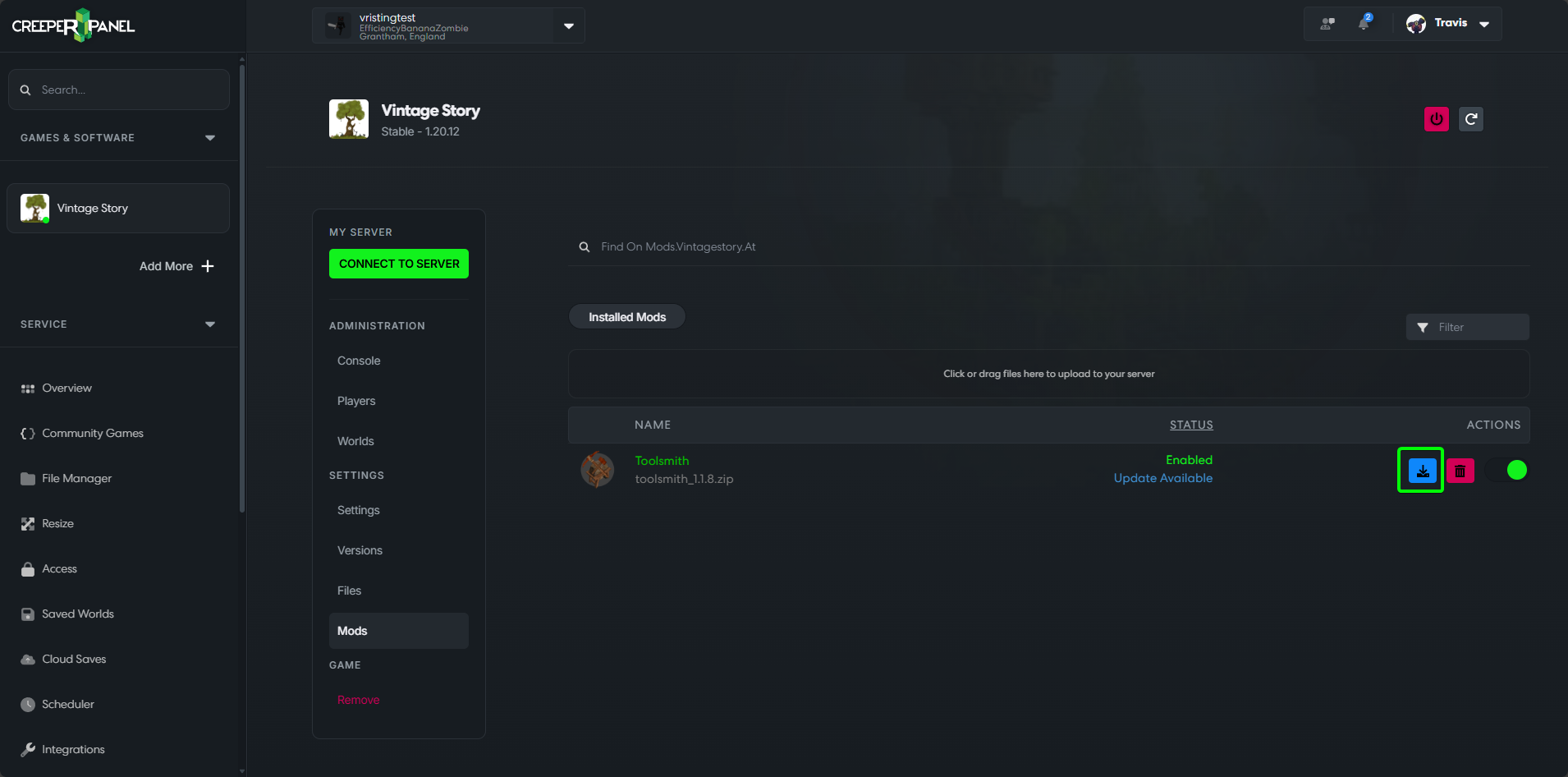 6. Start the server
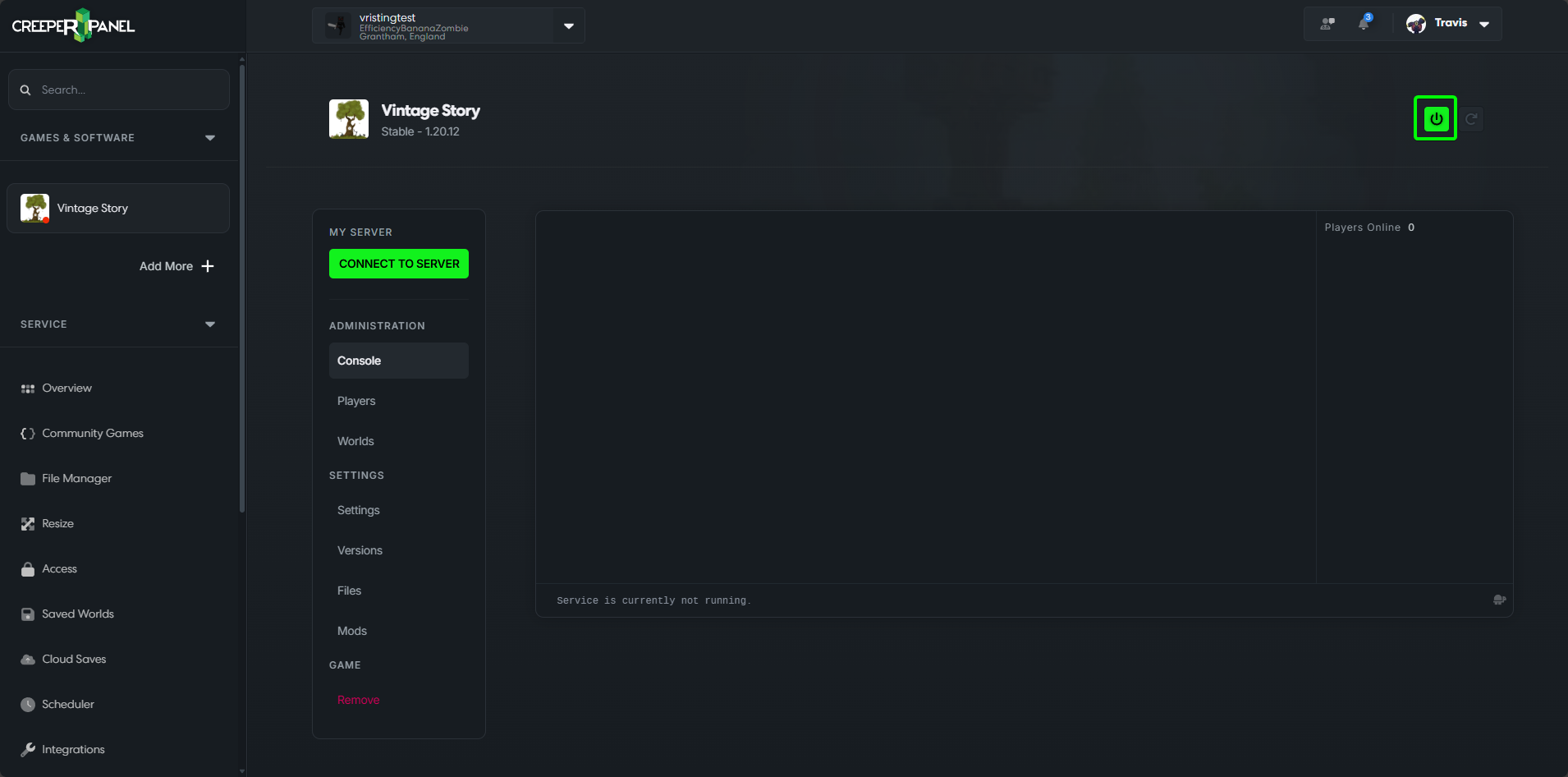
That's it, The mod has now been updated

Update several mods together
Stop Vintage Story, open Mods and wait for the installed list to finish checking releases. Use Update All to apply the available updates together. The per-mod download button remains useful when you want to update one mod at a time. Start the server after the updates finish.
When a new mod needs declared dependencies, review the prompt and choose Install Dependencies to include them. Check the author's instructions for anything the catalogue cannot identify.
Manually uploaded and older mods
The Panel also checks recognised ZIP mods uploaded manually and tries to match them with release information. A missing update indicator is not proof that a mod is current; check its original download page if it cannot be identified.
If Migrate Mods Directory appears, stop the server and choose Migrate Now to move recognised mods from the older directory into the current location. Ask Me Later postpones the move. Use the Panel's migration prompt instead of keeping duplicate copies in both locations.