Configuring your Unturned License (GSLT)
If you are running an Unturned server via CreeperHost, you will likely encounter a "License" pop-up window upon launching your server instance. This window is asking for your Game Server Login Token (GSLT).
Without a valid GSLT, your server will not be visible in the Unturned server browser, meaning players won't be able to find and join your world.
A Game Server Login Token (GSLT) is a unique identifier provided by Steam. It acts as a way for Steam to verify that a specific server owner is the one running the service, ensuring security and allowing the server to be listed in the official directory.
How to obtain your GSLT
Follow these steps to generate your token through Steam.
1. Log in to Steam Game Server Account Management
You do not use your standard Steam client for this. Instead, you must use the web-based management tool.
- Visit the Steam Game Server Account Management page.
- Log in with your Steam credentials.
We recommend using a dedicated Steam account for your server management if you are running professional or community-wide instances, though a personal account works fine for smaller projects.
2. Generate the Token
Once logged in, you will see a section to "Register a new Game Server."
- App ID: Enter
304930(This is the unique ID for Unturned). - Memo: Enter a name that helps you remember which server this is for (e.g.,
CreeperHost_Survival_01). This is private and only for your reference. - Continue: Click the button to generate the token.
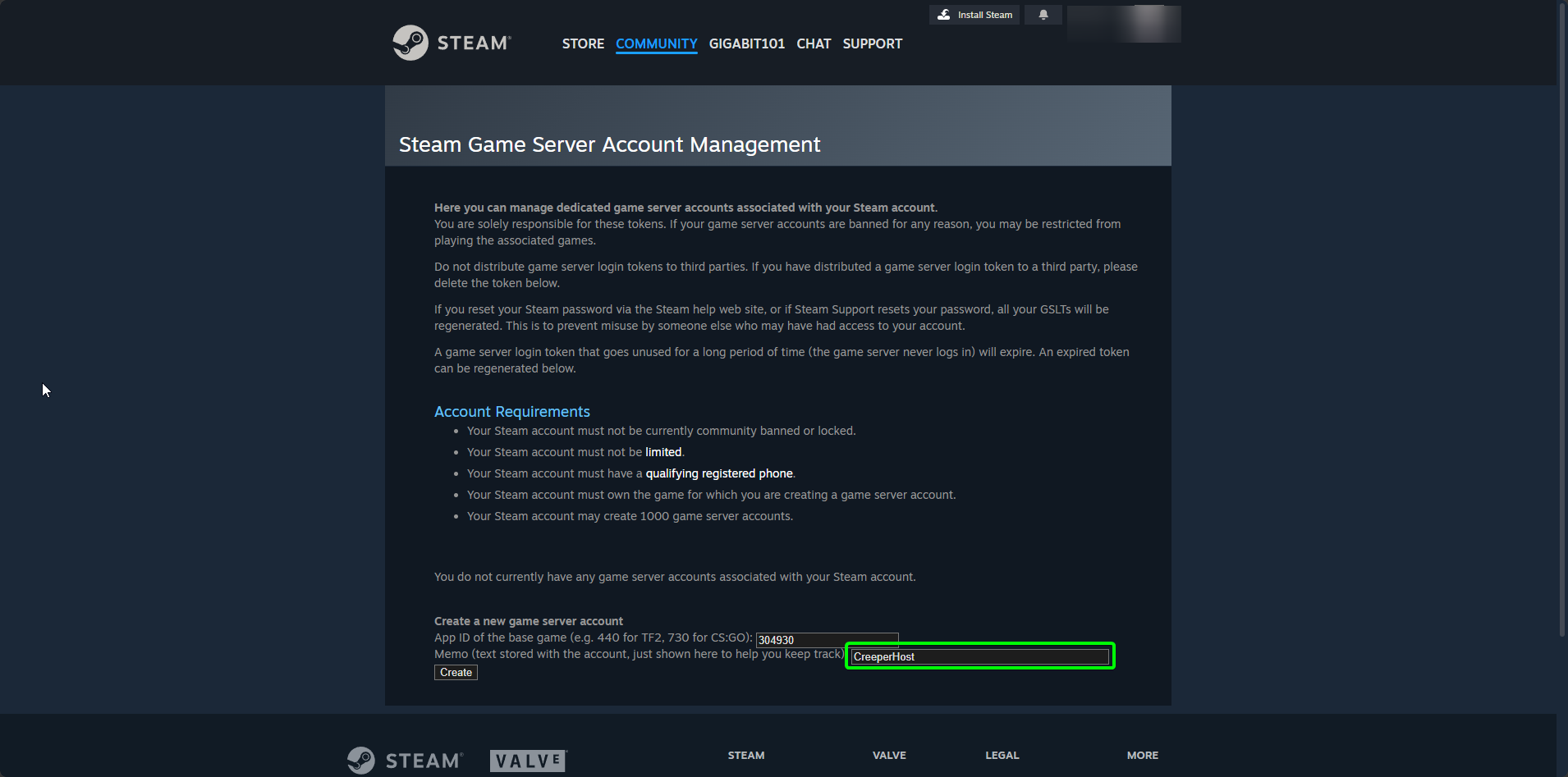
After clicking continue, a long string of alphanumeric characters will appear. This is your GSLT.
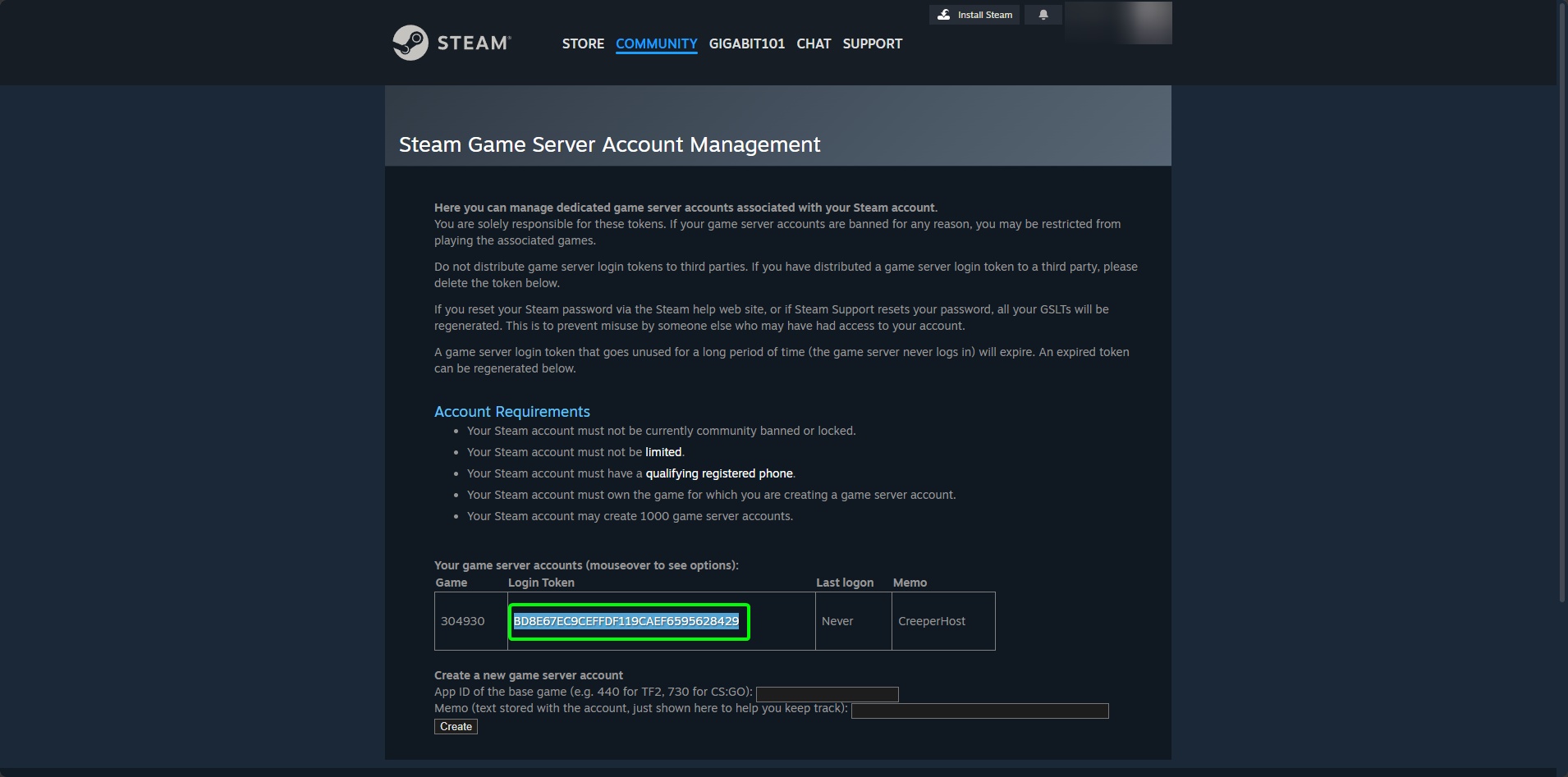
3. Copy the Token
Click the Copy button next to the token. Ensure you copy the entire string; even one missing character will cause the connection to fail.
Applying the Token to CreeperHost
Now that you have your token, you need to provide it to your Unturned instance.
- Navigate to your CreeperHost Control Panel.
- Launch your Unturned server.
- A pop-up window titled "Licence" will appear.
- Paste your GSLT into the input field.
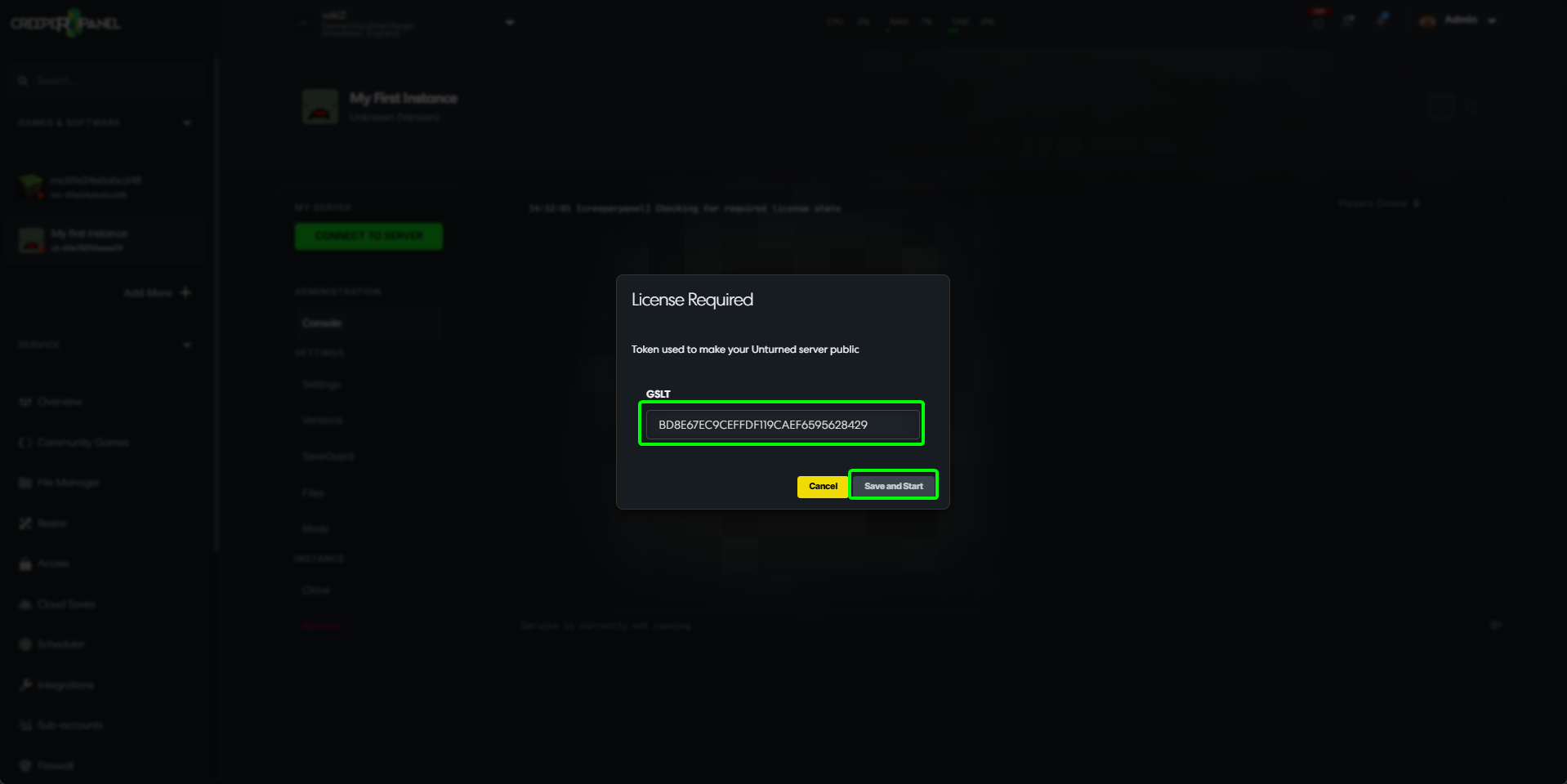
- Click Submit (or the equivalent confirmation button).
The window should disappear, and your server console should show that the server has successfully authenticated with Steam.
If the pop-up reappears or the server fails to start:
- Double-check for spaces: Ensure you didn't accidentally copy a space at the beginning or end of the token.
- Check the App ID: Ensure you used
304930. Using the wrong App ID is the most common cause of "Invalid Token" errors. - Steam Maintenance: Occasionally, Steam's authentication services undergo maintenance. If your token is definitely correct, wait 15 minutes and try again.
If you continue to run into issues after verifying your token, please don't hesitate to open a support ticket. We're happy to take a look.