Installing and managing Enshrouded mods
Want to add a few extras to your Enshrouded server? The CreeperPanel's mod manager lets you search Nexus Mods, bring your downloads onto the server, and switch mods on or off when you fancy a change.
We'll use Enshrouded Server Guardian for this guide. The screenshots show our example server EmeraldPlay and account Alex; your server and mod names will look a little different.
Before you begin
Before adding, removing or changing mods, switch your server off and wait for any installation or update to finish. Download a copy of your world too, so you've got something to come back to if an experiment goes sideways.
Have a quick read of the mod author's instructions before downloading. Check that the mod supports your game version and dedicated servers, and whether it needs any other mods to work. Some also need installing on each player's PC, so make sure your friends have what they need before joining.
Set up Enshrouded Mod Loader
First, your server needs Enshrouded Mod Loader, usually shortened to EML. Already using it? You can head straight to Mods under Settings in the Enshrouded submenu.
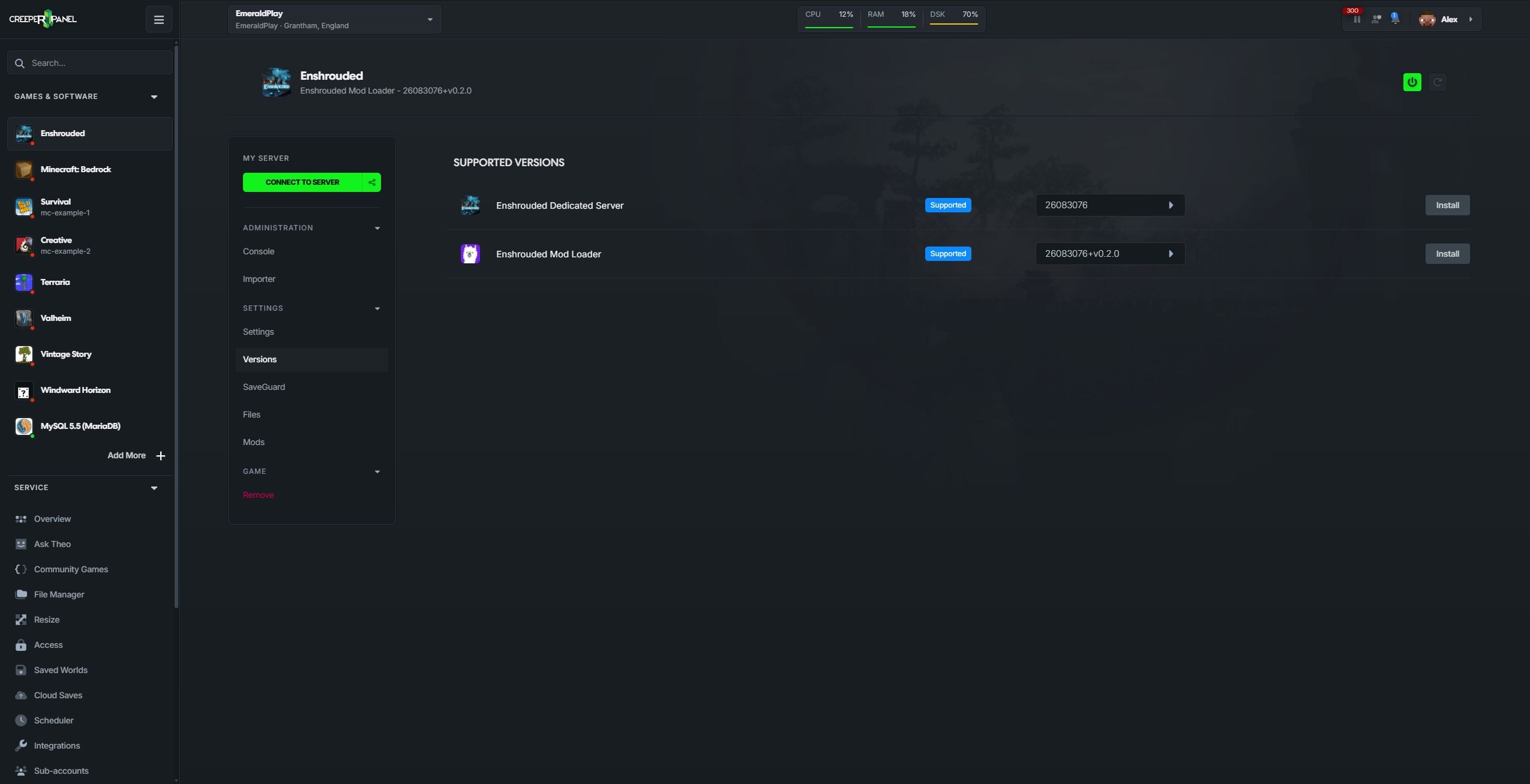
- Open Enshrouded → Versions.
- Find Enshrouded Mod Loader, choose the version you need, then click Install and follow the confirmation prompts.
- Wait for installation to finish, then open Mods under Settings in the Enshrouded submenu.
If you're greeted by an Initialise mod manager button, click it to create your mods folder. This gets the folder ready to use; it doesn't install EML for you.
Find and download a mod
Now for the fun part: finding something to add. On the Mods page:
- Type a mod name into Search Nexus Mods. The search starts after two characters; we're searching for
Server Guardian. - Find the mod you want in the Search results and click Download from Nexus.
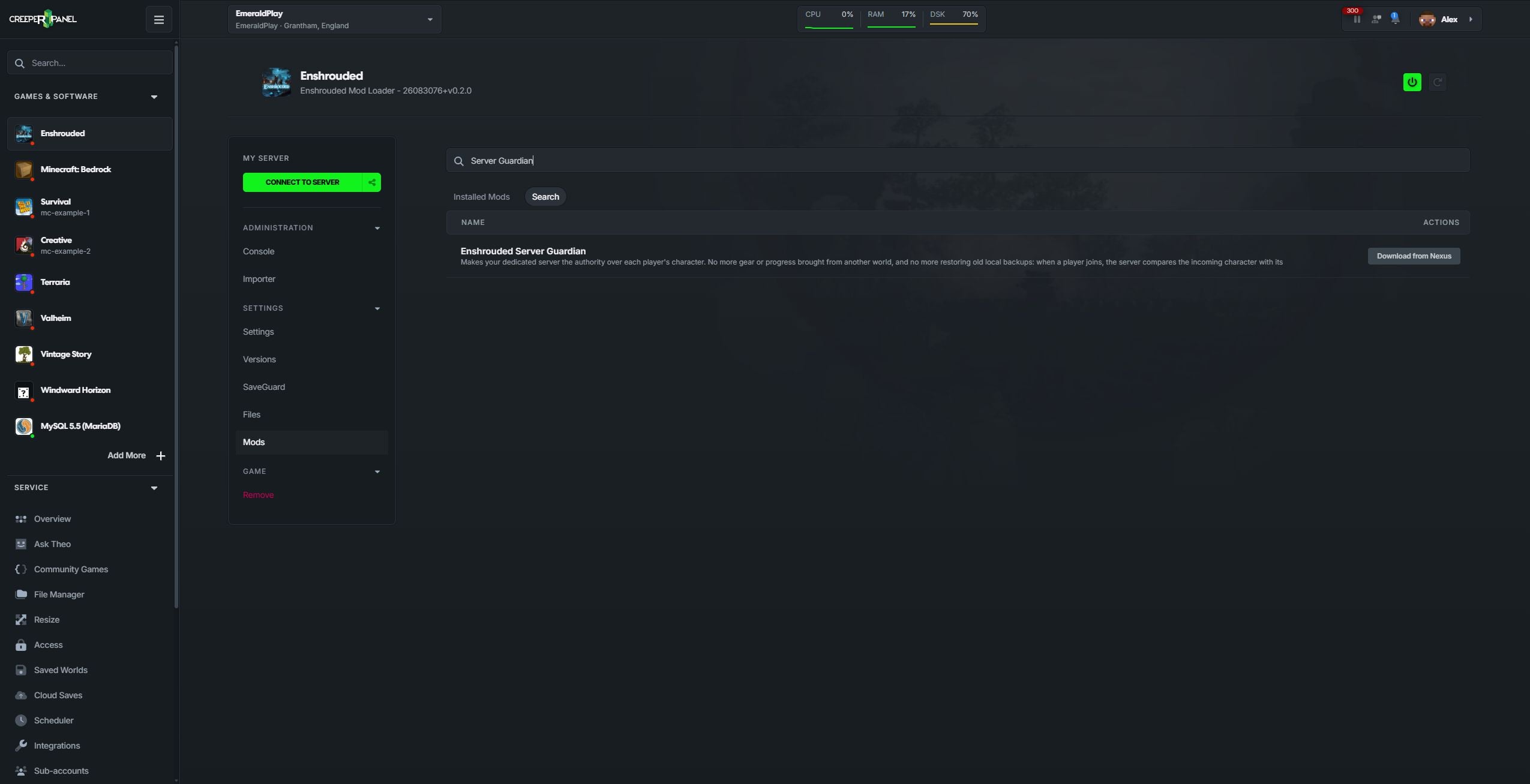
- Click Proceed in the external-link notice to open Nexus Mods.
- Check the author's notes and download the ZIP you need to your PC. Nexus Mods may ask you to sign in first.
- Come back to your CreeperPanel tab. Your chosen mod will be waiting under Downloads to import.
There's one more step before it's on the server. Download from Nexus opens the download page and adds the mod to your import queue; you'll use the ZIP you've downloaded to finish the job below.
Import the download
With your ZIP downloaded, it's time to bring it onto the server.
- Under Downloads to import, click Find downloaded mods and choose the folder where you saved it. Your Downloads folder is a good place to start.
- Check the suggested file against the mod and version you wanted. The Panel matches filenames, so give it a quick look before importing. If it hasn't found the right one, click Choose file beside the mod and select the ZIP yourself.
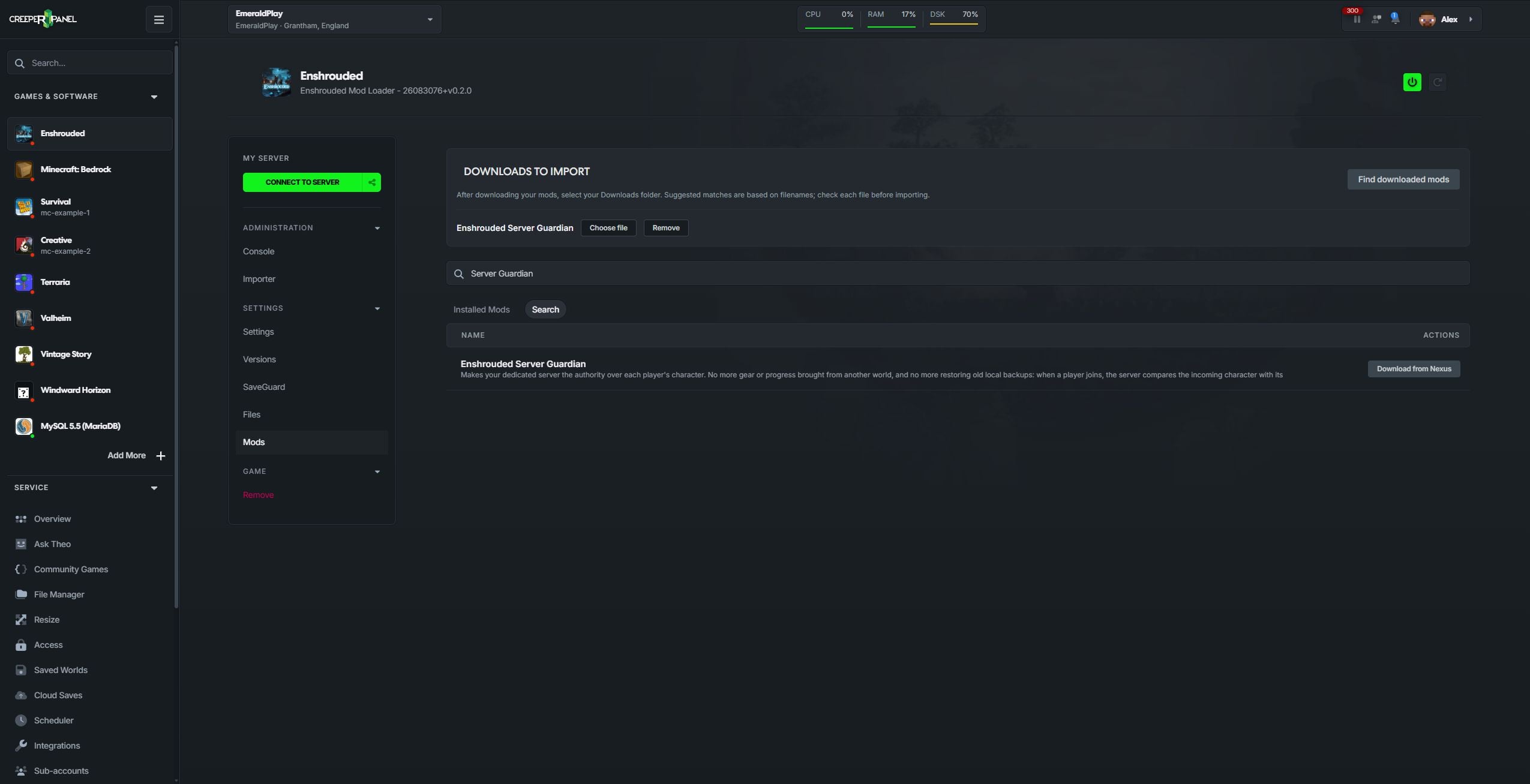
- Click Import this file beside the ZIP you want. Adding a few mods? Import all handles those with one unique matching file. Where there are several possible matches, choose the files individually.
- Wait for the upload to finish, then open Installed Mods. You should see your new mod listed as Enabled.
- Start your server and check Console to make sure everything loads without errors.
That's it! Once the server has started successfully, you're ready to join and try your new mod.

When you said 'just one mod'.
Which ZIPs can I import?
The Nexus import accepts ZIPs up to 50 MB containing either:
- An EML mod containing one
mod.jsonfile. This describes the mod to the loader. If it's inside an extra folder in the ZIP, the importer will sort out the folder layout for you. - A compatible DLL mod containing one DLL and no separate executable or EML manifest. The Panel adds it to the server's DLL loader configuration so it can load when the server starts.
If the download contains several DLLs, a separate executable, or a mixture of EML files and DLLs, follow the author's installation instructions instead. The importer checks the archive's layout, but you'll still need to check that the mod supports your server version.
Changed your mind about a download? Remove takes it out of the import queue. To remove a mod you've already installed, use its controls under Installed Mods.
Upload an EML ZIP directly
Already have an EML mod ZIP ready to go? Open Installed Mods and click the upload area, or drag your ZIP onto Click or drag files here to upload to your server.
For this direct upload, mod.json needs to be at the root of the ZIP: you should see it as soon as you open the archive, without opening another folder first. Leave the mod zipped when uploading.
If you prefer working with folders, you can also add an extracted EML mod folder inside enshrouded/mods/ through Enshrouded → Files. Follow the author's folder layout. For compatible DLL mods, use the Nexus import steps above so the Panel registers the DLL with the loader.
Enable, disable or delete mods
Fancy trying a different combination, or tracking down a mod that's causing trouble? Head back to Installed Mods. Each mod has its status and controls alongside it, and Filter helps you find one by name once the collection starts growing.
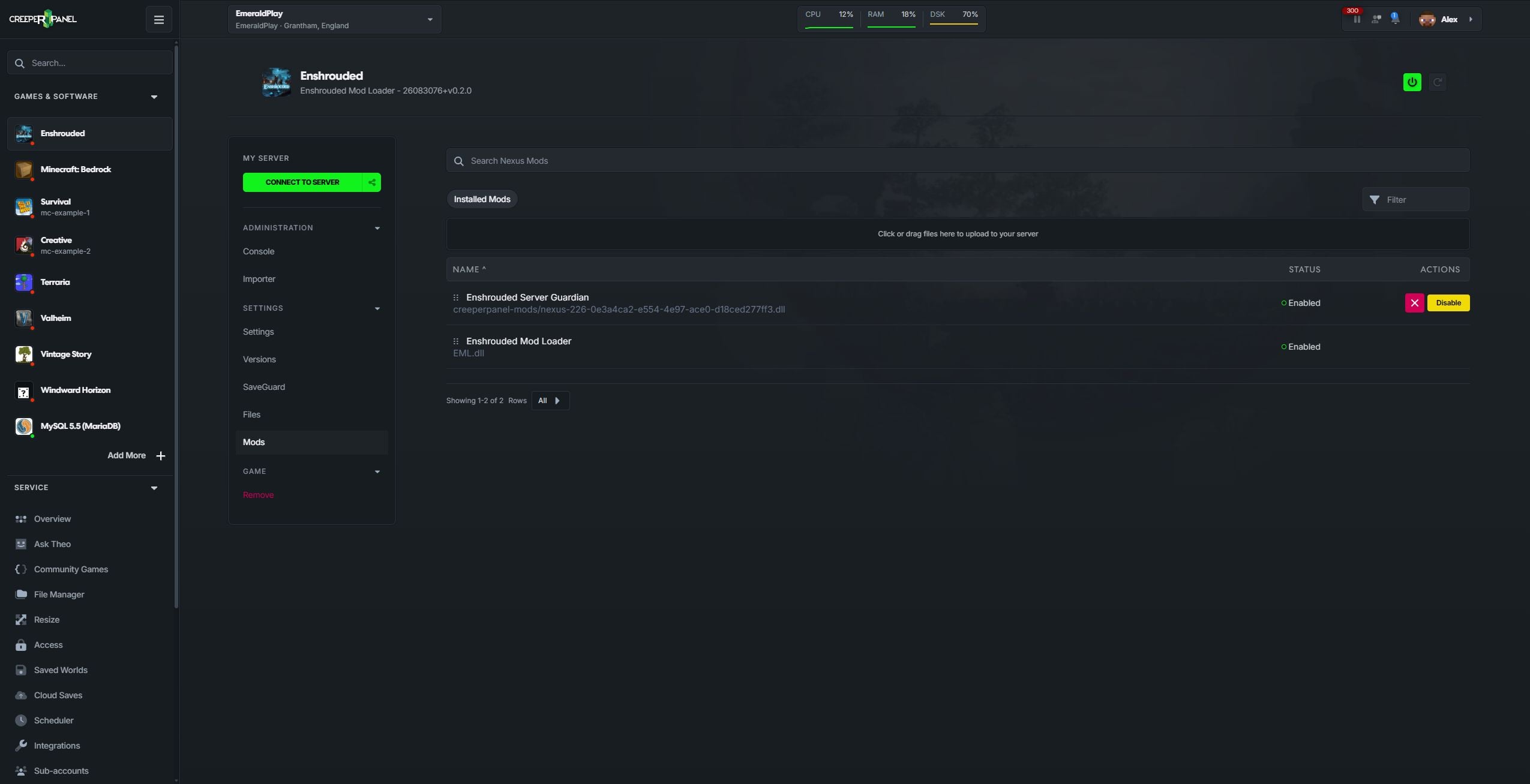
- Disable keeps the mod's files but stops it loading next time you start the server. Handy when you want to try playing without it.
- Enable brings a disabled mod back the next time the server starts.
- The red cross deletes the installed mod after asking you to confirm. If you're only testing, Disable saves you having to upload it again later.
You'll notice Enshrouded Mod Loader doesn't have disable or delete buttons. It's protected because the modded server needs the loader.
As with installing mods, stop the server before making changes, then start it again when you're ready. If you've changed anything whilst it was running, restart it before testing.
Change DLL load order
Some DLL mods need to load in a particular order. If the author gives you an order to follow, clear Filter, then use the dotted handle beside a DLL mod's name to drag it up or down the list. Start the server again to use the new order. This control applies to DLL entries; EML ZIPs and folders don't use it.
Something not quite right?
Can't see Mods? Open Versions and check you're using Enshrouded Mod Loader. The standard Dedicated Server installation doesn't show the mod manager.
Can't find your download? Give the ZIP time to finish downloading, then select the folder again. You can always use Choose file to pick it yourself.
ZIP won't import? Check its size and contents against the formats above. Downloads with several DLLs or separate executables need the author's installation steps.
Server won't start, or the mod isn't doing anything? Stop the server, disable the new mod, then start it again. Check Console and revisit the author's notes on game versions, required mods, client installation and load order before trying again.