Changing your V Rising instance Settings
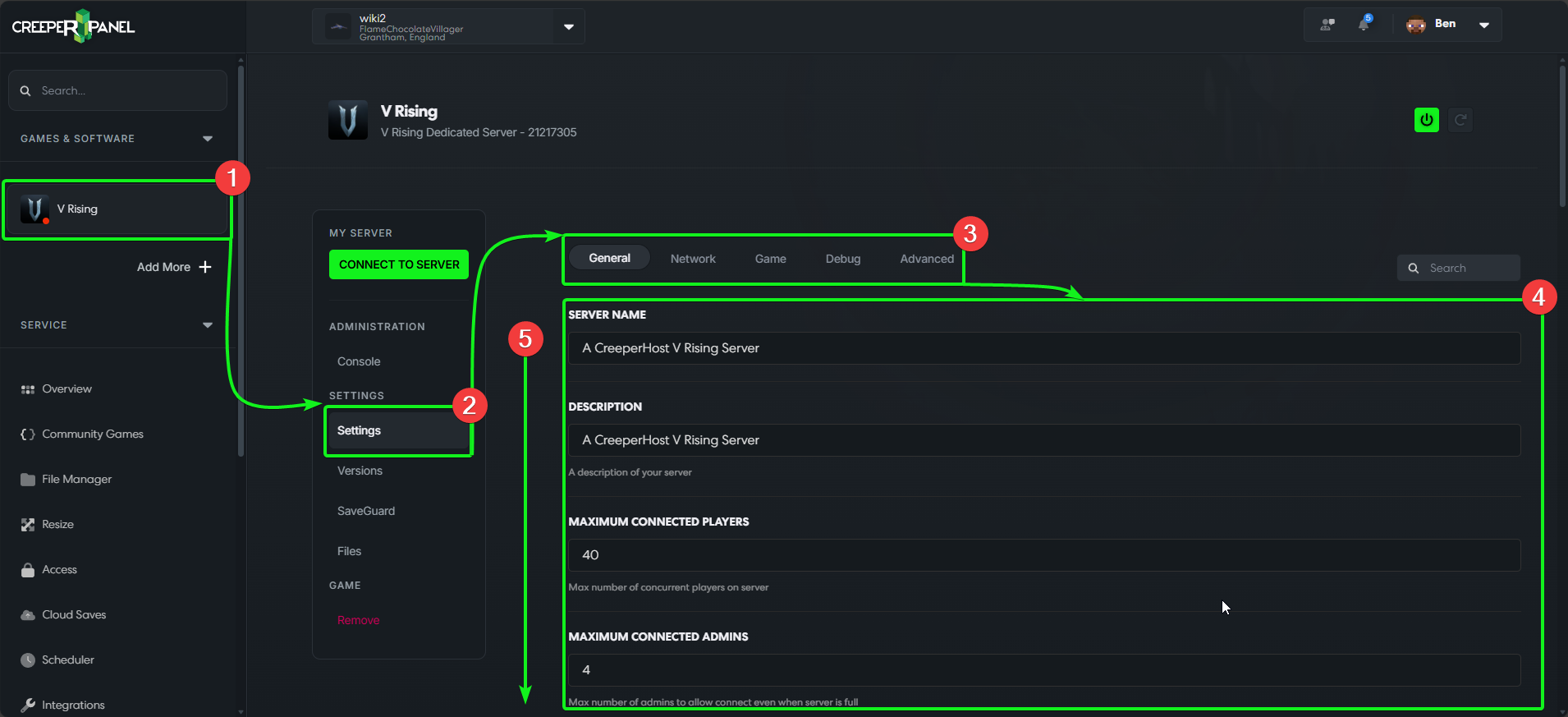
You may want to configure your settings for your V Rising instance for a tailored gameplay experience. First, you'll need to familiarise yourself with the settings available on the CreeperPanel. To get started:
- Select your
V Risinginstance in the Panel's side bar, then - Select
Settings, found underSettingsin the instance's sub menu. - You'll see the available settings categories at the top; you will load in on the
Generaltab first. Underneath; - You will find the available settings. Here is where you will see settings for your server name, difficulty, player count, etc.
- You may need to scroll to see all the settings available to you.
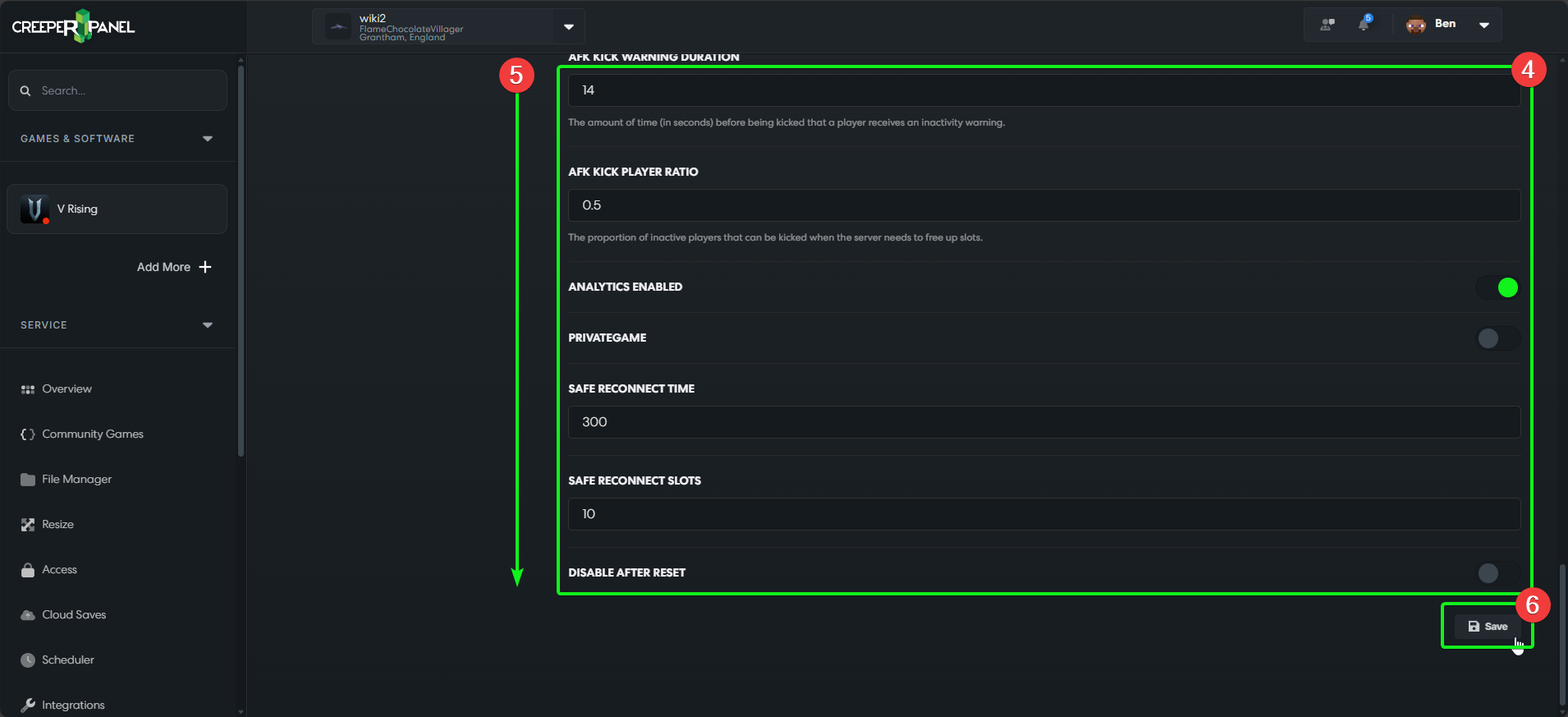
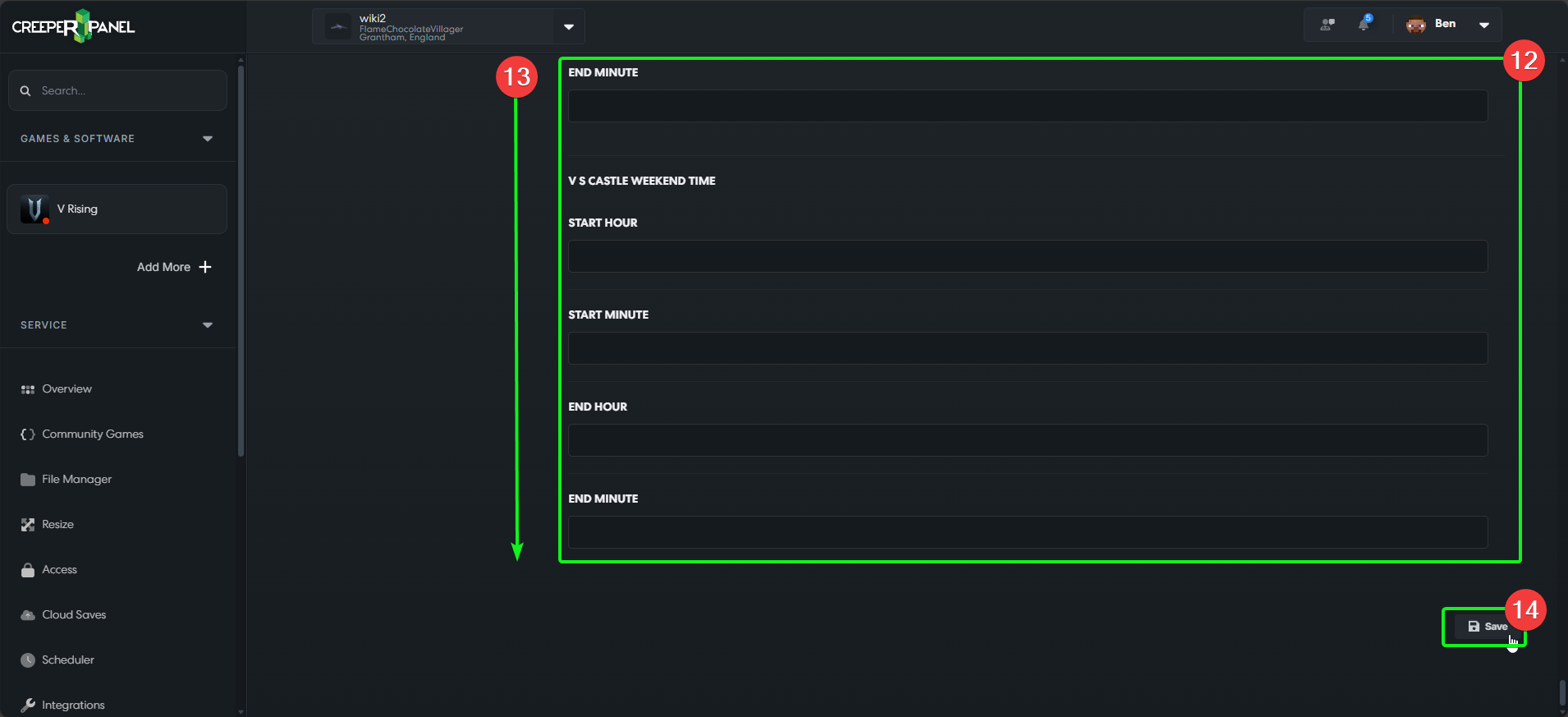
- At the bottom of each settings tab, you will find the
Saveicon - make sure to save any changes you have made before navigating away from each tab, or the changes you've made won't persist.
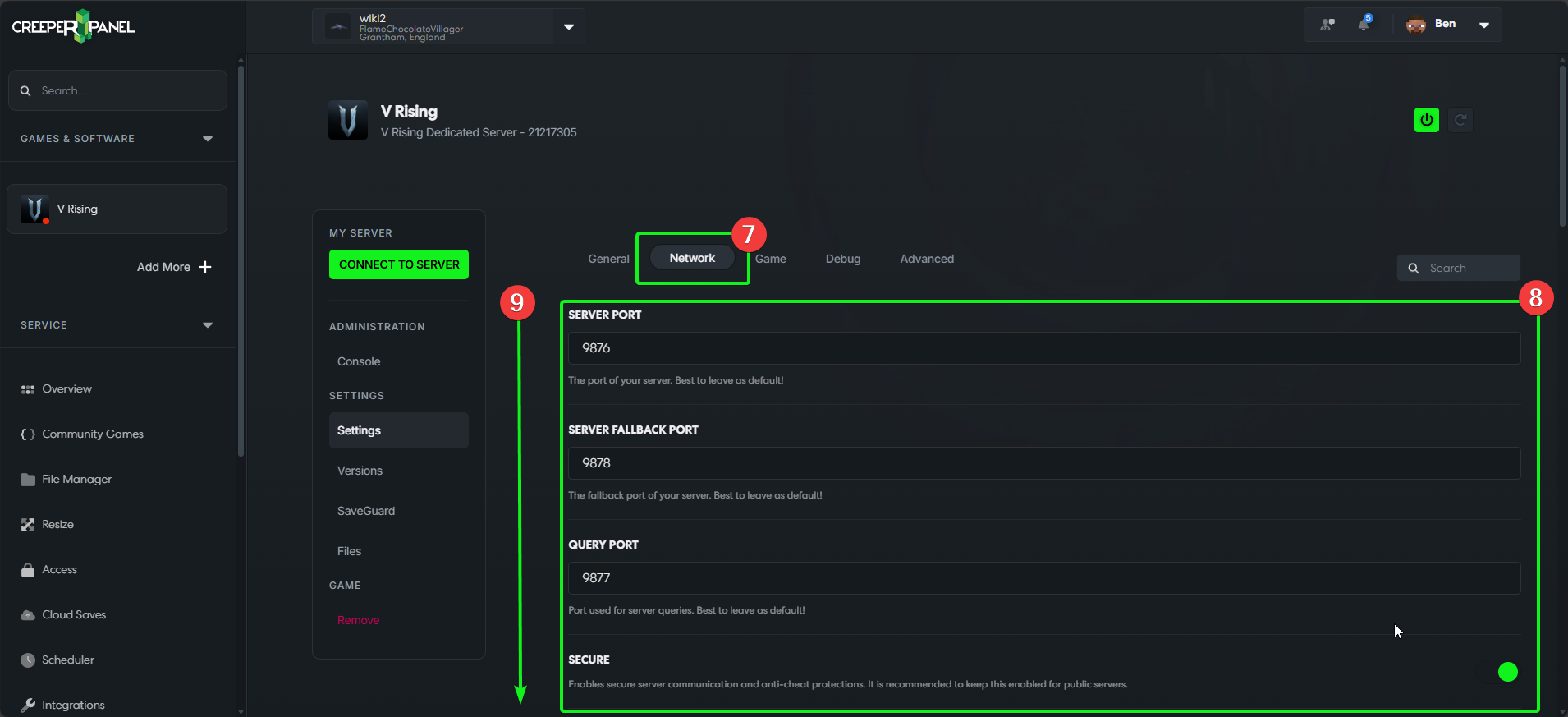
- Selecting
Networkwill show you all settings related to network and connectivity. - You will see the available settings underneath, such as port, API, and RCON settings.
- You may need to scroll down to see all the settings available to you.
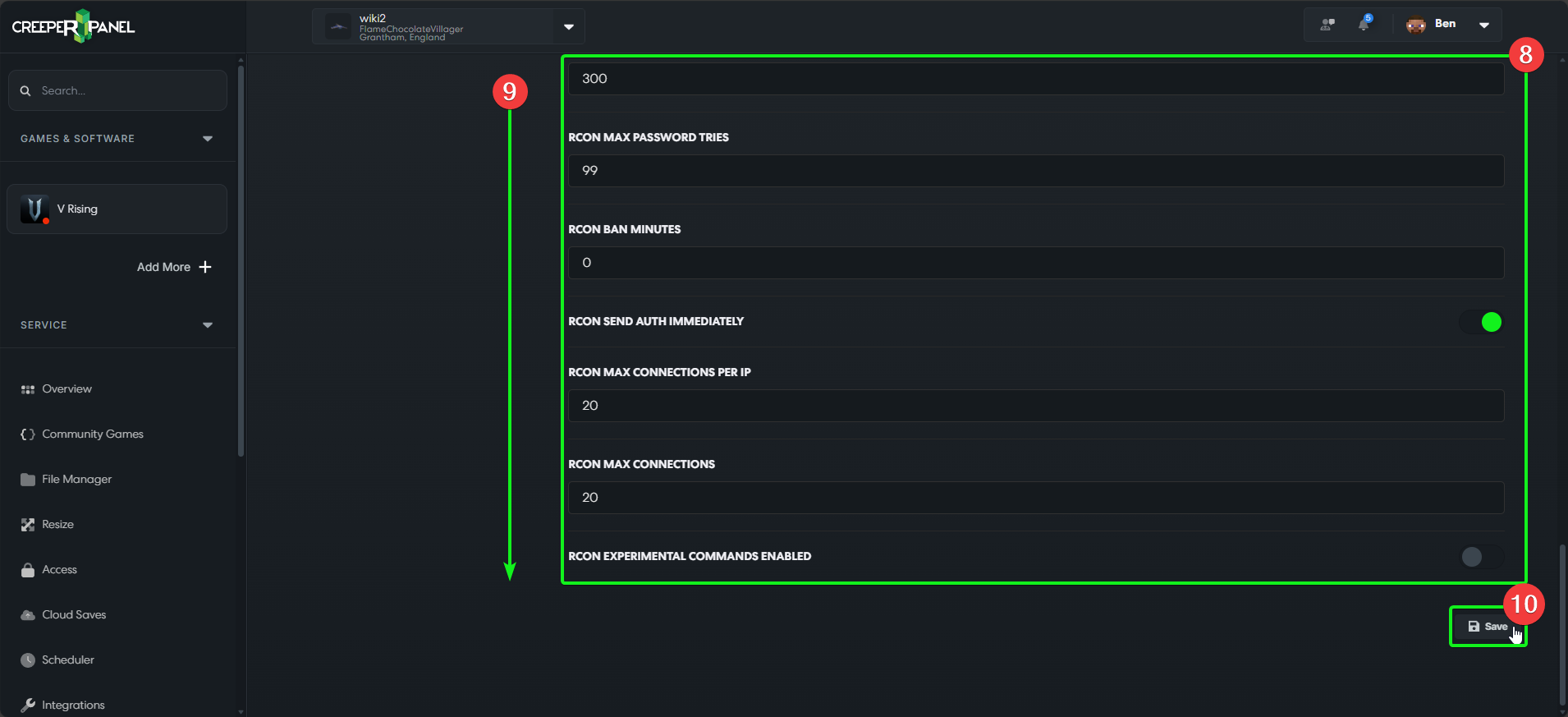
- You'll find the
Savebutton at the bottom. Remember to save any changes you've made before navigating away.
- Selecting
Gamewill show all settings related to in-game mechanics - You will see the available settings below; these include enemy modifiers, weapon modifiers, tick rates, and many more.
- You may need to scroll down to see all the settings available to you.
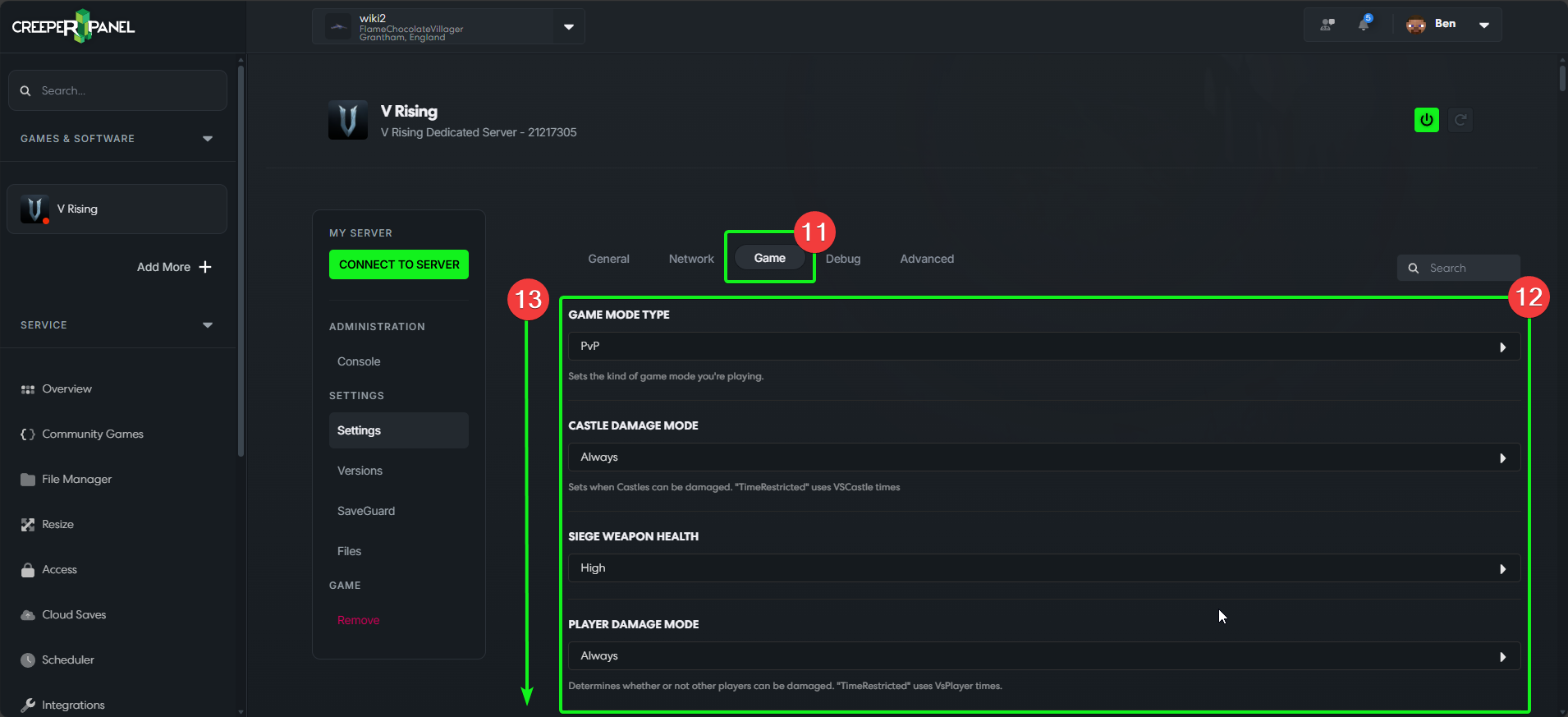
- Remember to save any changes before navigating away from the tab!
info
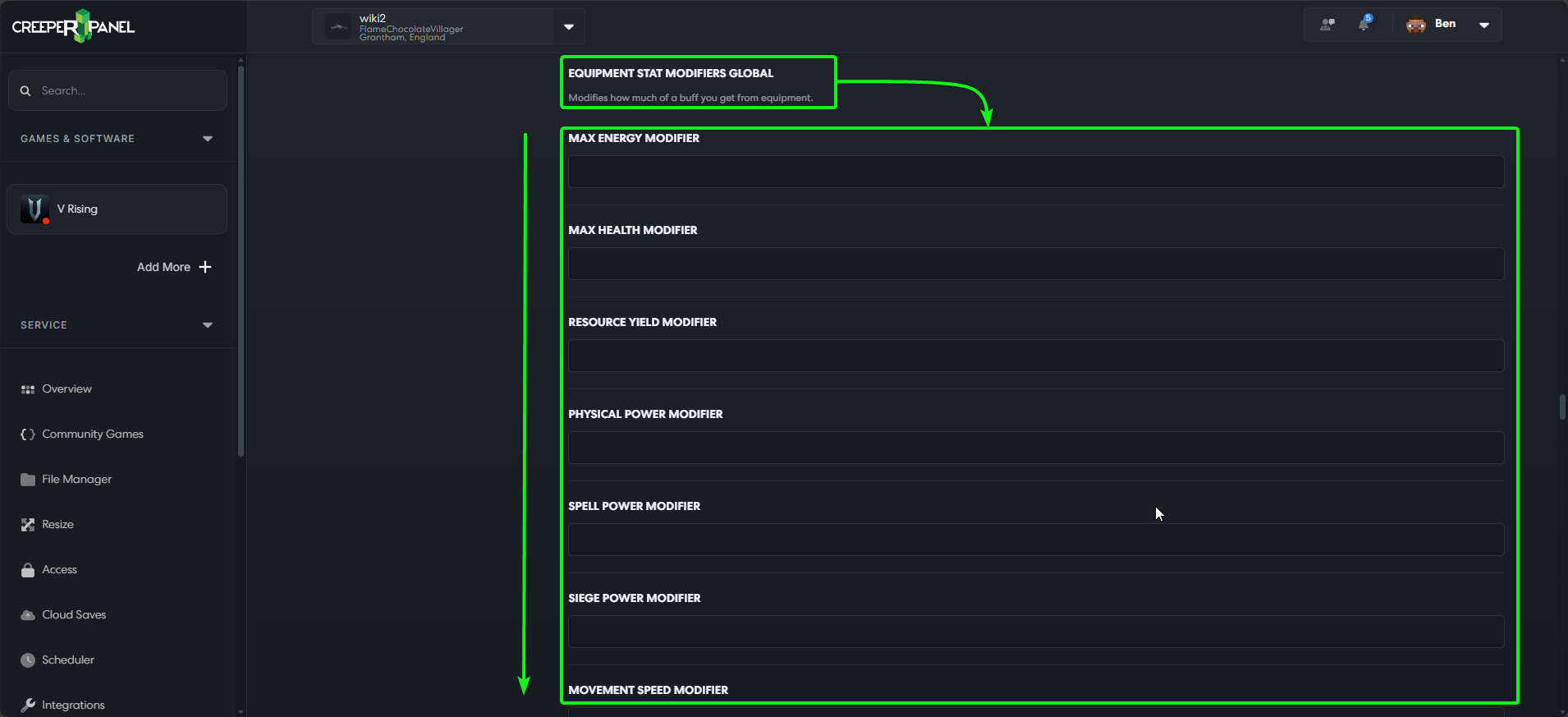
Equipment stat modifiers found under Equipment Stat Modifiers in the Game tab will not effect any items created before altering the modifiers. You will need to create new items after changing these settings to receive any effects.
- Selecting
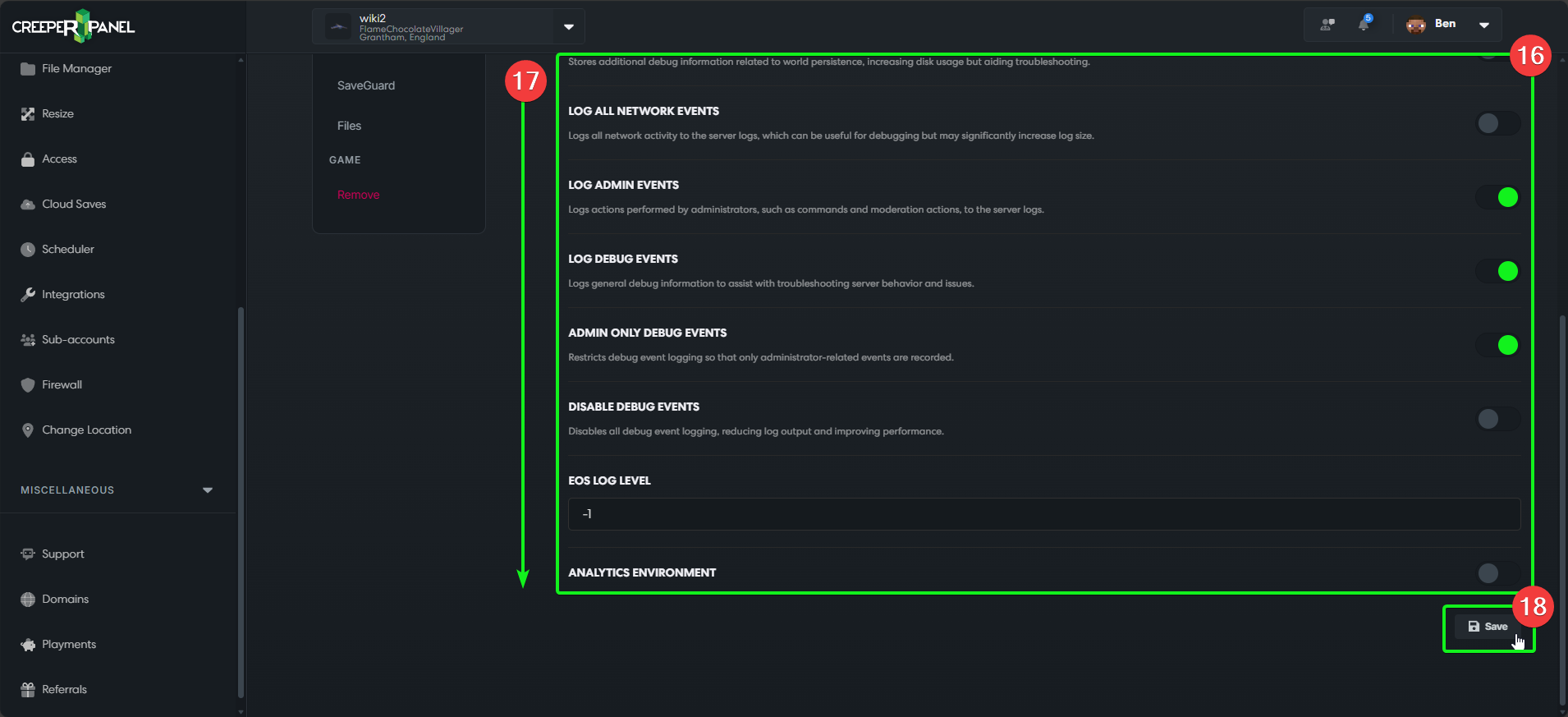
Debugwill show all settings related to debugging options. - You will see the available settings below; these will include options for logs, debugging, and more.
- You may need to scroll down to see all the settings available to you.
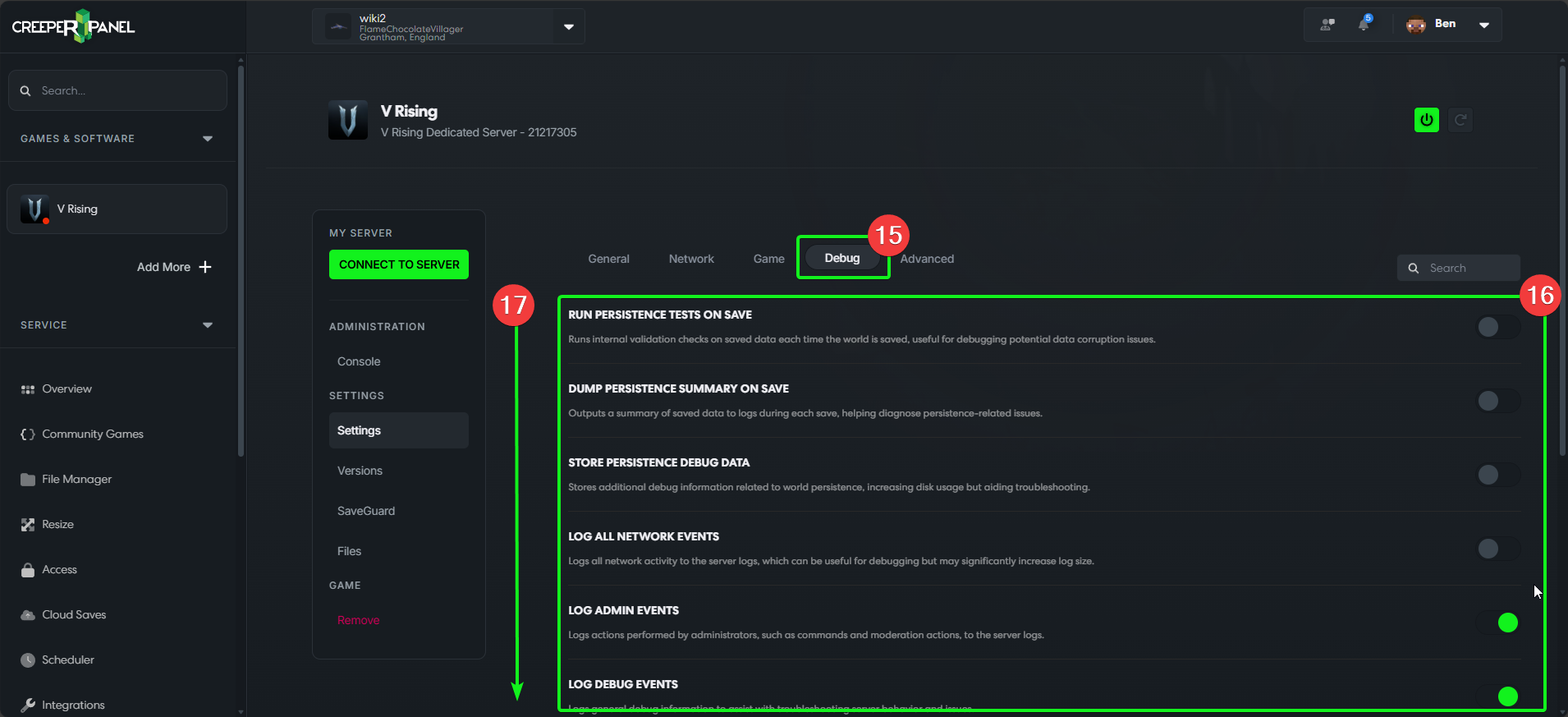
- Remember to save your changes before navigating away from the tab!
- Selecting
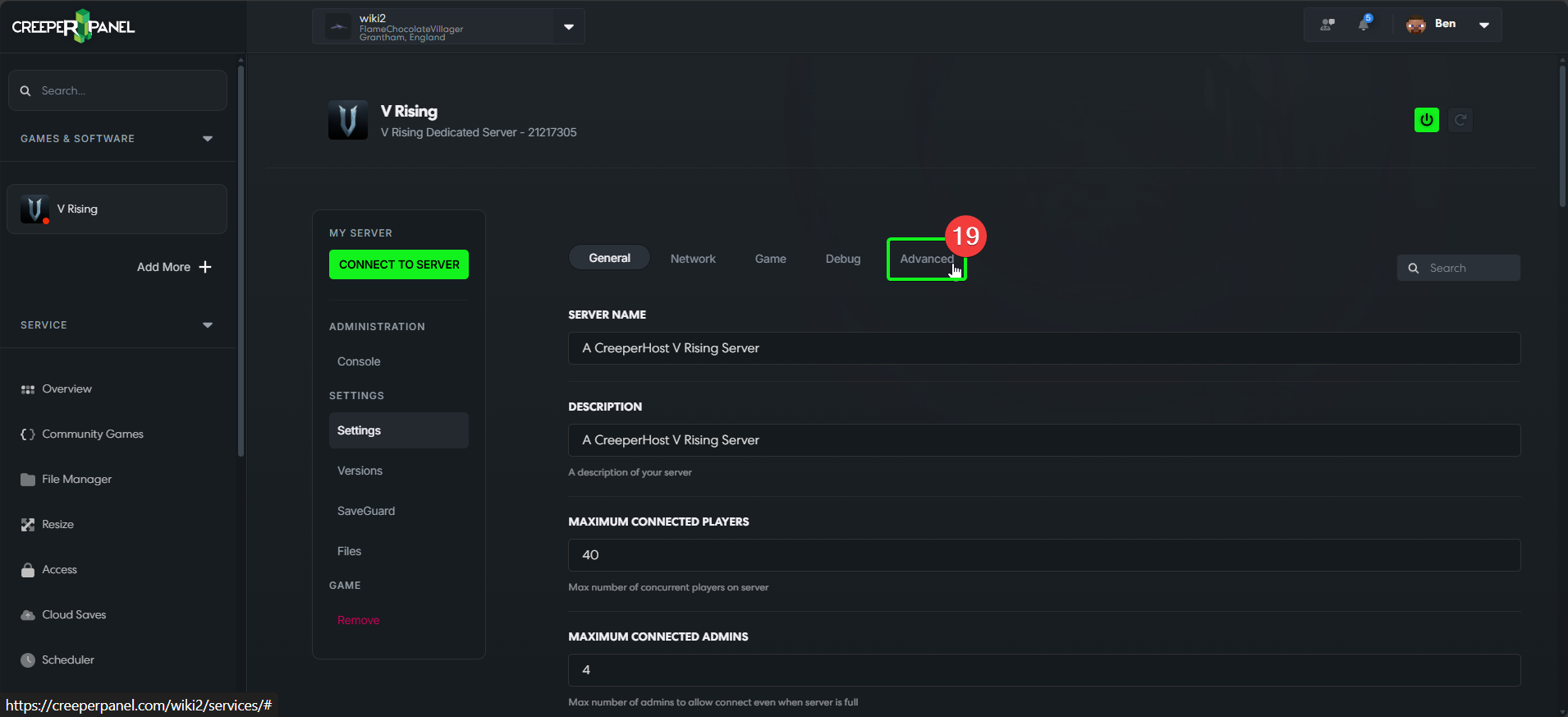
Advancedwill present you with a pop-up asking you to confirm that you want to progress. It is not advised to alter these settings without first being asked by Support during a ticket process. Doing so may limit the support available to you in the event of an error,as these settings may cause your game to not run as intended.
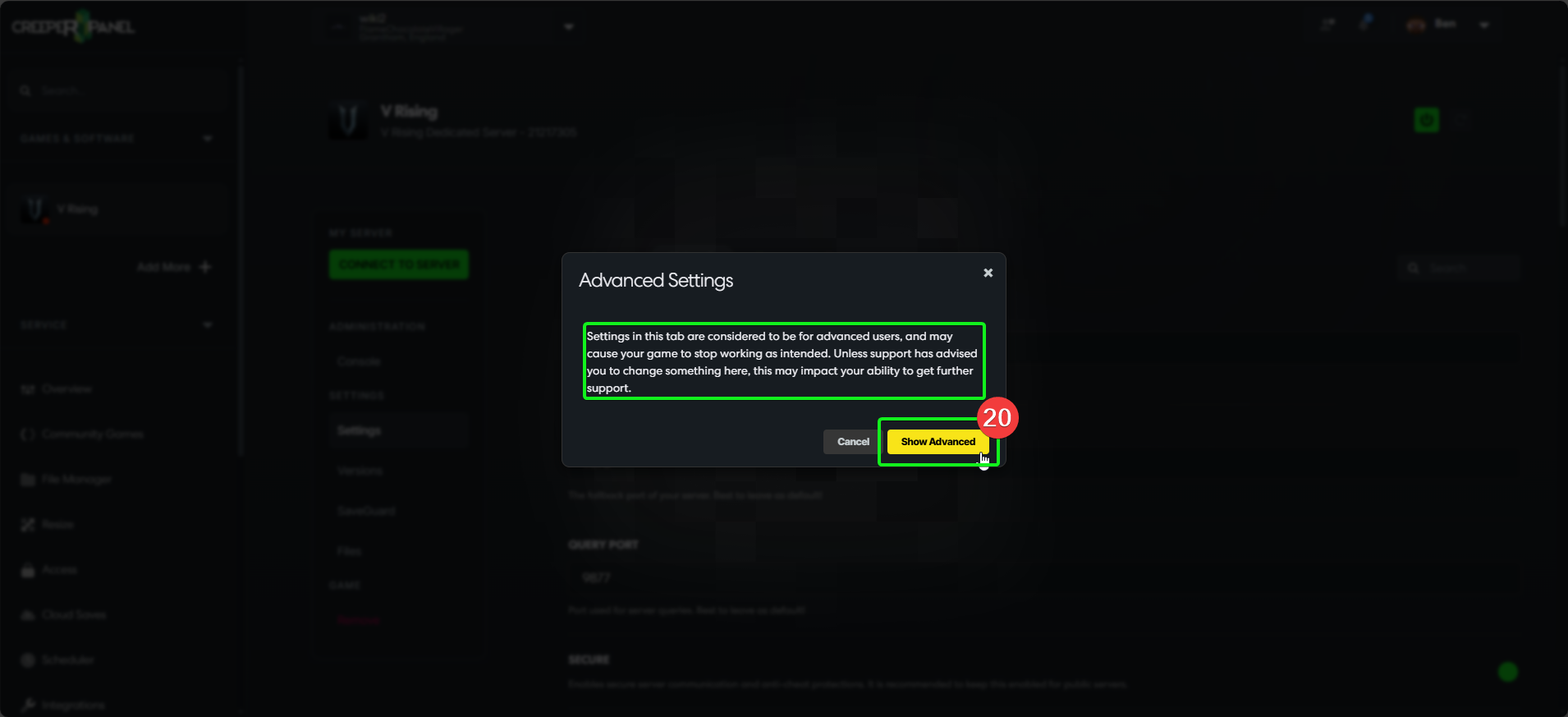
- If you feel you have sufficient knowledge to alter settings here, or you have been advised to change a setting here by CreeperHost Support, proceed by selecting
Show Advanced.
That's it! You should now be able to familiarise yourself with, and make the most of the settings available for V Rising! Enjoy!