Changing your world on your Soulmask instance
info
Before changing your world, ensure your instance is switched OFF to prevent data loss/ corruption.
Using the CreeperPanel
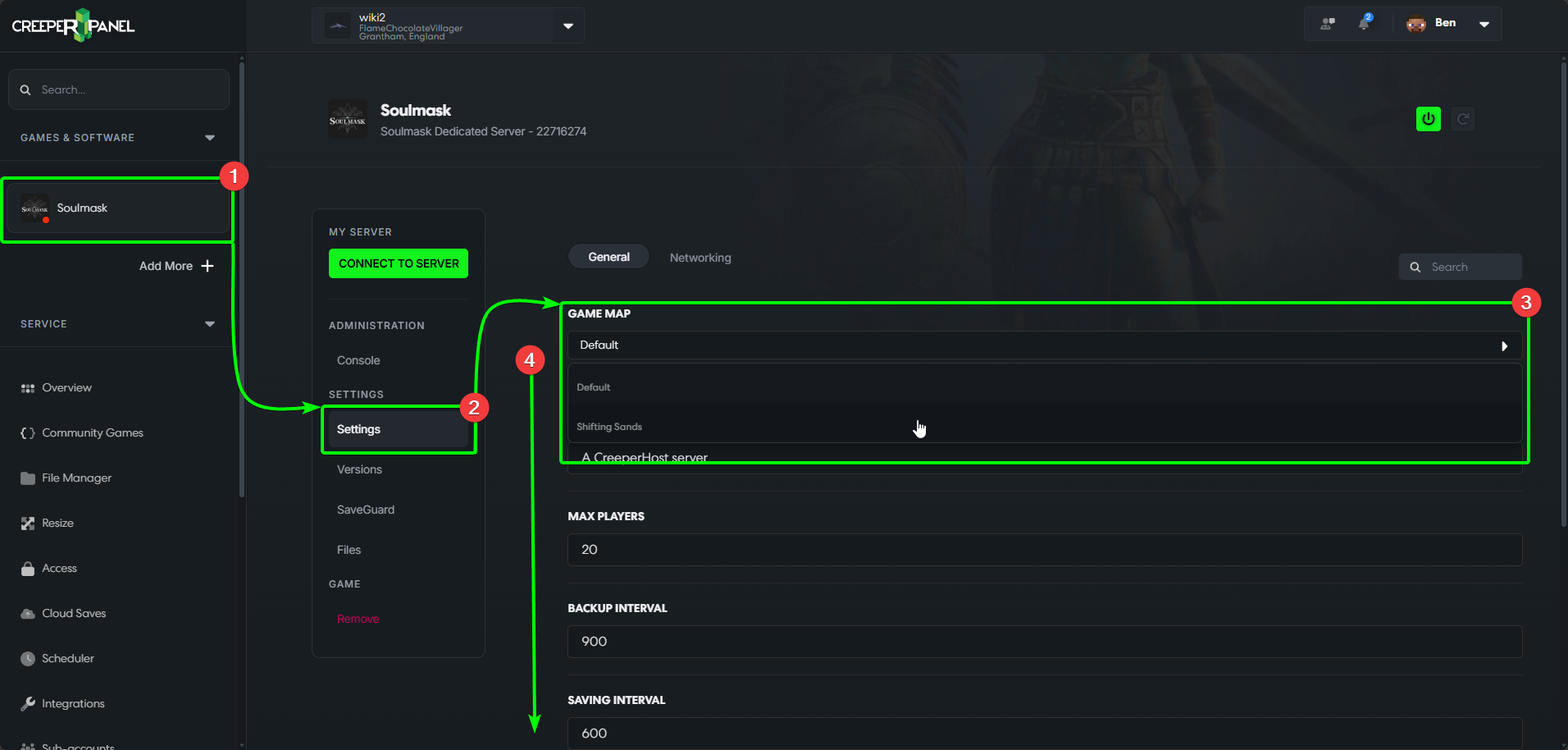
Using the Panel to change your instance's world is easy. To get started:
- Select your
Soulmaskinstance in the Panel's side-bar. - Navigate to
Settings, found underSettingsin the sub-menu. - Select the dropdown option under
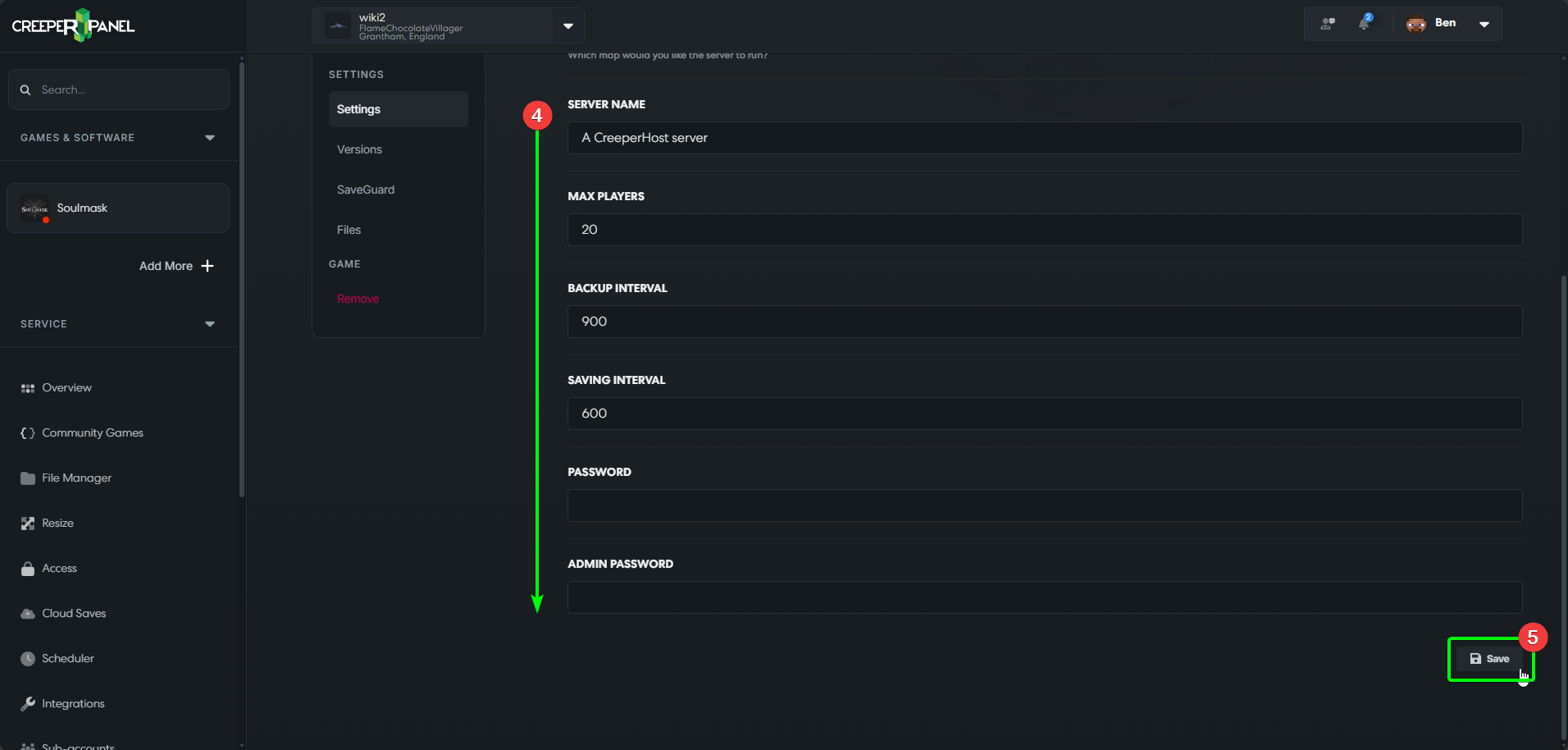
Game Map, and selectShifting Sands. - Scroll down to the bottom of the page.
- Click the
Savebutton to save your changes; navigating away from the page without doing so means your map change won't persist on startup.
Using SSH
To change your map using SSH, load your SSH program of choice and log in to your server. Next:
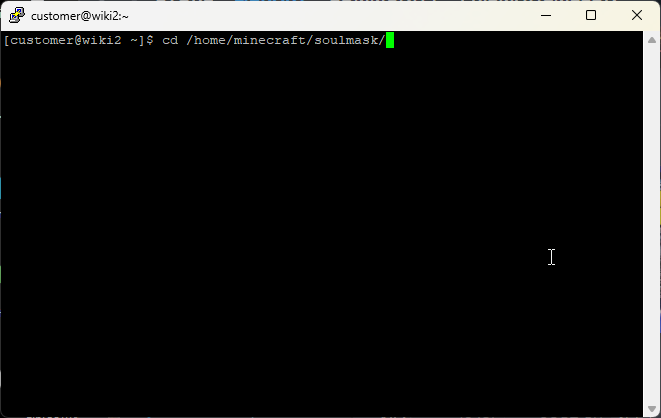
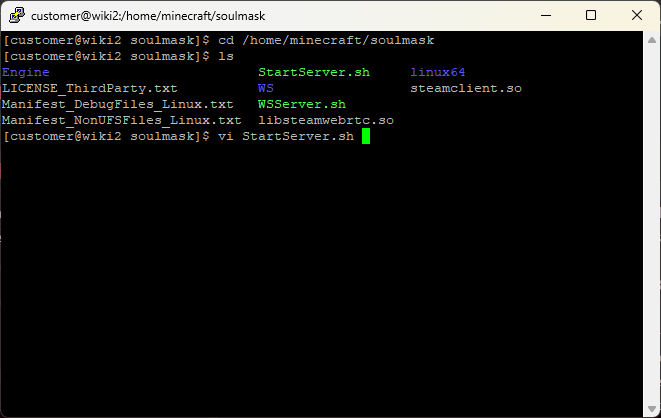
- Navigate your Soulmask directory. By default on CreeperHost services, it will be located in
/home/minecraft/soulmask; your installation location may vary. In this example, we need to type:
cd /home/minecraft/soulmask
then hit return.
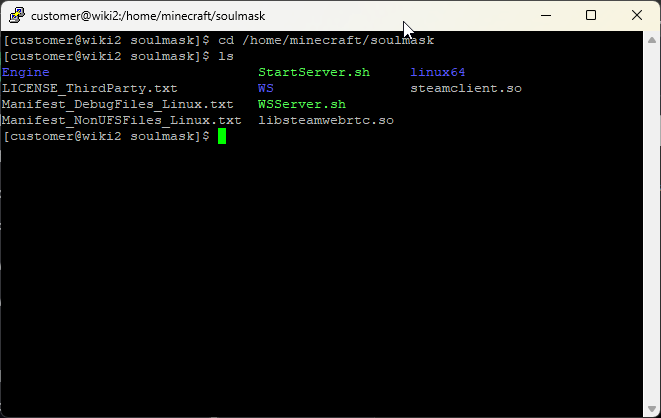
- Type
ls
and hit return to list the available files.
- We need to open the
ServerStart.shfile; type the command
vi StartServer.sh
to do so. The command is case sensitive - make sure any capitals in the file name are present in the command.
- We'll need to edit the file now. To enter edit mode, press
I/ INS. Make sure your terminal displays--INSERT--in the bottom right - you can toggle betweenINSERTandREPLACE. Navigate toLevel01_Main.
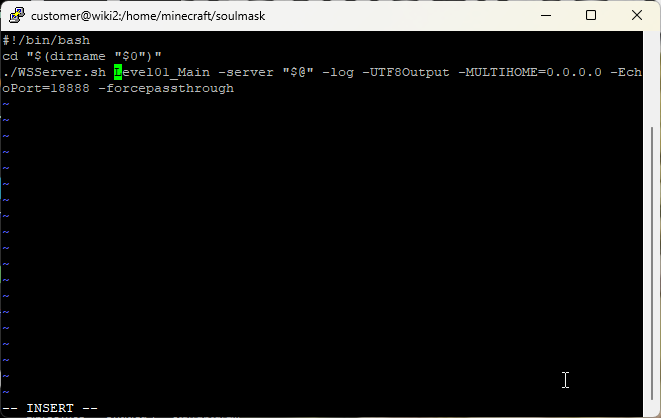
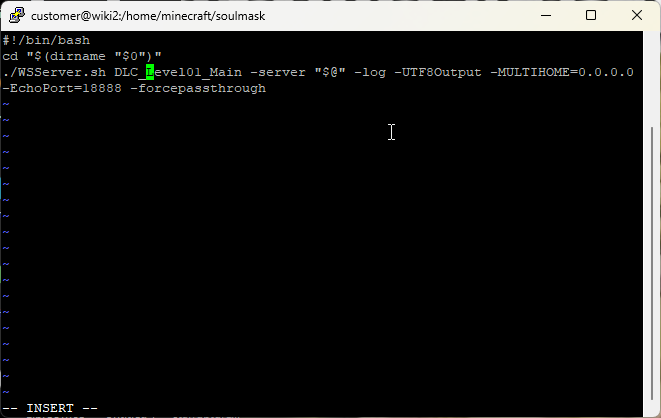
- Change
Level01_MaintoDLC_Level01_Main; it should look like the example below. PressEscto exit edit mode.
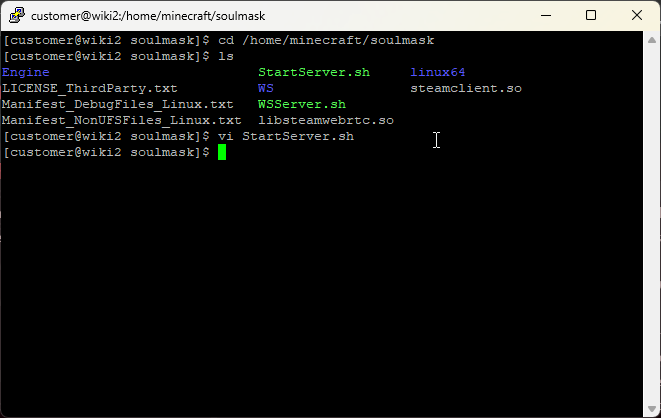
- To save the changes and stop viewing the file, press and hold
SHIFT, and hit theZkey twice. You should return to the parent directory.
- You can now make sure that your server starts - to do so, enter the command
./StartServer.sh
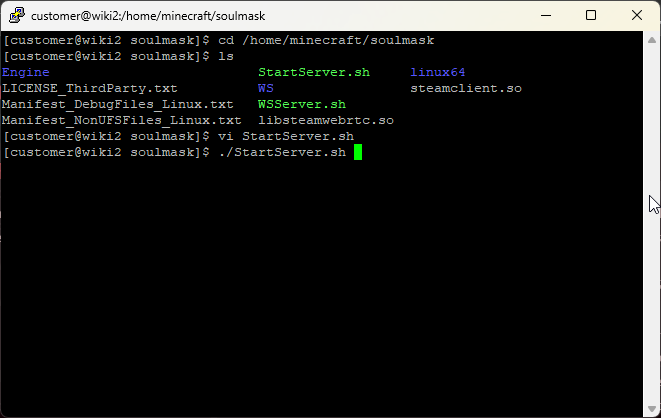
You should now see the loading process taking place in the terminal.
That's it; next time you join your server, you should load into the Shifting Sands map! Welcome to Soulmask 1.0!