Change Map
Before changing your Map on Ark Survival Ascended, make sure that you have stopped your server first.
Not all maps are the same size. The larger the map, the more memory the server will require. Insufficient memory will cause the server to crash on startup.
If you are using the CreeperPanel and need more memory, you can upgrade your service via the Resize option in the CreeperPanel.
After making sure your ARK Survival Ascended instance is completely stopped:
CreeperPanel

- Navigate to the main page for your ARK instance.
- Select the
Settingstab from the instance sub-menu. - Select the
Generaltab. - Scroll down to locate the
Game Mapdropdown list. Select the world you would like from the list.
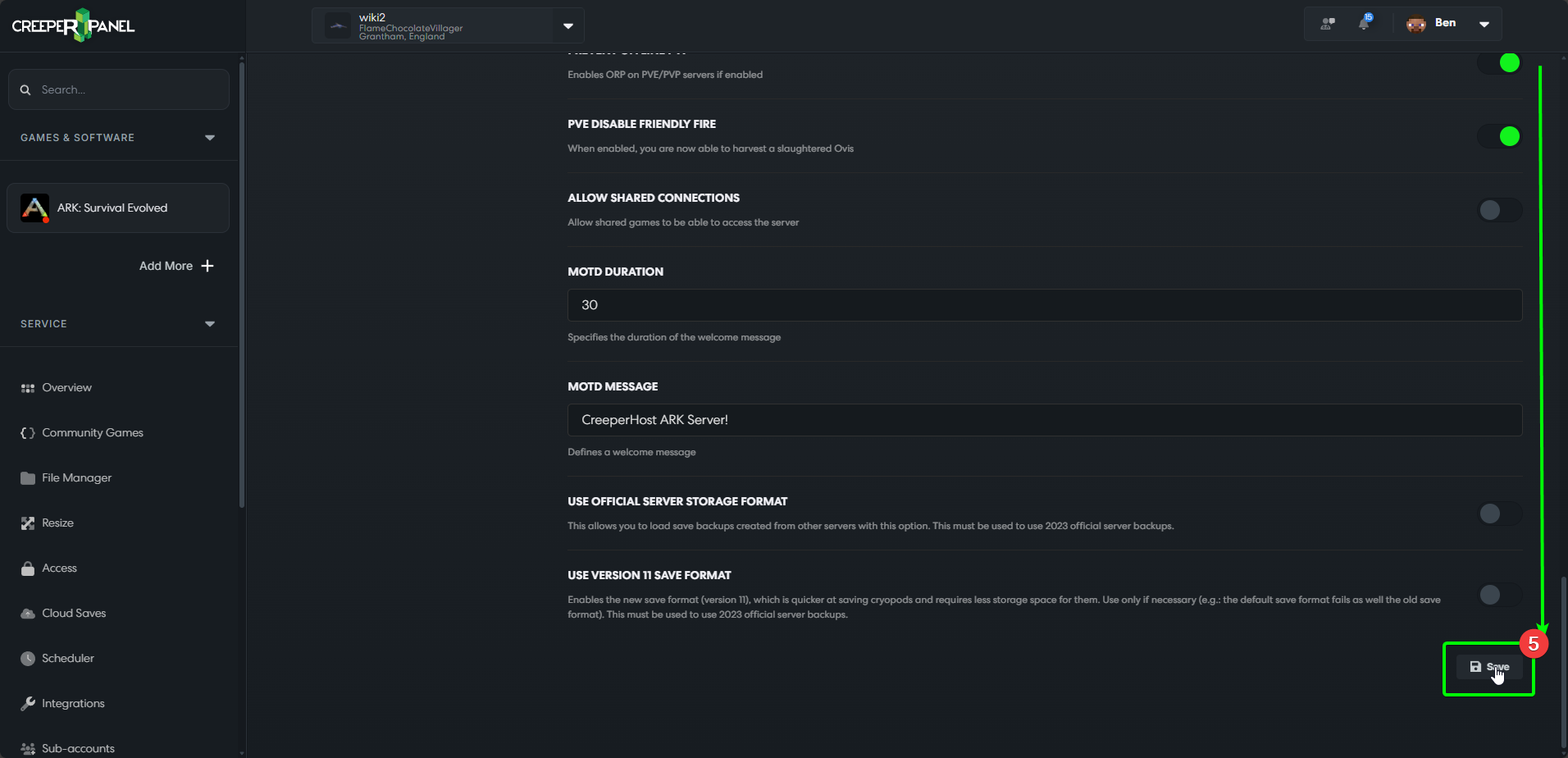
- When you have selected the map you wish to use, scroll down to the bottom of the page, and select
Save. You will need to save the changes for them to take effect.
When you have saved your changes, you should be able to load your server with the new world. If you have any issues, please speak to our Support team, who will be happy to help.
Manual
Ark uses a command-line argument to select the map you want to load. You will need to edit the arguments used when starting the server to change this.
eg: ShooterGameServer.exe TheIsland_WP?listen?SessionName="MyServer"?ServerPassword="YourPassword"
You will want to replace 'TheIsland' with the MapID of the map you want to use
eg: ShooterGameServer.exe LostColony_WP?listen?SessionName="MyServer"?ServerPassword="YourPassword"
MapIDs
Ark Survival Ascended currently has 9 maps to pick from
| Name | MapID |
|---|---|
| The Island | TheIsland_WP |
| The Centre | TheCenter_WP |
| ScorchedEarth | ScorchedEarth_WP |
| Aberration | Aberration_WP |
| Extinction | Extinction_WP |
| Ragnarok | Ragnarok_WP |
| Valguero | Valguero_WP |
| Astraeos | Astraeos_WP |
| LostColony | LostColony_WP |