Configuring Project Zomboid
Stop Project Zomboid, select it in CreeperPanel and open Settings. Choose a category, adjust the options and select Save before leaving. Start the server when you have finished.
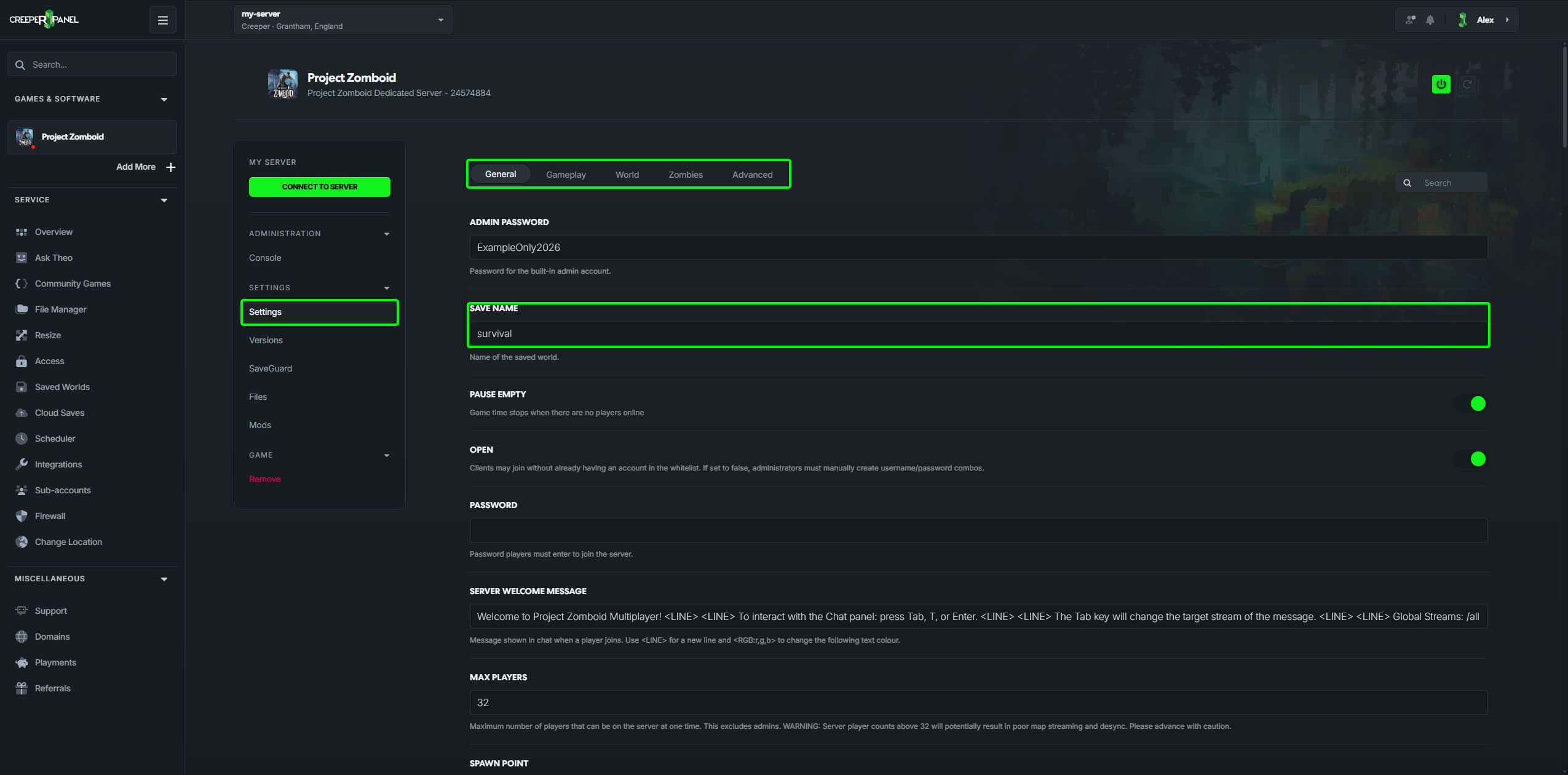
Save your initial settings before opening Mods, including the Save Name for the world you intend to use.
| Category | What to look for |
|---|---|
| General | Server access, passwords, players, save name and welcome message |
| Gameplay | Character and survival rules, experience and gameplay balance |
| World | World conditions, loot and map options |
| Zombies | Population and detailed zombie behaviour |
| Advanced | Server resources, networking and advanced world controls |
Sandbox options
The Settings page includes sandbox rules as well as the usual server options. Open grouped controls such as Zombie Lore, Zombie Config and Multiplier Config to adjust their individual values.
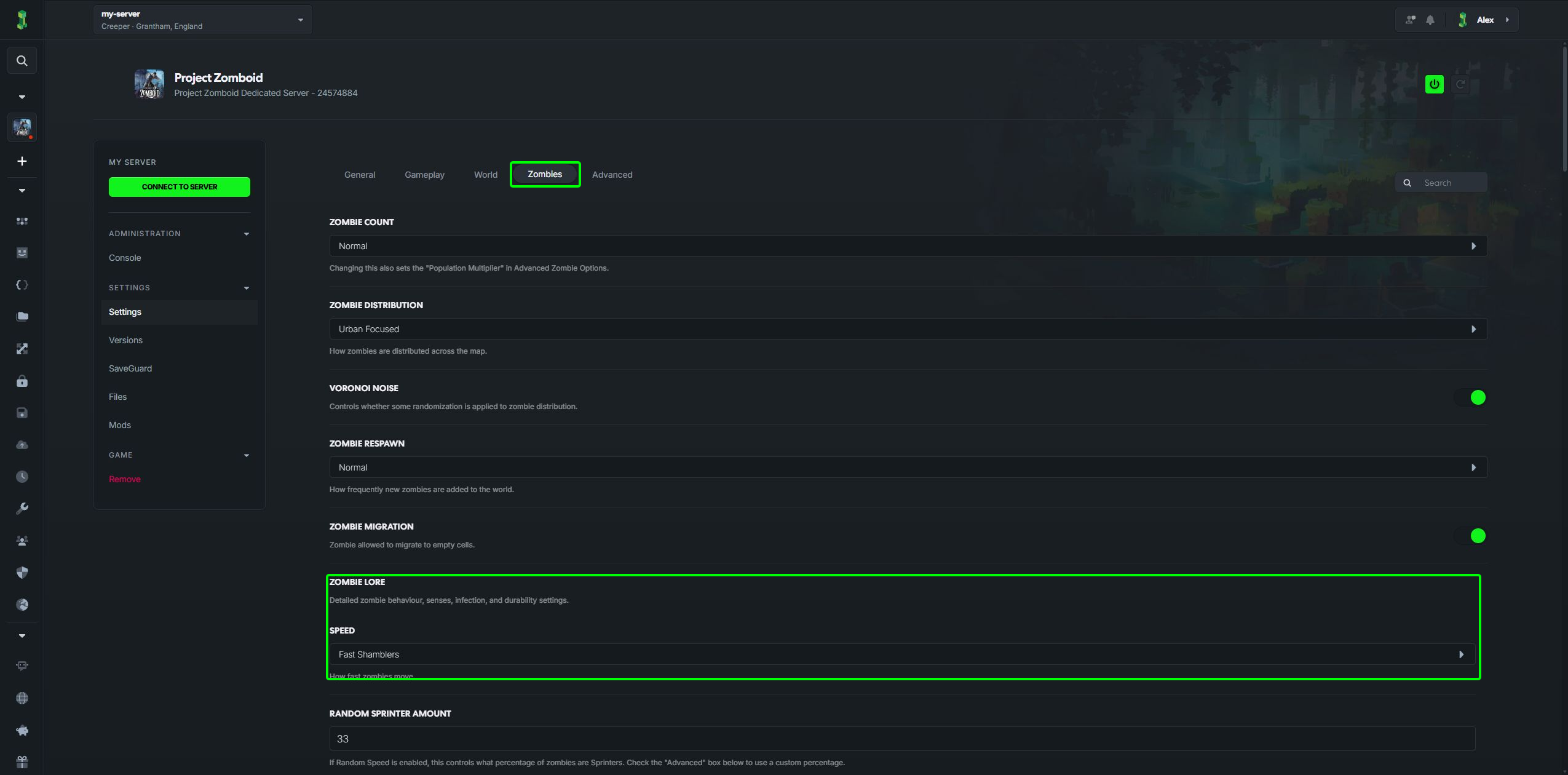
Read the description beside each setting before changing it. Some options affect new worlds or newly generated areas rather than changing everything in an existing save. Keep a backup before making a large rules change.
Changing Save Name selects a different save; it is not simply the public server name. Keep it unchanged when you want to continue your current world.
For greyed-out controls, save errors or occupied ports, see saving game settings.