Importing a modpack from CurseForge
The information on this page has been superseded CurseForge's new features - exporting a CurseForge Mod Pack Profile, and importing a CurseForge Mod Pack Profile.
Before you follow this guide, you will need to have already downloaded the modpack.zip of the modpack you want to import from CurseForge; if it's a custom pack using Twitch, you will need to export the modpack. Twitch has a guide on exporting modpacks on CurseForge.
Find the instance you wish to import your modpack to, then make sure that that instance is stopped, by pressing the red stop button in the top right.
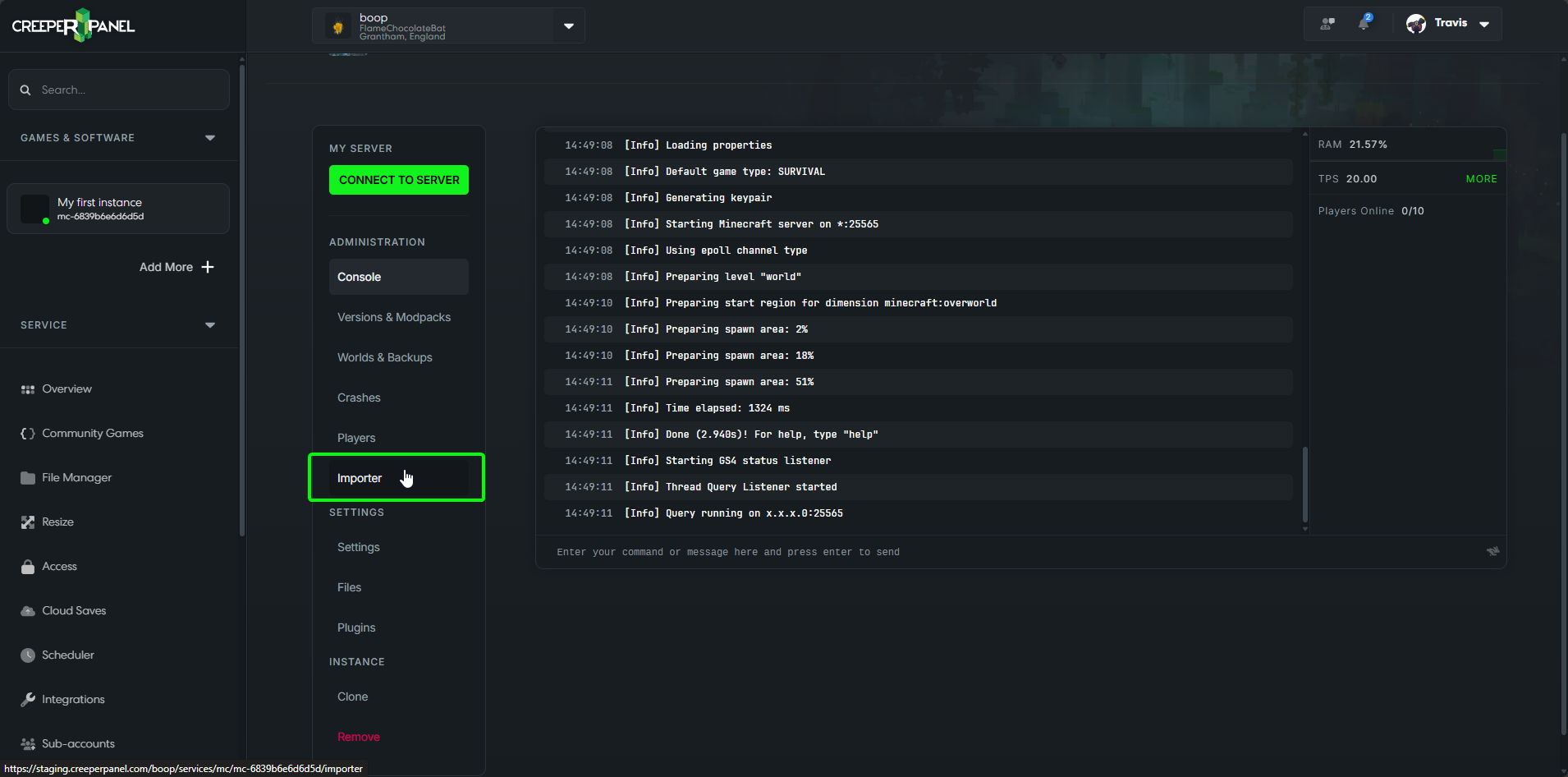
Next click on the Importer link in the instance navigation
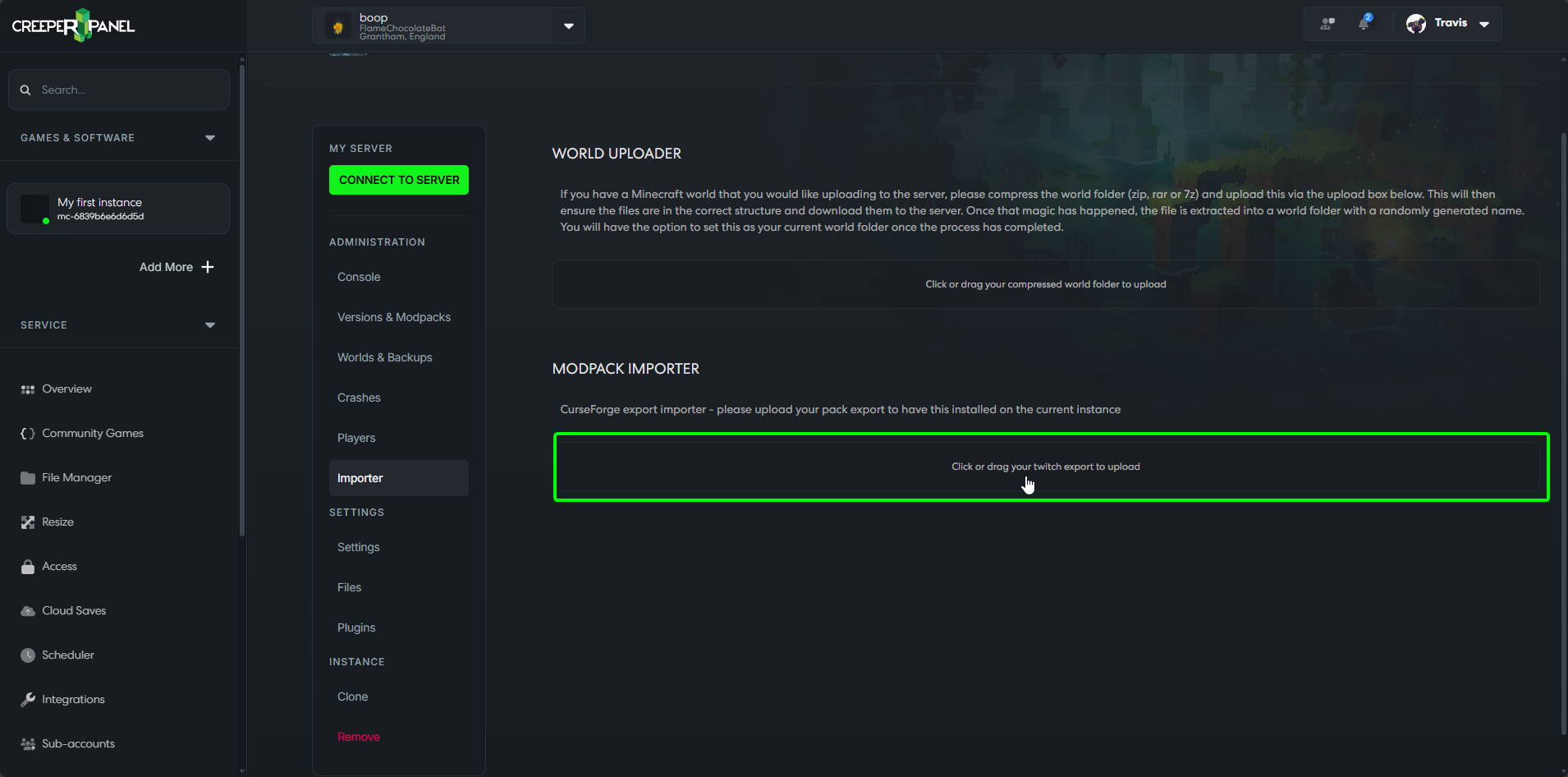
On the Importer page, click on Click or drag your twitch export to upload. This will open a window where you can browse to where your CurseForge modpack.zip is.
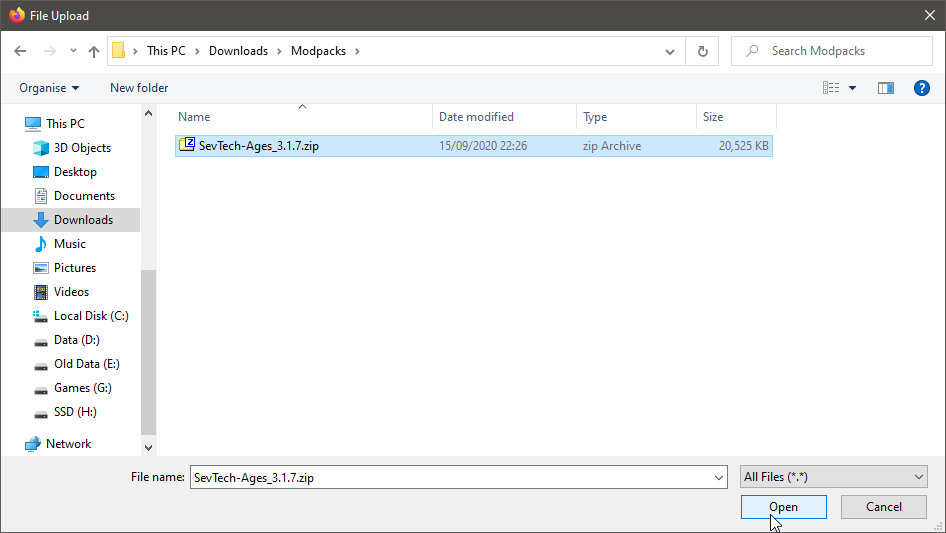
Click on the modpack.zip, then click on Open
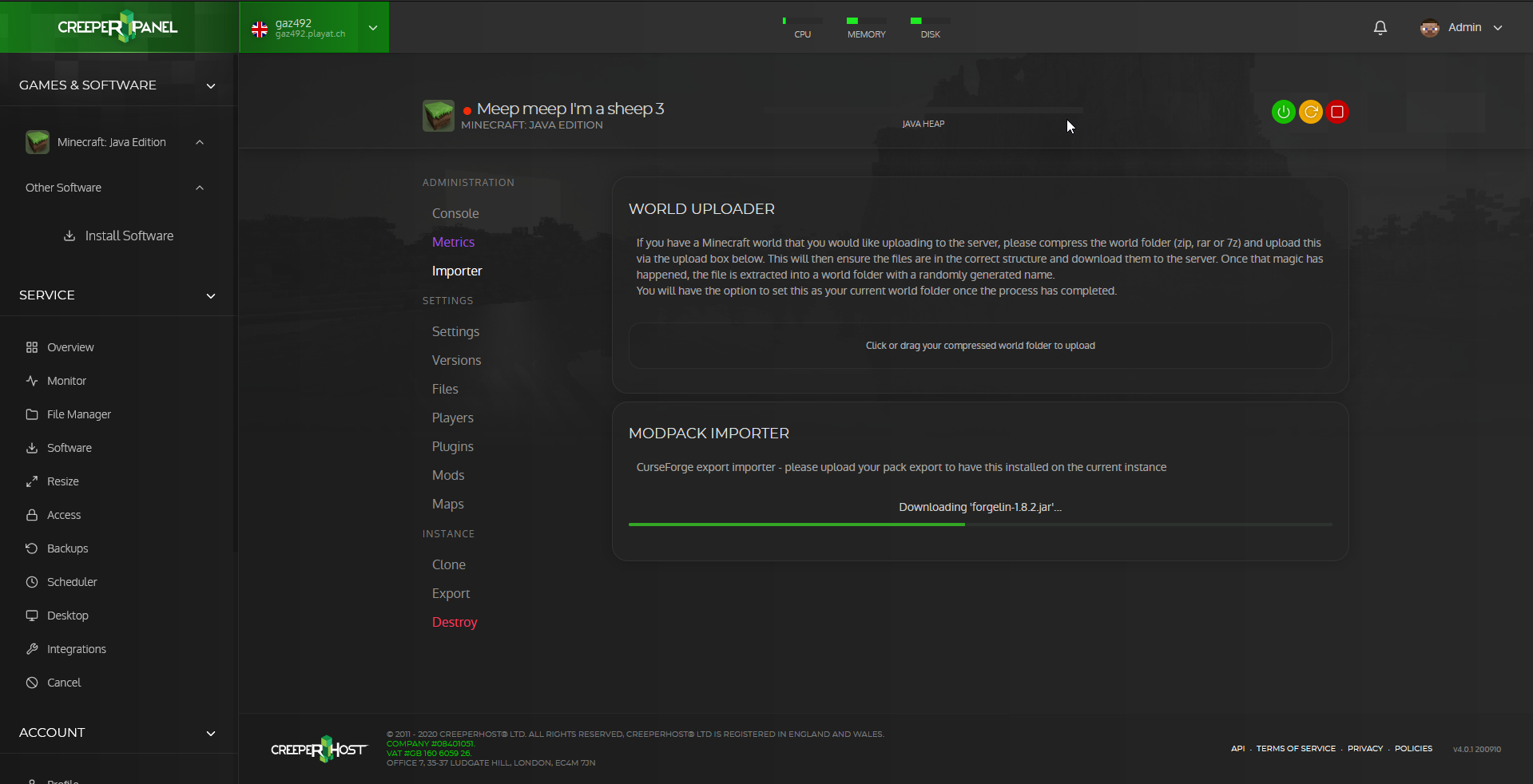
It will now upload the modpack; once the upload is done, you will get a notification saying that it's being installed, and you should see a progress bar showing files being downloaded.
Once the pack has finished installing, you will get another notification saying that your instance is ready to be used; you should be now able to start the instance.